
# WhatsApp

WhatsApp is the ideal chat channel for your business to see higher delivery, open, and conversion rates.

Using WhatsApp as a communication channel, you can get the benefit of:

* Two-way conversations.
* Bulk message-sending capabilities.
* End-to-end encryption that ensures conversations with customers are secure and private.
* Access to WhatsApp users from around the world.
* Engaging communication using interactive messages, images, videos, etc.
* Send one-time pins (OTPs) using authentication templates.
* Automated, self-service customer support.
* Innovative chat commerce experiences with on-demand, real-time, and safe transactions.

## How can I use WhatsApp with Clickatell?

As an authorized WhatsApp provider, Clickatell enables you to engage with your customers using the WhatsApp Business API. With Clickatell's WhatsApp Business API integration, you can:

* Create and manage a WhatsApp Business [account ](/whatsapp-channel/getting-started/create-a-whatsapp-business-account)and [profile](/whatsapp-channel/getting-started/add-and-manage-whatsapp-business-profiles).
* Use simplified [REST-based APIs](https://help.clickatell.com/developers-documentation/channels/whatsapp-and-sms-one-api) to send and receive messages via WhatsApp.
* Get a fully managed WhatsApp verification, approval, and onboarding process.
* Receive supercharged service delivery and customer support using Clickatell's Chat Commerce Platform to automate and orchestrate great customer experiences via the WhatsApp interface.&#x20;
* Utilize Clickatell's other powerful applications:
  * **Chat Flow** - Automations.
  * **Chat Desk** - Agent service desk.
  * **Chat 2 Pay** - Payments & commerce.
* Reuse the integration across multiple touchpoints.&#x20;
* Get access to the latest WhatsApp Business API features.&#x20;
* Access subject matter experts and WhatsApp beta programs.&#x20;

{% hint style="info" %}
Learn [how to get started](/whatsapp-channel/getting-started/quick-start-guide-whatsapp) with WhatsApp.
{% endhint %}


# Quick start guide (WhatsApp)

## Using the WhatsApp channel via Clickatell

1. Create a WhatsApp Business [account ](/whatsapp-channel/getting-started/create-a-whatsapp-business-account)and [profile](/whatsapp-channel/getting-started/add-and-manage-whatsapp-business-profiles) (with Clickatell's assistance).
2. [Register template messages](/whatsapp-channel/channel-capabilities/whatsapp-message-templates) (required for 1-way messages and business-initiated conversations outside the 24-hour interaction window).
3. Start sending messages:
   * Via Clickatell's [One API](https://docs.clickatell.com/channels/one-api/one-api-reference/) to send and receive messages directly via WhatsApp.
   * Via Clickatell's [Chat Flow](broken://spaces/nUgQbWh03Ps6ClRcI2Z0/pages/6eFVjWV0Qz7DzeK9G1Px) and[ Chat Desk](https://guides.clickatell.com/chat-desk) applications.

{% hint style="info" %}
Although you can start using your WhatsApp API immediately, you are limited to the following:&#x20;

* Adding **2** numbers to your account
* Sending business-initiated templated messages to a maximum of **250** unique recipients per day
* Unlimited user-initiated messages

To remove these limitations, [verify your Business Account](/whatsapp-channel/getting-started/get-business-verified).&#x20;
{% endhint %}


# Create a WhatsApp Business account

{% hint style="info" %}
As a registered BSP, Clickatell assists you with the application, but we do not have control over the approval of your application.
{% endhint %}

You need a **verified WhatsApp Business Account** to start talking to your customers via WhatsApp. Follow the steps below to get this set up with Clickatell's assistance.

Once set up, you can send WhatsApp messages to your customers directly via [One API](https://help.clickatell.com/developers-documentation/channels/whatsapp-and-sms-one-api), or our [Chat Flow](broken://spaces/nUgQbWh03Ps6ClRcI2Z0/pages/6eFVjWV0Qz7DzeK9G1Px) and [Chat Desk](https://guides.clickatell.com/chat-desk/) applications.

1. [Add a new account & profile.](#add-new-account-and-profile)
2. [Complete the sign-up journey in Facebook Business Manager.](#complete-the-sign-up-journey-in-facebook-business-manager)
3. [Add a WhatsApp Subscription](#add-a-whatsapp-subscription).
4. [Link your API.](#link-your-api)
5. [View & test your integration.](#view-and-test-your-integration)

### Add a new account & profile

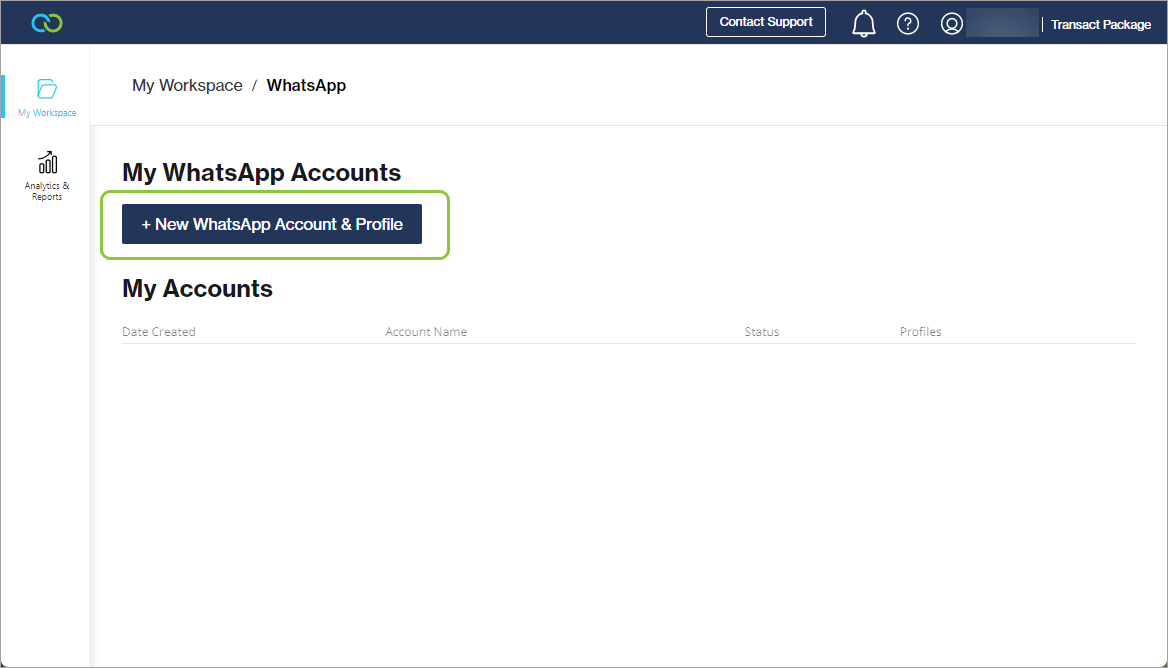
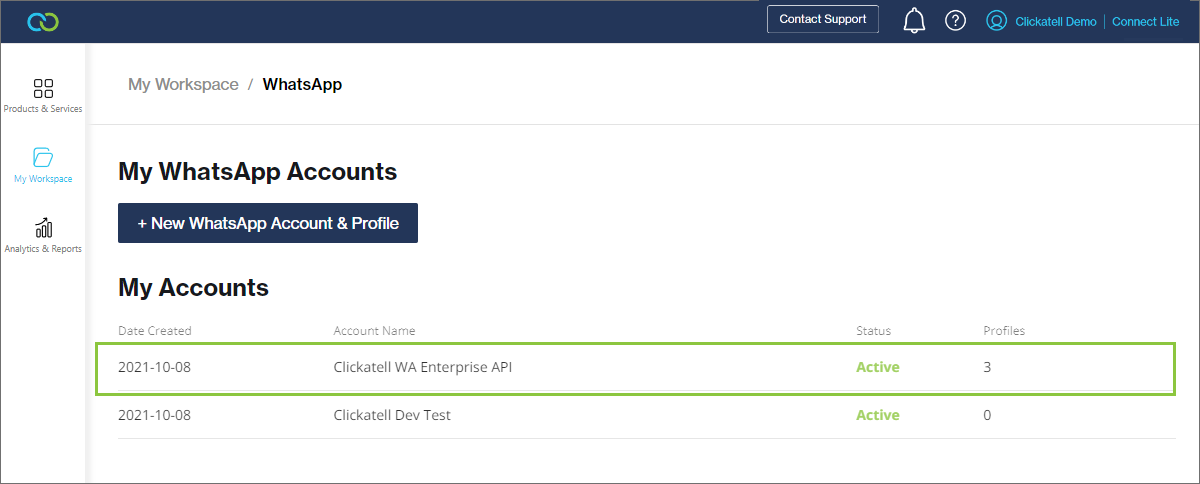
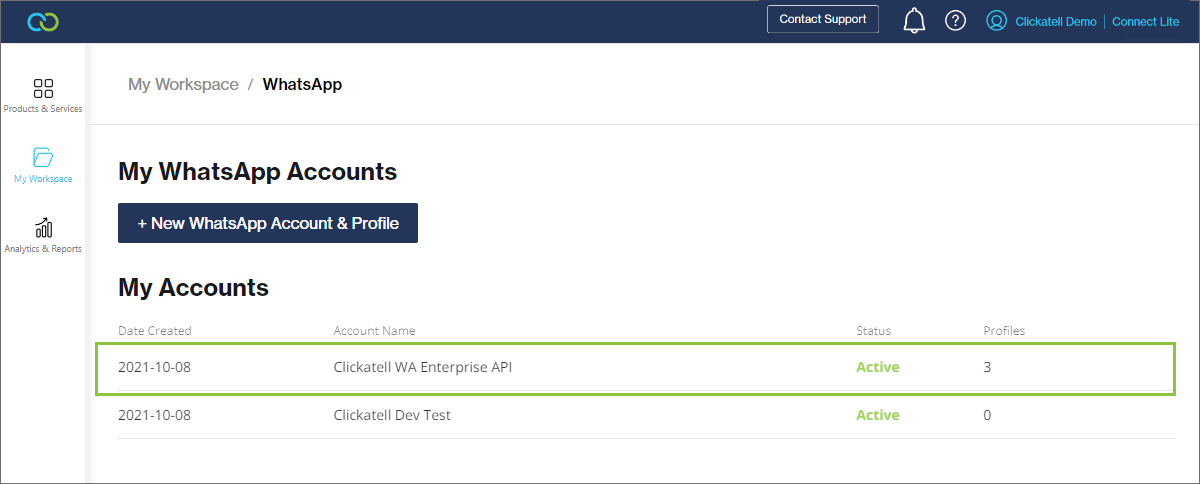
1. In your [Clickatell Portal](https://app.clickatell.com/), navigate to *My Workspace -> WhatsApp*.&#x20;
2. Click *+ New WhatsApp Account & Profile*.&#x20;

<figure><img src="https://content.gitbook.com/content/H9mbp0ZlSZKdmkQMXA0U/blobs/1XpubRtmdsupdyNaLtZz/image.png" alt=""><figcaption></figcaption></figure>

### Complete the sign-up journey in Facebook Business Manager

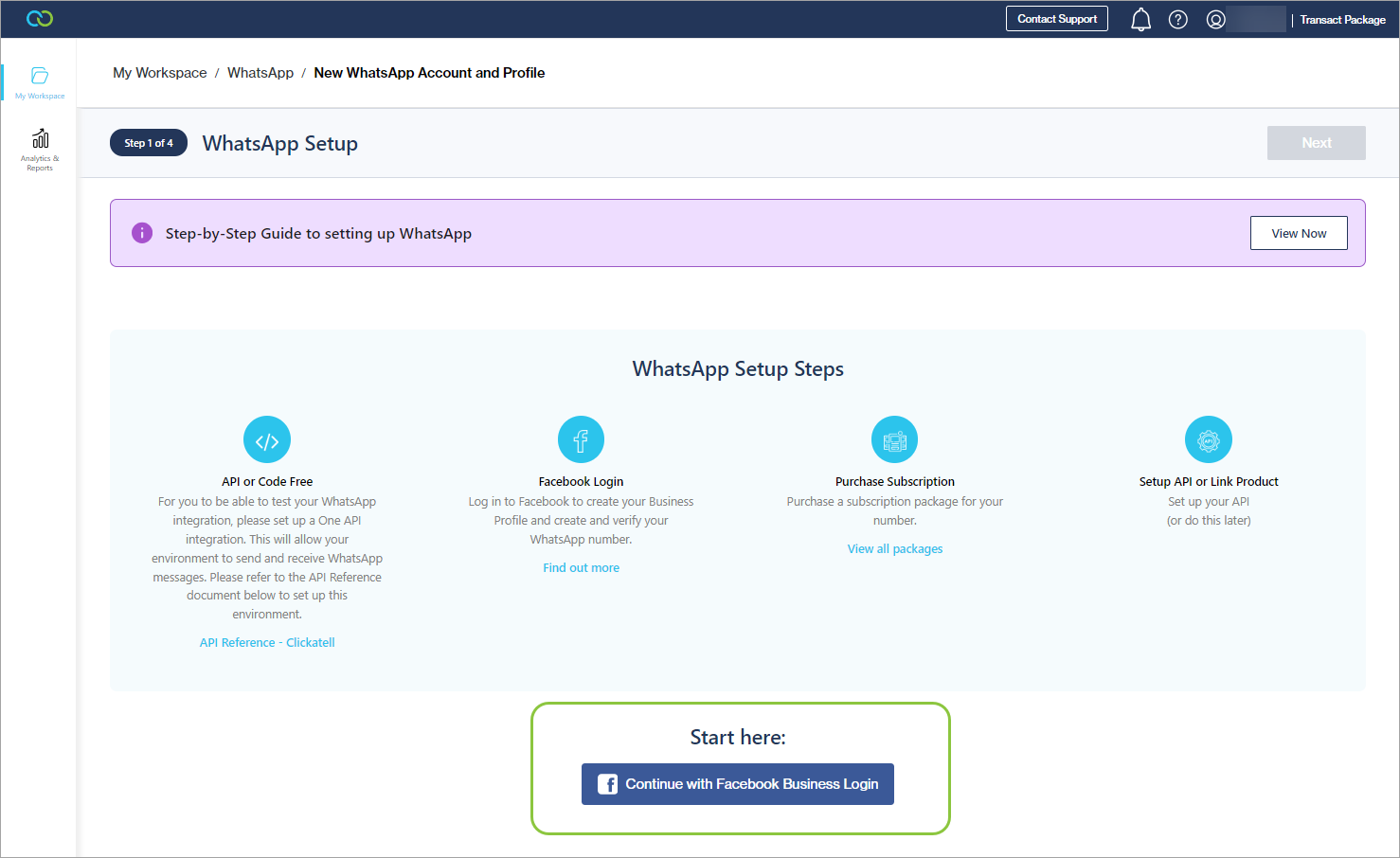
3. Click the *Continue with Facebook Business Login* button.&#x20;
   * This starts the part of the journey that is completed within your **Facebook Business** environment.&#x20;
4. Follow the prompts to complete the process.&#x20;

{% hint style="info" %}
You must complete the entire flow once you start. You will have to start over if you exit the process before the end.

See [here](https://developers.facebook.com/docs/whatsapp/embedded-signup) for more details on completing the steps inside the Facebook environment,&#x20;
{% endhint %}

<figure><img src="https://content.gitbook.com/content/H9mbp0ZlSZKdmkQMXA0U/blobs/YYFLQdG8p3y9mcgcZDVK/image.png" alt=""><figcaption></figcaption></figure>

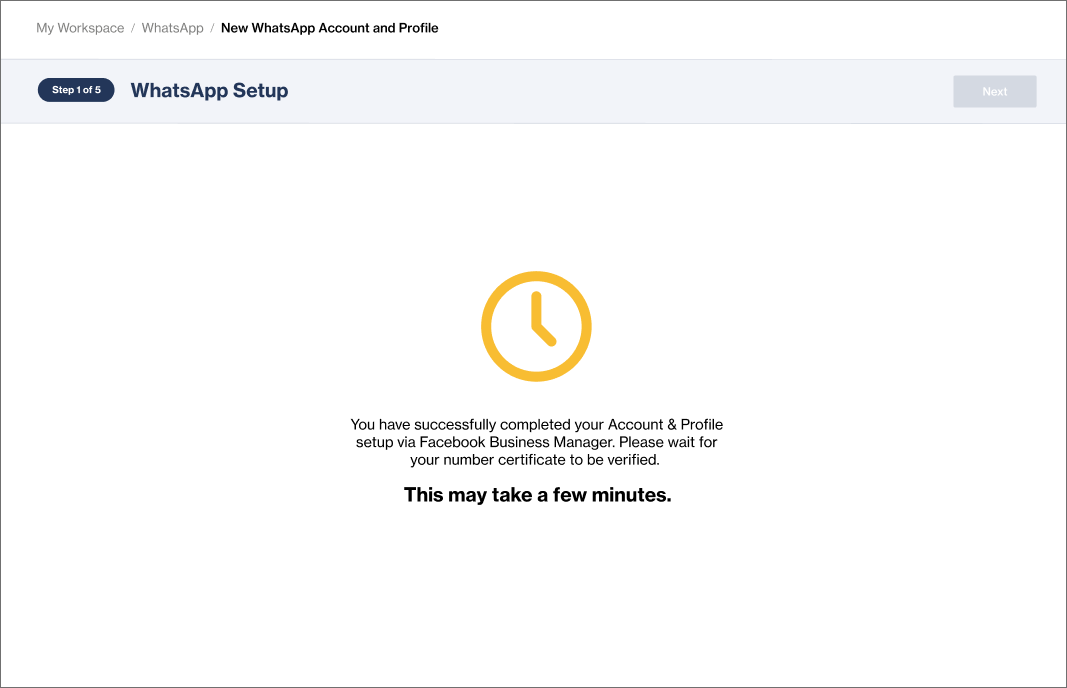
5. Once these steps are done, you are returned to the Clickatell Portal. You may have to wait a few minutes for Clickatell to retrieve your information from Facebook.&#x20;

<figure><img src="https://content.gitbook.com/content/H9mbp0ZlSZKdmkQMXA0U/blobs/yonveHS69xjMpNXTl7Ii/image.png" alt=""><figcaption></figcaption></figure>

### Add a WhatsApp Subscription&#x20;

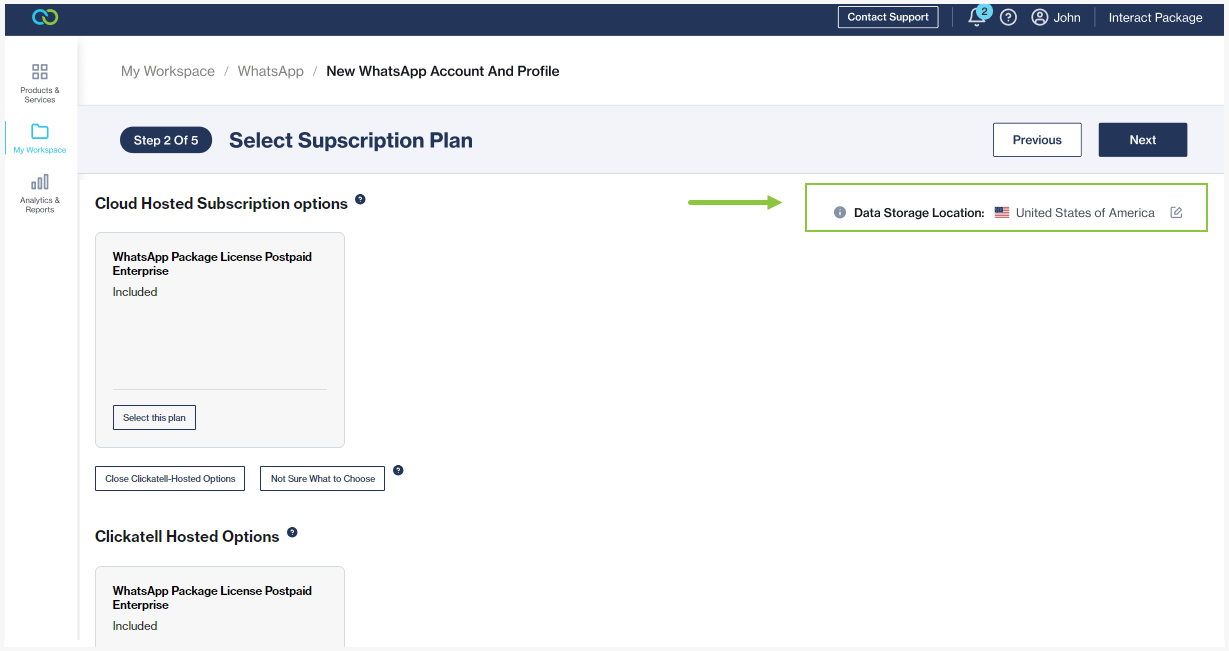
6. You receive a specific WhatsApp subscription as part of your package. Click *Next* to create your profile (see below).

<figure><img src="https://content.gitbook.com/content/H9mbp0ZlSZKdmkQMXA0U/blobs/ahMCZdp1vSMzvRysiW9U/image.png" alt=""><figcaption></figcaption></figure>

### Link your API

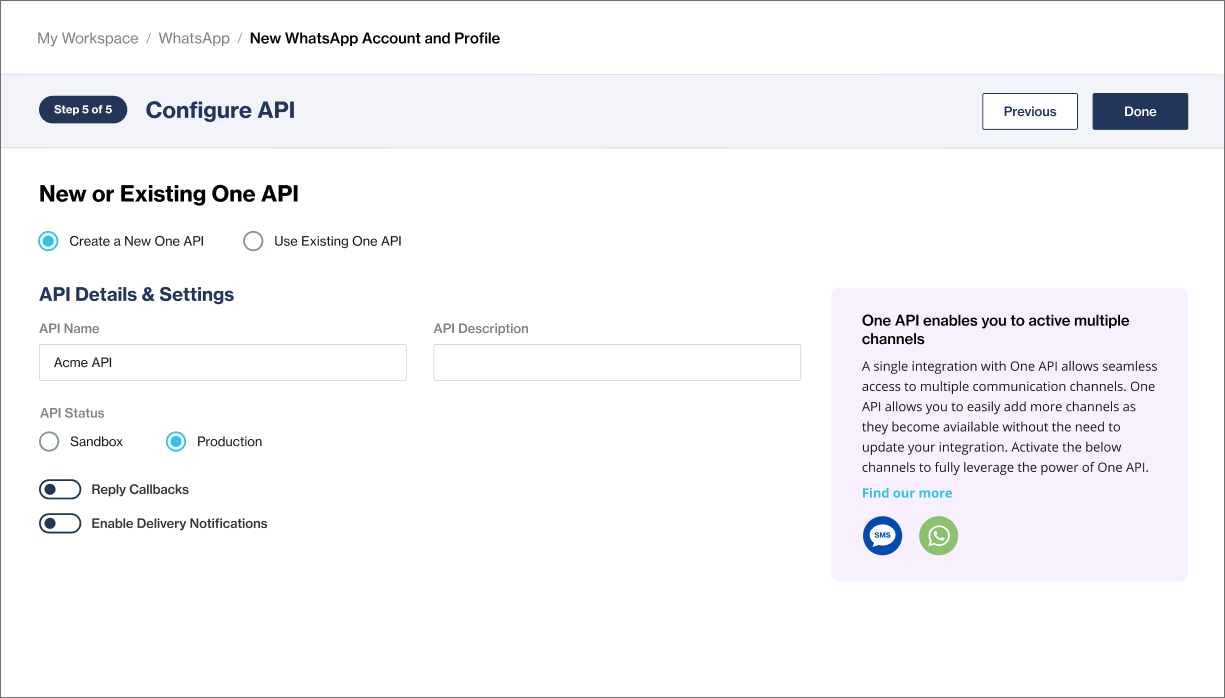
7. Once your profile status changes to "Active", click the *Set Up API* button.&#x20;
8. Select *Use Existing One API* and choose the API already added for you.
9. You can adjust some details.
10. Click *Done*.

<figure><img src="https://content.gitbook.com/content/H9mbp0ZlSZKdmkQMXA0U/blobs/tIPXEHOZzUPF6CqHgb9i/image.png" alt=""><figcaption></figcaption></figure>

### View & test your integration

11. You can now [test ](/whatsapp-channel/getting-started/test-your-integration)your integration.&#x20;
12. You can also view your Business Details and view and manage your API Details and Subscription.

<figure><img src="https://content.gitbook.com/content/H9mbp0ZlSZKdmkQMXA0U/blobs/q0Rjov5LjLKfCxGEwbwU/image.png" alt=""><figcaption></figcaption></figure>

{% hint style="warning" %}
Note that, although you can start using your API, you are limited to the following until your business is verified:

* Adding **2** numbers to your account
* Sending business-initiated templated messages to a maximum of **250** unique recipients per day
* Unlimited user-initiated messages

To remove these limitations, [verify your Business Account](/whatsapp-channel/getting-started/get-business-verified).&#x20;
{% endhint %}


# Add & manage WhatsApp Business profiles

A **Business Profile** is what your customers use to communicate with your business and is linked to a specific profile name and number.

If your business is [verified](/whatsapp-channel/getting-started/get-business-verified), you can add **up to 25** Business Profiles to a WhatsApp Account. You have to go through the same application process for every new Business Profile.

{% hint style="success" %}
You can use your Business Profile to interact with customers only if:

1. Your **profile name and number** have been approved and verified.
2. You have an active WhatsApp **subscription***.*
3. You've connected the Business Profile to an **API** on the **Production** environment.
   {% endhint %}

## Add a new Business Profile

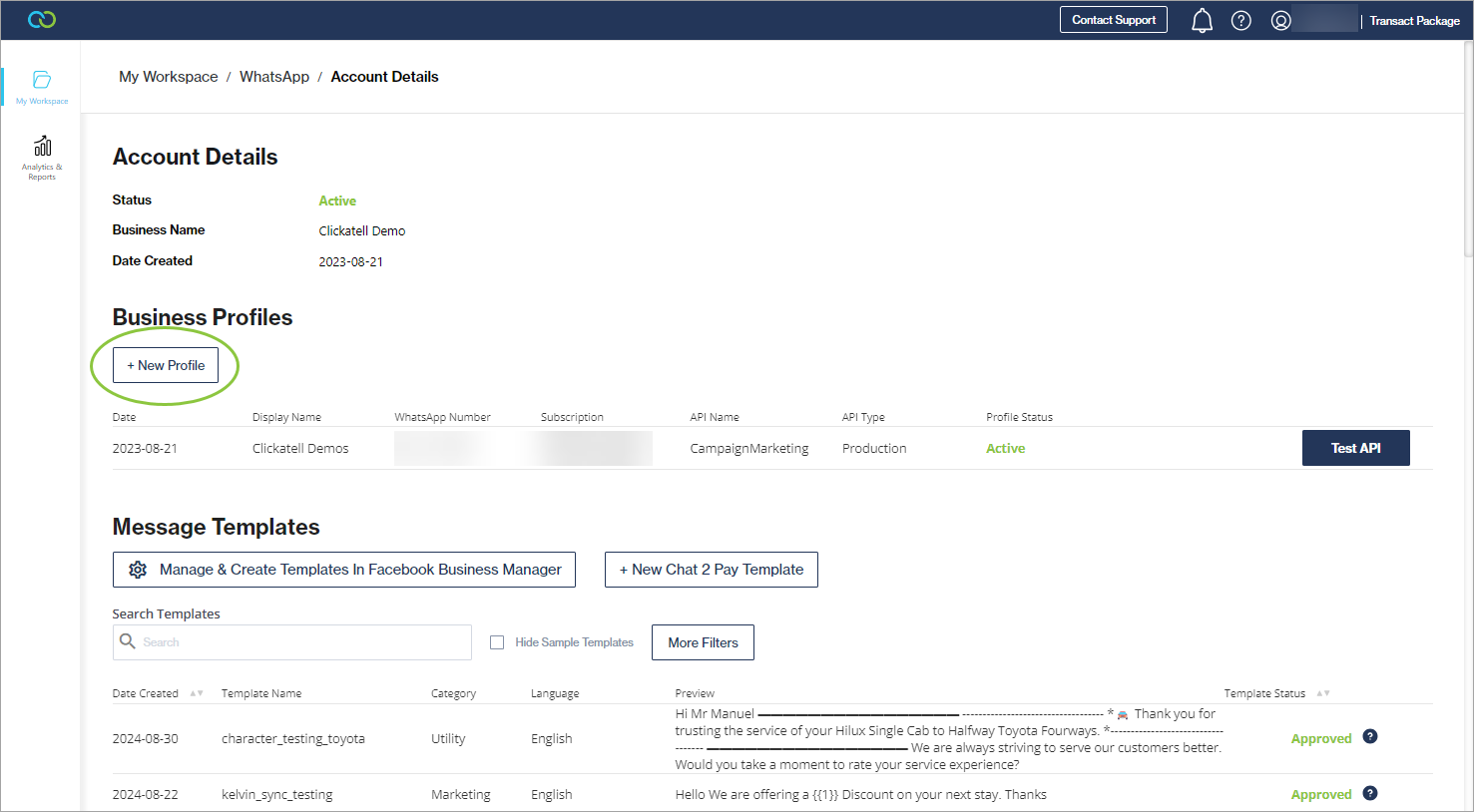
1. Navigate to *My Workspace -> WhatsApp* and select the account to which you want to add the new business profile.

<figure><img src="https://content.gitbook.com/content/H9mbp0ZlSZKdmkQMXA0U/blobs/Jjk6CfaOmo2dz8jg9aiK/image.png" alt=""><figcaption></figcaption></figure>

2. Click *+ New Business Profile* and follow the steps as prompted by the setup wizard.

<figure><img src="https://content.gitbook.com/content/H9mbp0ZlSZKdmkQMXA0U/blobs/pd6MKMydBWK6UjCaU5xb/image.png" alt=""><figcaption></figcaption></figure>

## **Manage your Business Profiles**

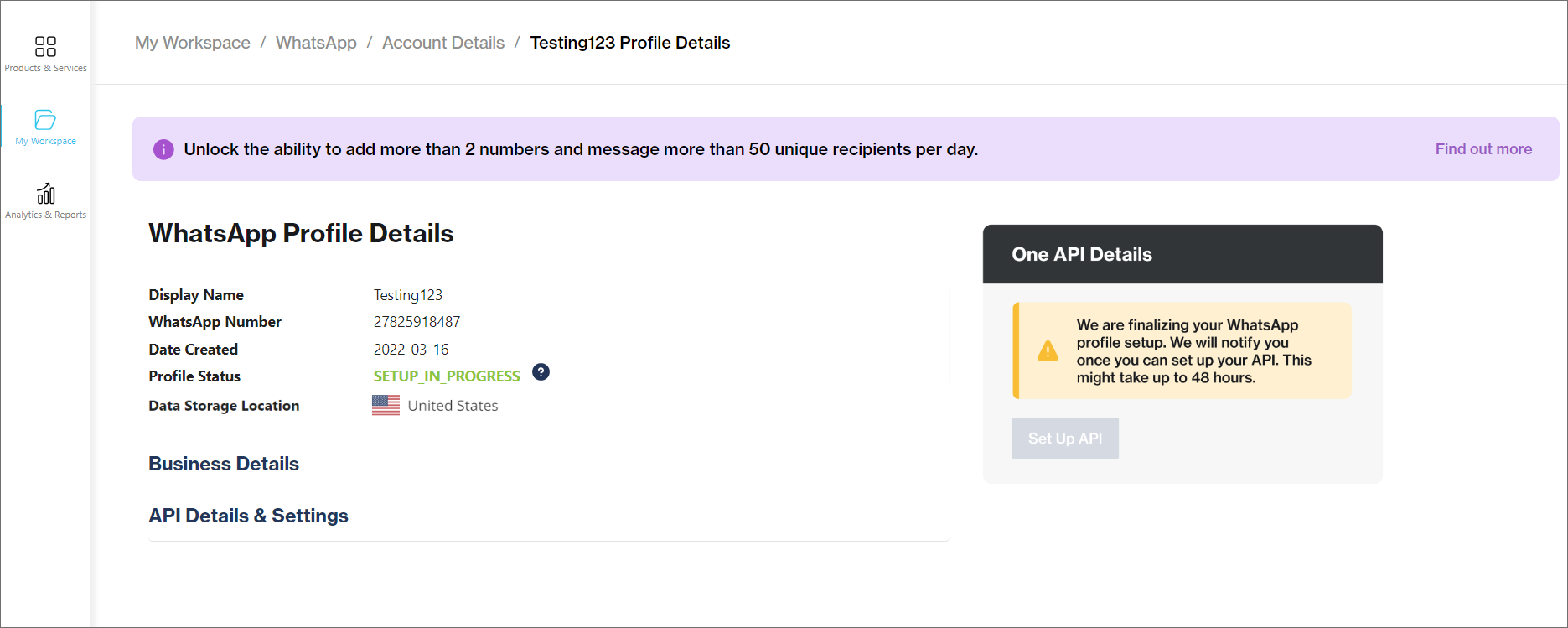
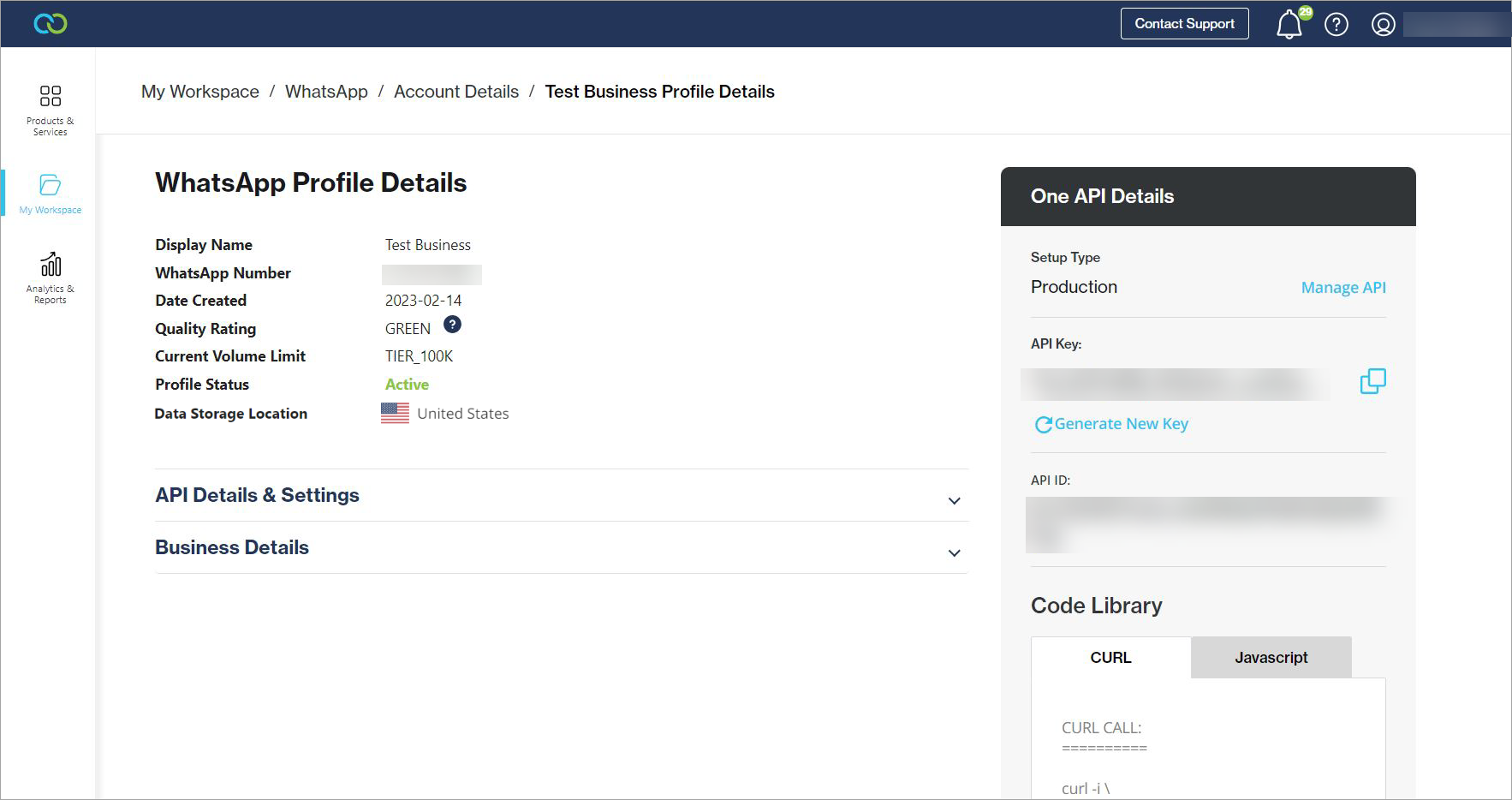
1. Navigate to *My Workspace -> WhatsApp* and select the WhatsApp account from the table.&#x20;
2. Select the Business Profile from the table.&#x20;
   * This opens the *WhatsApp Profile Details* page (see below)

<figure><img src="https://content.gitbook.com/content/H9mbp0ZlSZKdmkQMXA0U/blobs/xMb1BiLSqDgbeJNkpe1M/image.png" alt=""><figcaption></figcaption></figure>

{% hint style="info" %}

* You can connect an API to the business profile only once the profile is **active**.
* A "**deactivated**" status could indicate that the number connected to this profile has been deleted from your Meta Business Manager. You'll need to [add ](#add-a-new-business-profile)this profile again from scratch.&#x20;
  {% endhint %}


# Test your integration

Once your WhatsApp [Account ](/whatsapp-channel/getting-started/create-a-whatsapp-business-account)and [Profile ](/whatsapp-channel/getting-started/add-and-manage-whatsapp-business-profiles)setup is complete and has an "Active" state, you can test your WhatsApp API integration to ensure it is working as expected.

## Test your integration

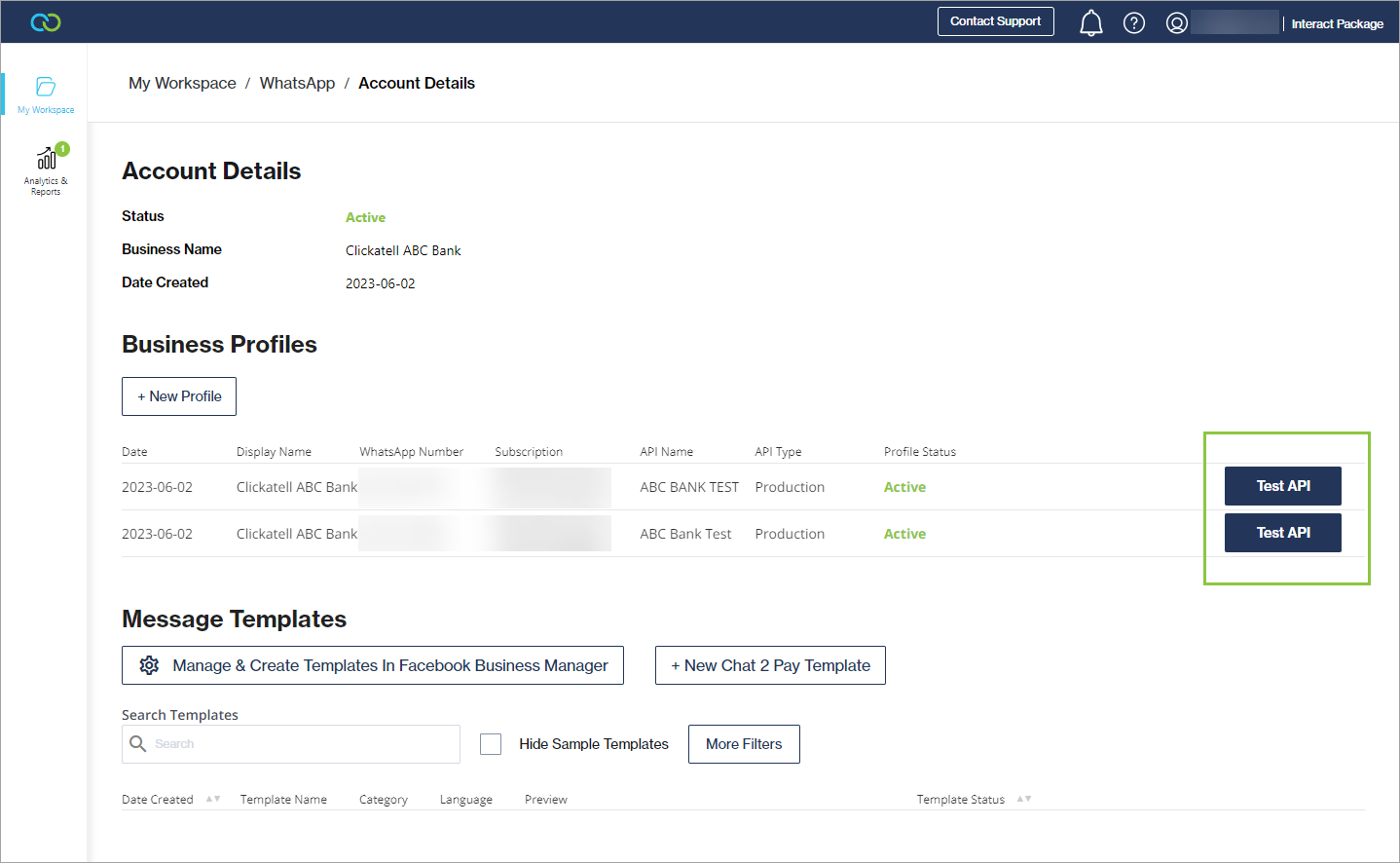
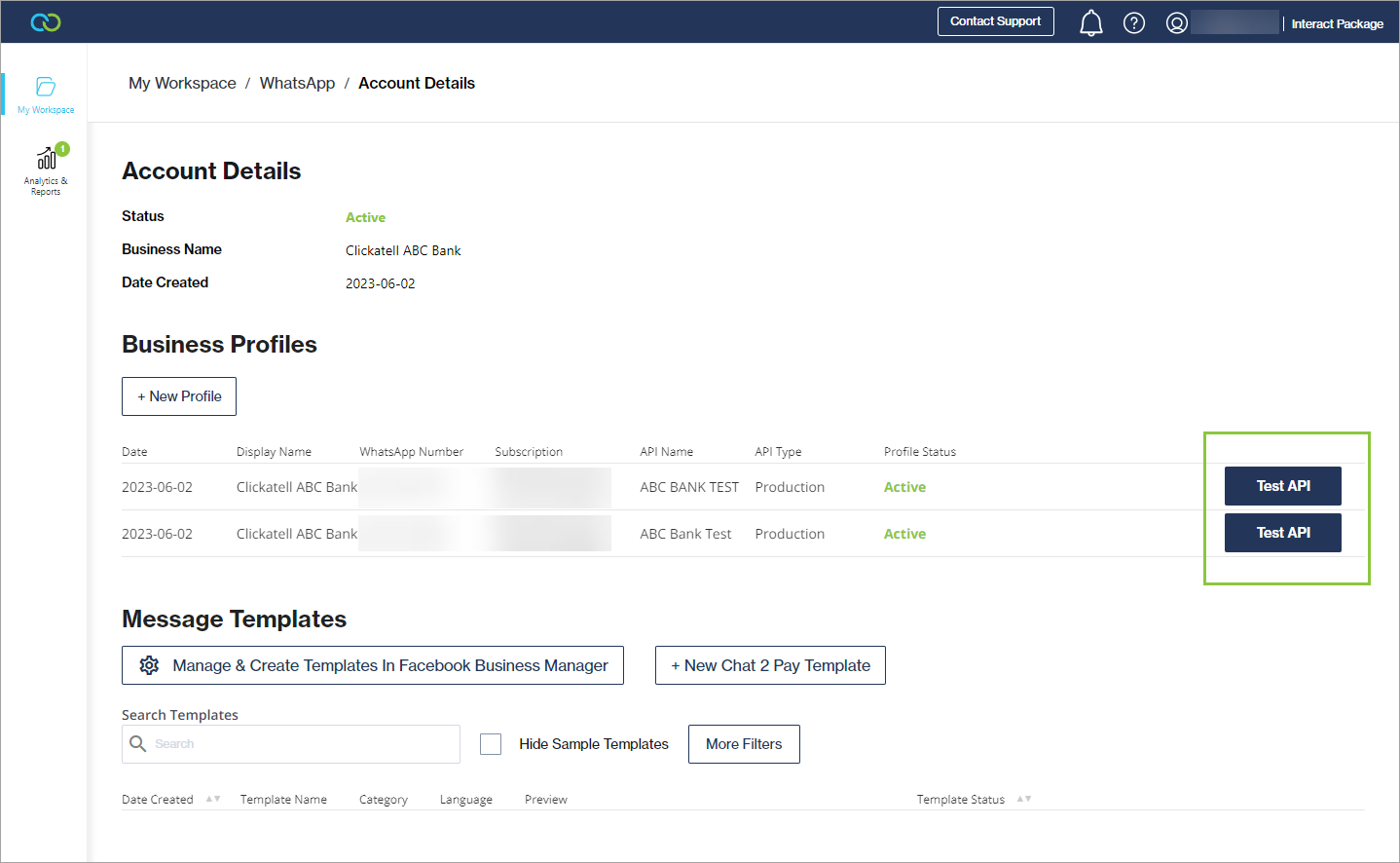
1. Navigate to *My Workspace -> WhatsApp* and select a WhatsApp account.&#x20;
2. Click the *Test API* button next to the profile you want to test.

<figure><img src="https://content.gitbook.com/content/H9mbp0ZlSZKdmkQMXA0U/blobs/lqP7T3SCF7GhIzJyqCfW/image.png" alt=""><figcaption></figcaption></figure>

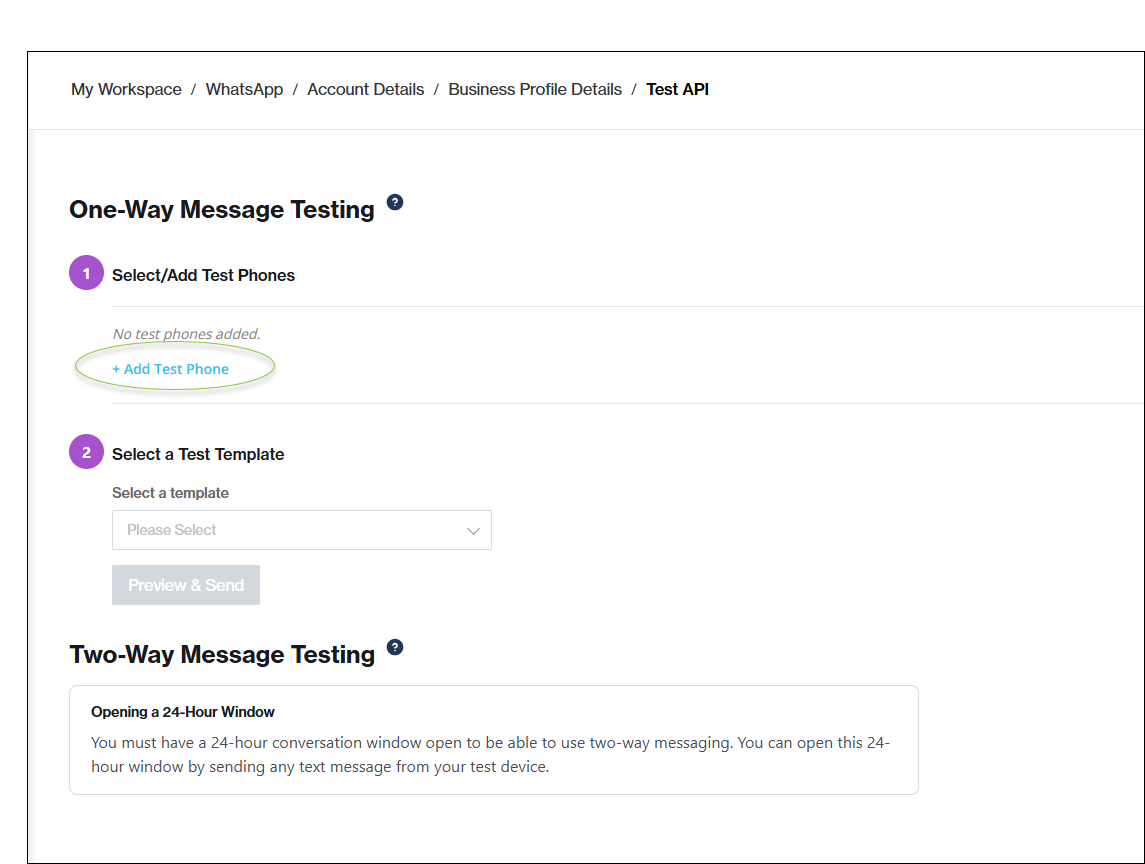
3. Add **up to 10** test phones to your account.

   * Test phones are automatically linked to all integrations.
   * Test phones are automatically added to the WhatsApp whitelist.
   * A test phone can be unlinked from One API.

   <figure><img src="https://content.gitbook.com/content/H9mbp0ZlSZKdmkQMXA0U/blobs/EPGC2QinNHjhNYFhuc0S/image.png" alt=""><figcaption></figcaption></figure>
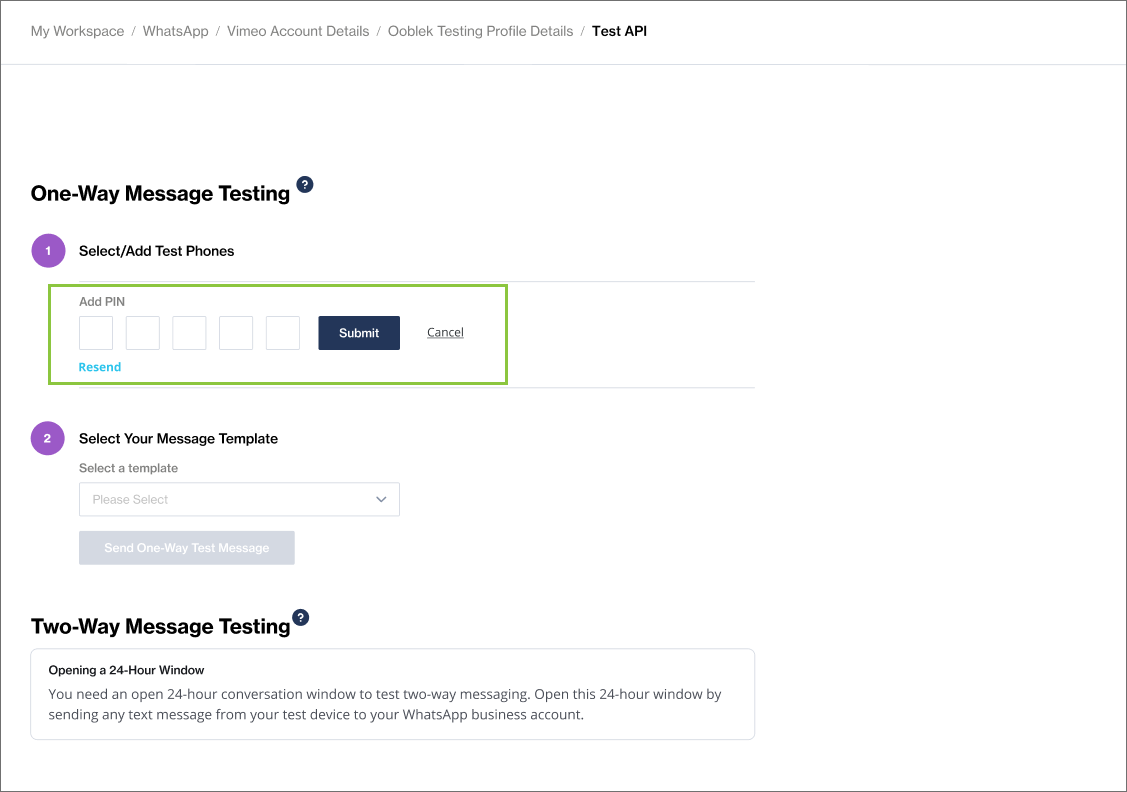
4. To verify and activate your test phone number, a 5-digit PIN is sent to the phone you've added.
5. Enter this value and click *Submit*.

<figure><img src="https://content.gitbook.com/content/H9mbp0ZlSZKdmkQMXA0U/blobs/WdyN6WqlGlT42FxWDDGq/image.png" alt=""><figcaption></figcaption></figure>

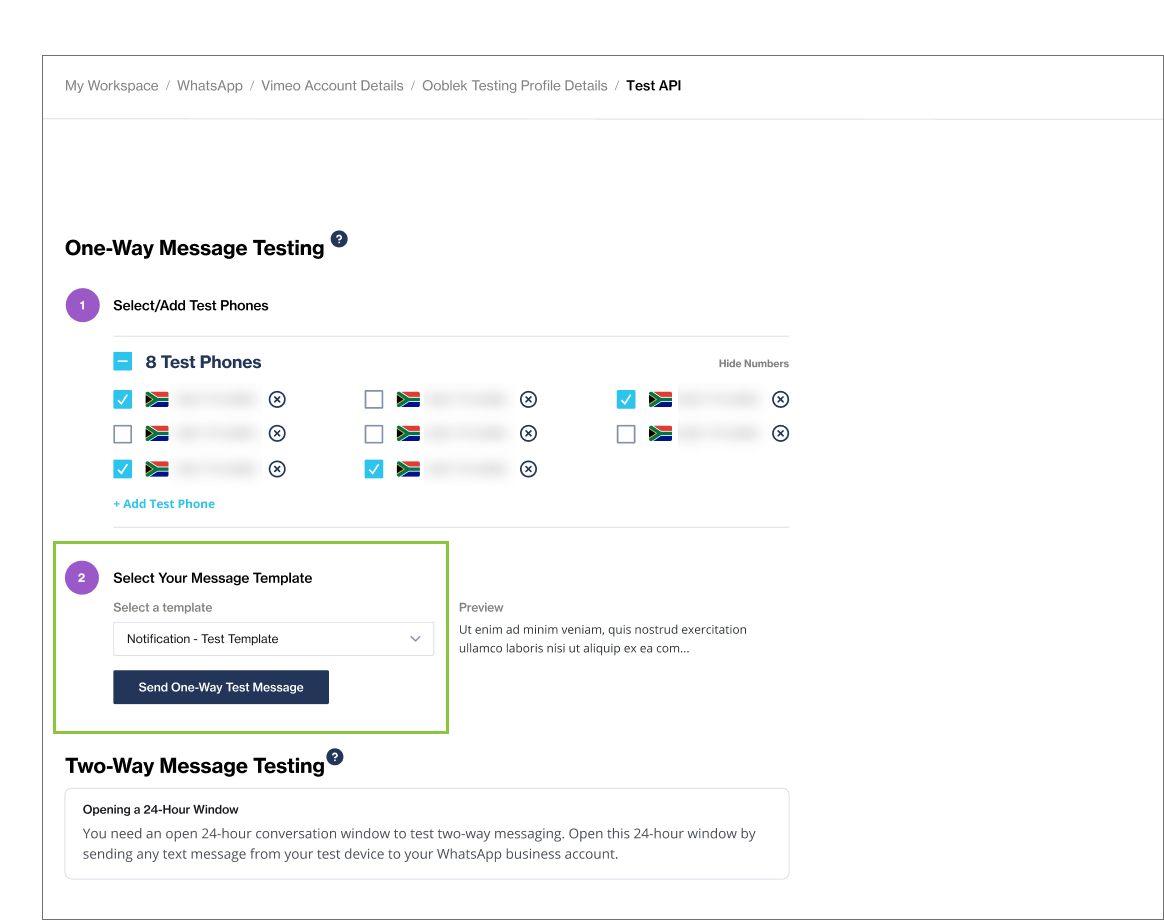
6. Select one or more of your test numbers, select a template from the drop-down, and click the *Send One-Way Test Message* button  (This test environment only supports text templates. You cannot use templates with headers, footers, media, and buttons).

<figure><img src="https://content.gitbook.com/content/H9mbp0ZlSZKdmkQMXA0U/blobs/MoyQZYGx0pgvYsyb8jTS/image.png" alt=""><figcaption></figcaption></figure>

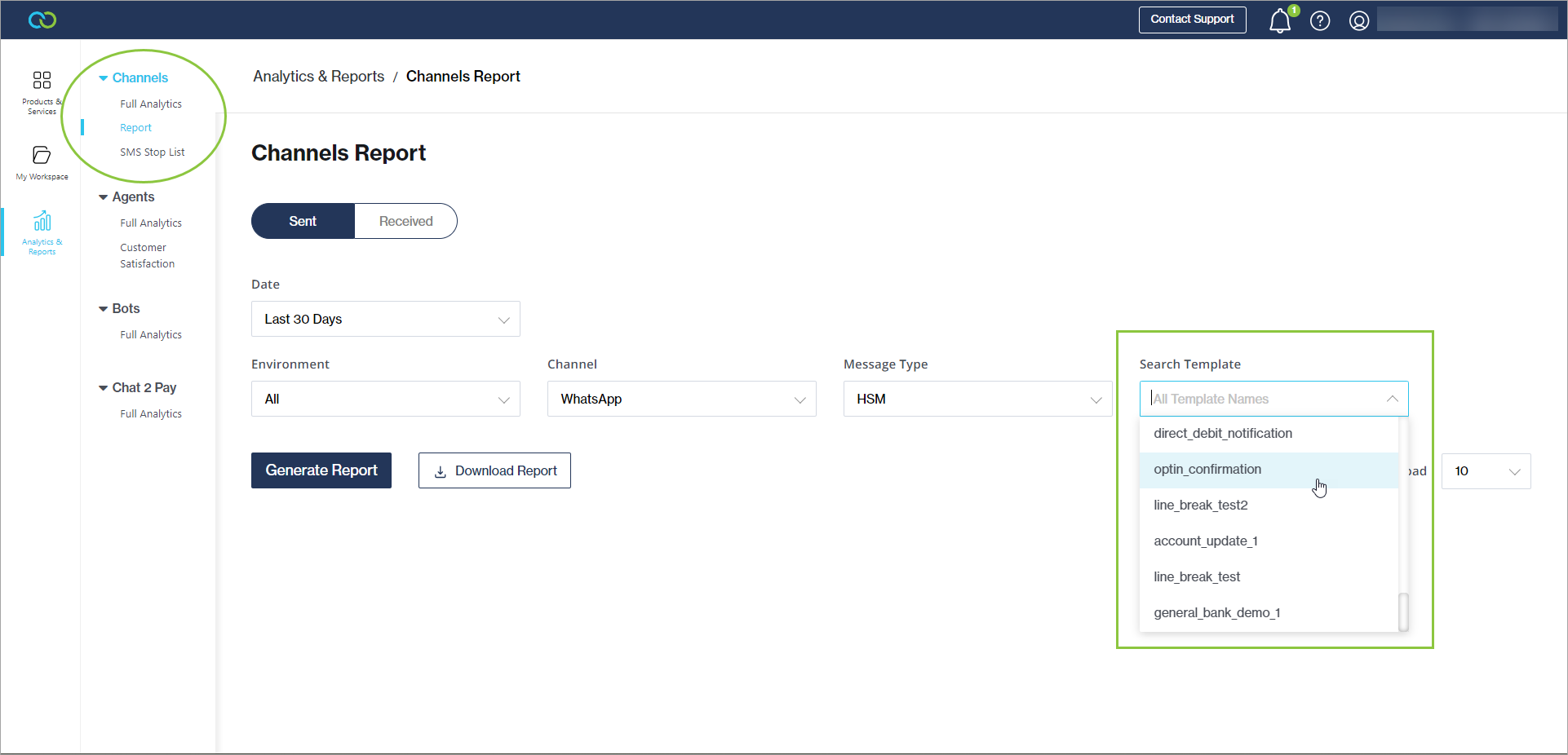
7. Once you have sent your test message you will receive confirmation that your test message has been sent and you can view the status of the test message in your [*Channels Report*](https://clickatell.gitbook.io/chat-commerce-platform/navigation-and-access/reporting-and-analytics/messaging-channels#channels-report) in the Clickatell Portal.&#x20;

{% hint style="info" %}
Note that when testing your integration, the following limitations apply:

* You can send a maximum of 100 messages per day. After 100 messages have been sent in a 24 hour period, the messages will be simulated.
* You can send a maximum of 1000 messages per month.
* Limits are configurable, and can be configured by Clickatell Admins. If you would like to find out if you qualify for any changes to the limitations on your account, please reach out to our Support Team or your Technical Account Manager.
* When you send a message to a WhatsApp number you will be billed at WhatsApp rates.

{% endhint %}


# Get business verified

## Why get verified?

You can start using the WhatsApp Business APIs even if you are not business verified.

However, it is strongly recommended that your business gets verified. If you are not business verified the following limitations apply:

* You can only have **two** business telephone numbers per WhatsApp account.
* You can only send **250** business-initiated templated messages within a 24-hour period.
* You can receive unlimited user-initiated messages.

## Verify your business

{% hint style="info" %}
Business verification can take 1 - 5 business days.
{% endhint %}

To verify your business and remove the above limitations:&#x20;

1. Go to [Facebook Business Manager](https://business.facebook.com).
2. &#x20;If you already have one, select your business account. If you do not have a Facebook Business Manager account, you can create one by visiting <https://business.facebook.com/create>.
3. On the left navigation, click *Settings*.
4. From the *Settings* page, go to *Security Center* on the left navigation.
5. Click on *Start Verification*.
6. Complete your Business Details in the next form.

{% hint style="success" %}
Refer to[ this page](https://www.facebook.com/business/help/2058515294227817?id=180505742745347) for more information.
{% endhint %}

## **Required documentation** <a href="#required-documentation" id="required-documentation"></a>

* **Legal Name Document** – *one of the below documents* \
  – Business Registration (BR) \
  – Company Incorporation Certificate \
  – Tax/VAT Certificate
* **Address Proof Document** – *one of the below documents* \
  – Bank Account Statement \
  – Utility Bill (Phone/Electricity Bill)
* There might be additional documentation required depending on your country of residence. This will be outlined when you enter your business verification information.

## Why would your business verification be rejected? <a href="#why-would-your-business-verification-be-rejected" id="why-would-your-business-verification-be-rejected"></a>

* Legal Name Document and Address Proof Document have different addresses.
  * *Please make sure all documents have the exact same address*
* Business Legal Name is not mentioned on the website submitted.
  * *It is advised to mention your company’s legal name in the footer of your website*
* Business Email Address not used during verification.
  * *It is advised to use the business email address for Facebook Business Verification*


# Initiate WhatsApp conversations

You need to follow the below guidelines when initiating conversations with your customers via the WhatsApp channel.

## Business-initiated conversations

When initiating a conversation with customers via WhatsApp, you have to use a WhatsApp [message template](/whatsapp-channel/channel-capabilities/whatsapp-message-templates). This starts the conversation, but the customer needs to respond to the message template to give consent for the interaction and open the conversation window.&#x20;

Once the conversation window is open, your business can freely communicate with the customer using free text messages (i.e., not a template) for a period of 24 hours.

{% hint style="info" %}
WhatsApp message templates go through an approval process before they can be used for sending. Find out more about WhatsApp message templates, template types, and how they are used [here](/whatsapp-channel/channel-capabilities/whatsapp-message-templates).
{% endhint %}

Business-initiated conversations via template messages can be used for:

* Time-sensitive notifications, e.g., flight status changes
* Shipping order or delivery status updates
* Two-factor authentication codes
* Payment updates
* And many more

## Customer-initiated conversations

When customers initiate conversations with your WhatsApp Business account, a message template is **not** required. The fact that the customer initiated the conversation automatically provides consent for interaction between them and your business.

## Usernames & Business-Scoped User IDs

WhatsApp allows users to adopt usernames, meaning they can message your business without sharing their phone number. Every user is also identified by a Business-Scoped User ID (BSUID) — a unique identifier for each user-business relationship.


# Message types

All message types, except for template messages, can only be sent to a WhatsApp user when a [24-hour customer service window ](https://developers.facebook.com/docs/whatsapp/pricing#customer-service-windows)is open between you and the user. Template messages can be sent to a WhatsApp user at any time, as long as the user has opted-in to receive messages from you.

{% hint style="success" %}
See our [Developer Documentation](https://docs.clickatell.com/channels/one-api/one-api-reference/) for details about using our APIs.
{% endhint %}

## Message types

The WhatsApp Business API can be used to send the following types of messages (listed alphabetically):

### Audio messages

Display an audio icon and a link to an audio file. The audio file is downloaded and played when a customer taps the icon.

<figure><img src="https://content.gitbook.com/content/H9mbp0ZlSZKdmkQMXA0U/blobs/yZxZ21myMUJBJkeHTYIN/image.png" alt="" width="375"><figcaption></figcaption></figure>

### Authentication message

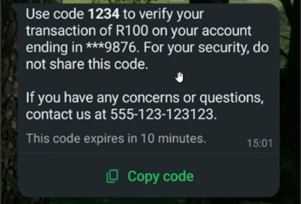
A highly structured template that allows One Time Pins to be delivered via the WhatsApp channel.

<figure><img src="https://2965460130-files.gitbook.io/~/files/v0/b/gitbook-x-prod.appspot.com/o/spaces%2FH9mbp0ZlSZKdmkQMXA0U%2Fuploads%2FA6BYJtyZmsu3e086nftg%2FWhatsApp%20authentication.png?alt=media&amp;token=69c803a3-fd4f-42d9-9f15-000240302830" alt=""><figcaption></figcaption></figure>

### Commerce messages

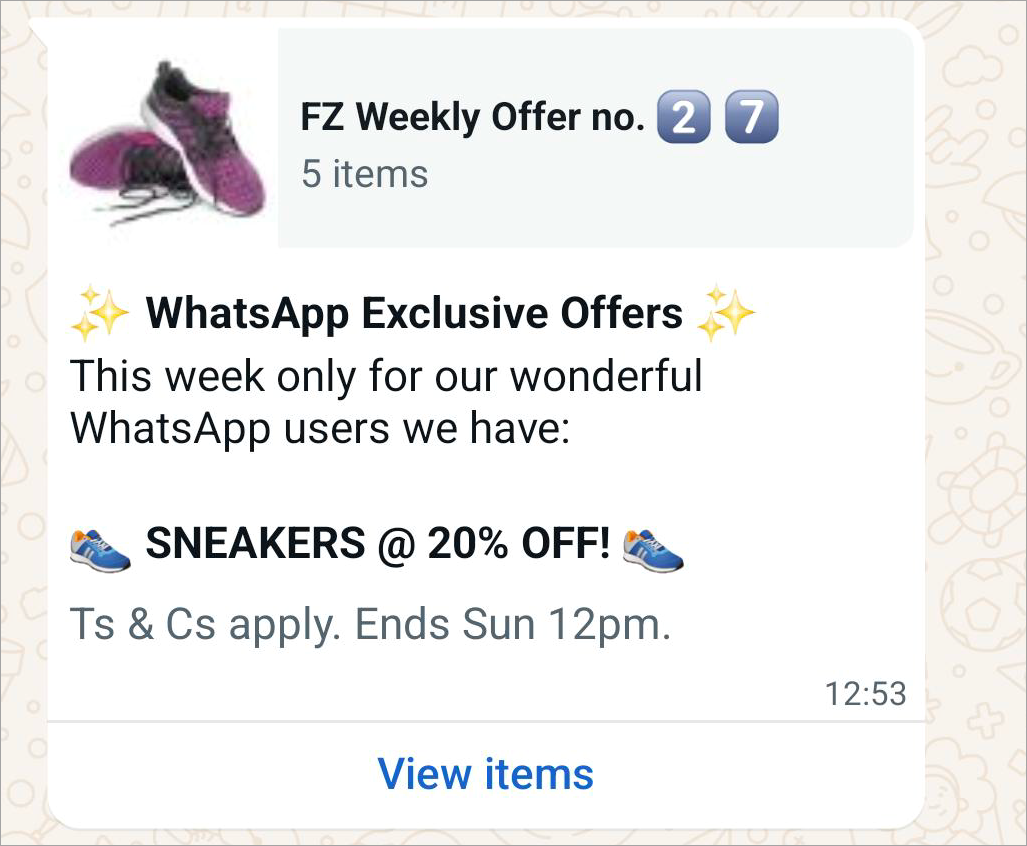
Commerce messages are interactive messages used in conjunction with a product catalog. Catalog messages are free-form messages that allow you to showcase your product catalog entirely within WhatsApp.&#x20;

{% hint style="info" %}
See [WhatsApp Commerce Messages](/whatsapp-channel/channel-capabilities/whatsapp-commerce-messages) for more details.
{% endhint %}

<figure><img src="https://content.gitbook.com/content/H9mbp0ZlSZKdmkQMXA0U/blobs/yJ5t0S25eimQx3KqVZ5f/image.png" alt="" width="375"><figcaption></figcaption></figure>

### Contacts messages

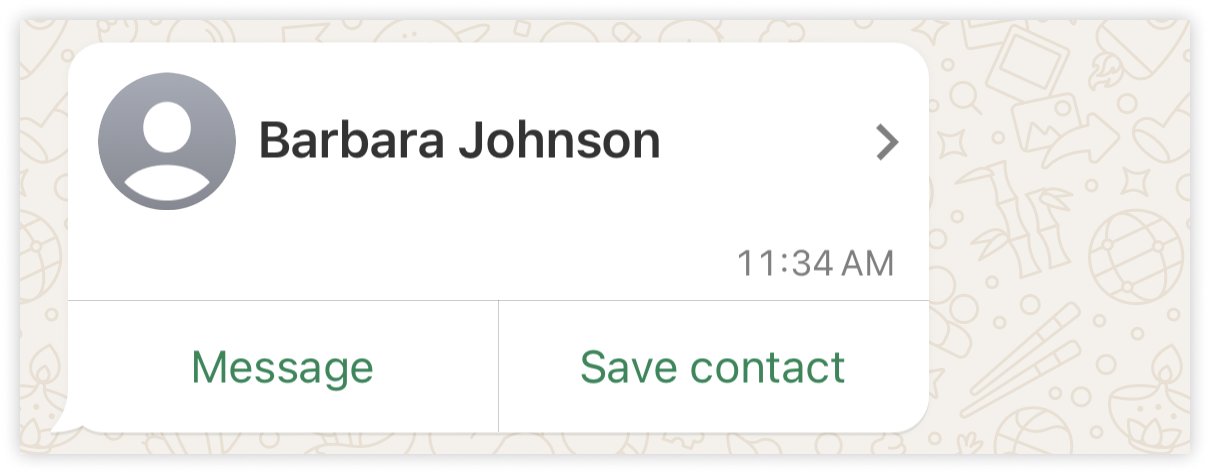
Send rich contact information such as names, phone numbers, physical addresses, and email addresses directly to customers.

<figure><img src="https://content.gitbook.com/content/H9mbp0ZlSZKdmkQMXA0U/blobs/mMHVlQntWmtc332kNhJG/image.png" alt="" width="375"><figcaption></figcaption></figure>

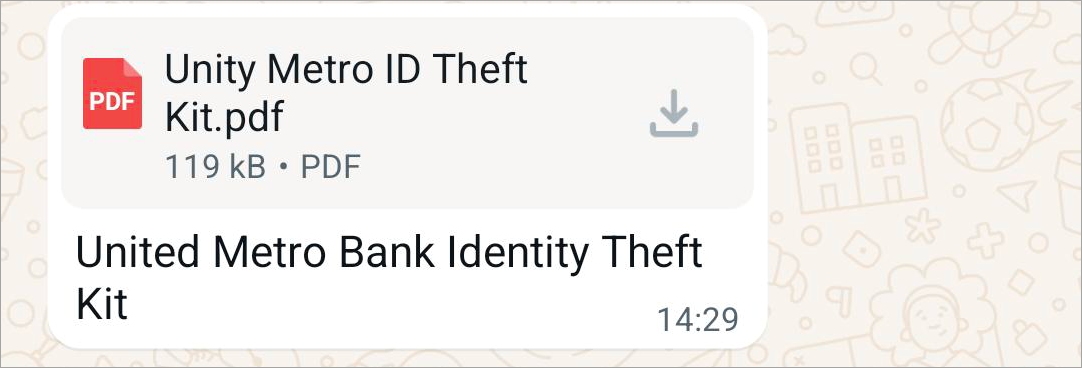
### Document messages

Display a document icon, linked to a document that a customer can tap to download.

<figure><img src="https://content.gitbook.com/content/H9mbp0ZlSZKdmkQMXA0U/blobs/w8nYjsSKhTrulorHCJAB/image.png" alt="" width="375"><figcaption></figcaption></figure>

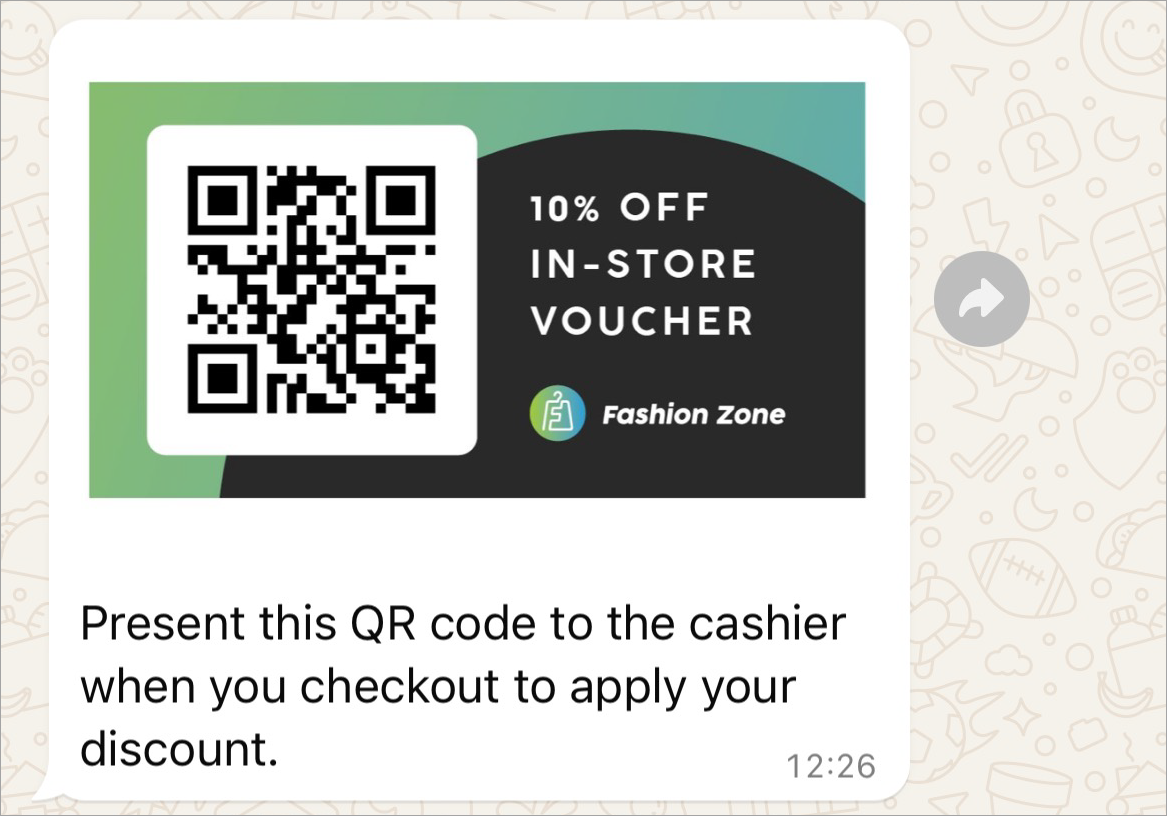
### Image messages

Display a single image and an optional caption.

<figure><img src="https://content.gitbook.com/content/H9mbp0ZlSZKdmkQMXA0U/blobs/Ni1Dq4fJUIDgpANyLSIF/image.png" alt="" width="375"><figcaption></figcaption></figure>

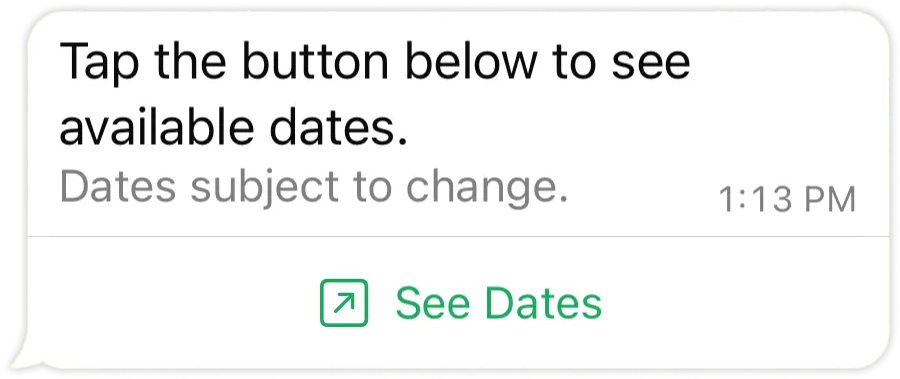
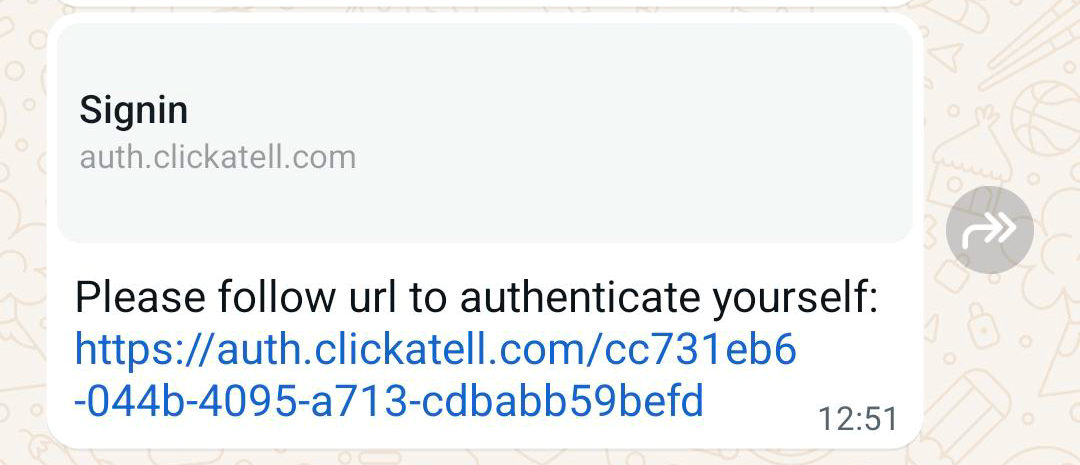
### Interactive CTA URL button messages

Map any URL to a button, so you don't have to include raw URLs in the message body.

{% hint style="info" %}
See [Interactive messages](/whatsapp-channel/channel-capabilities/interactive-messages-lists-reply-buttons-location-requests) for more details.
{% endhint %}

<figure><img src="https://content.gitbook.com/content/H9mbp0ZlSZKdmkQMXA0U/blobs/KBo9MJGBWF5CUPKjdrUJ/image.png" alt="" width="375"><figcaption></figcaption></figure>

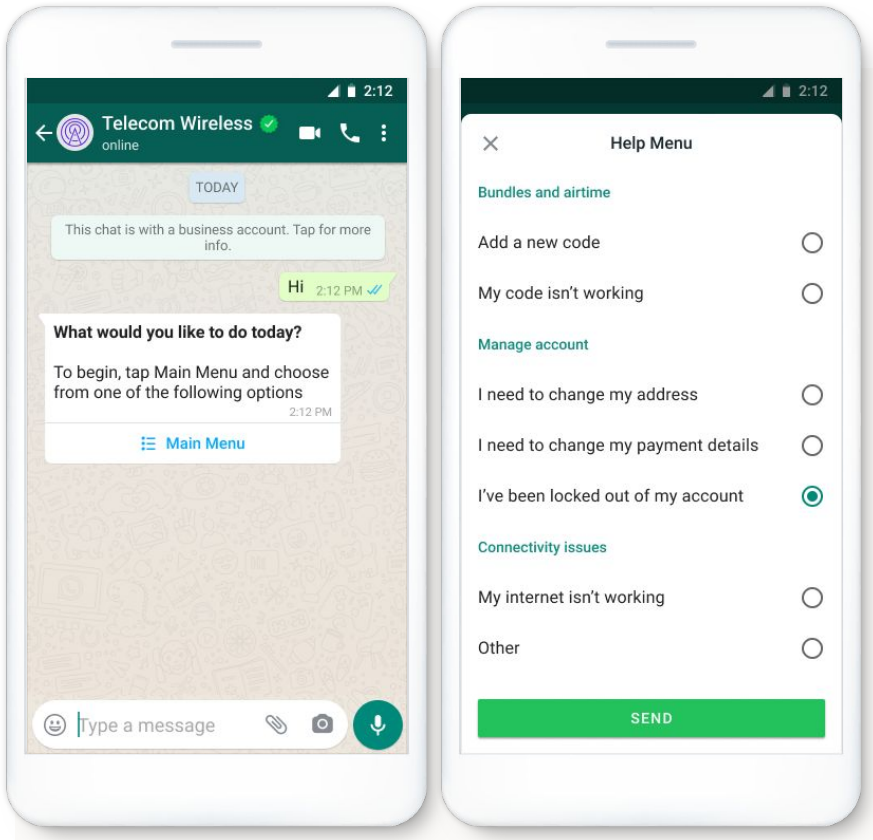
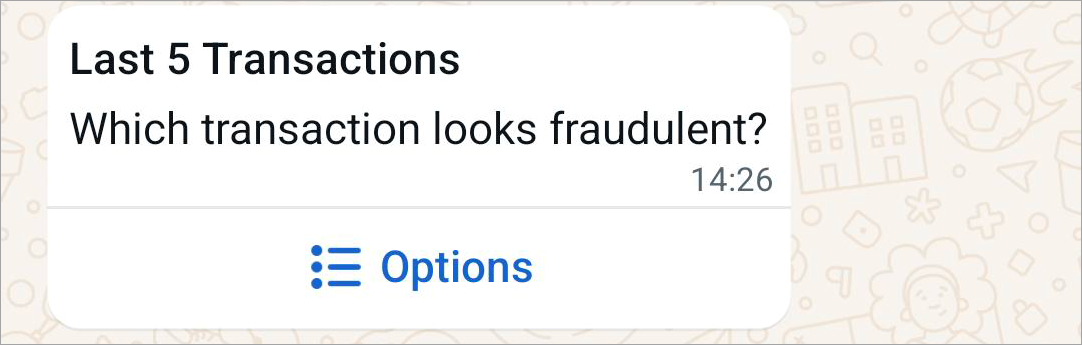
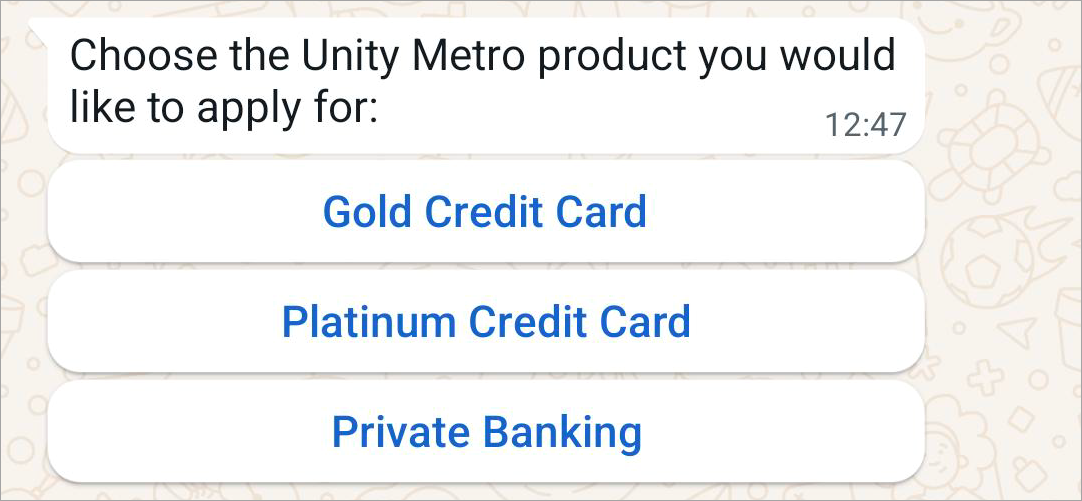
### Interactive list messages

Present customers with a list of options to choose from.

{% hint style="info" %}
See [Interactive messages](/whatsapp-channel/channel-capabilities/interactive-messages-lists-reply-buttons-location-requests#when-to-use-interactive-messages-1) for more details.
{% endhint %}

<figure><img src="https://content.gitbook.com/content/H9mbp0ZlSZKdmkQMXA0U/blobs/mVuv5Xf0ZNQ4pvh71ITu/image.png" alt="" width="375"><figcaption></figcaption></figure>

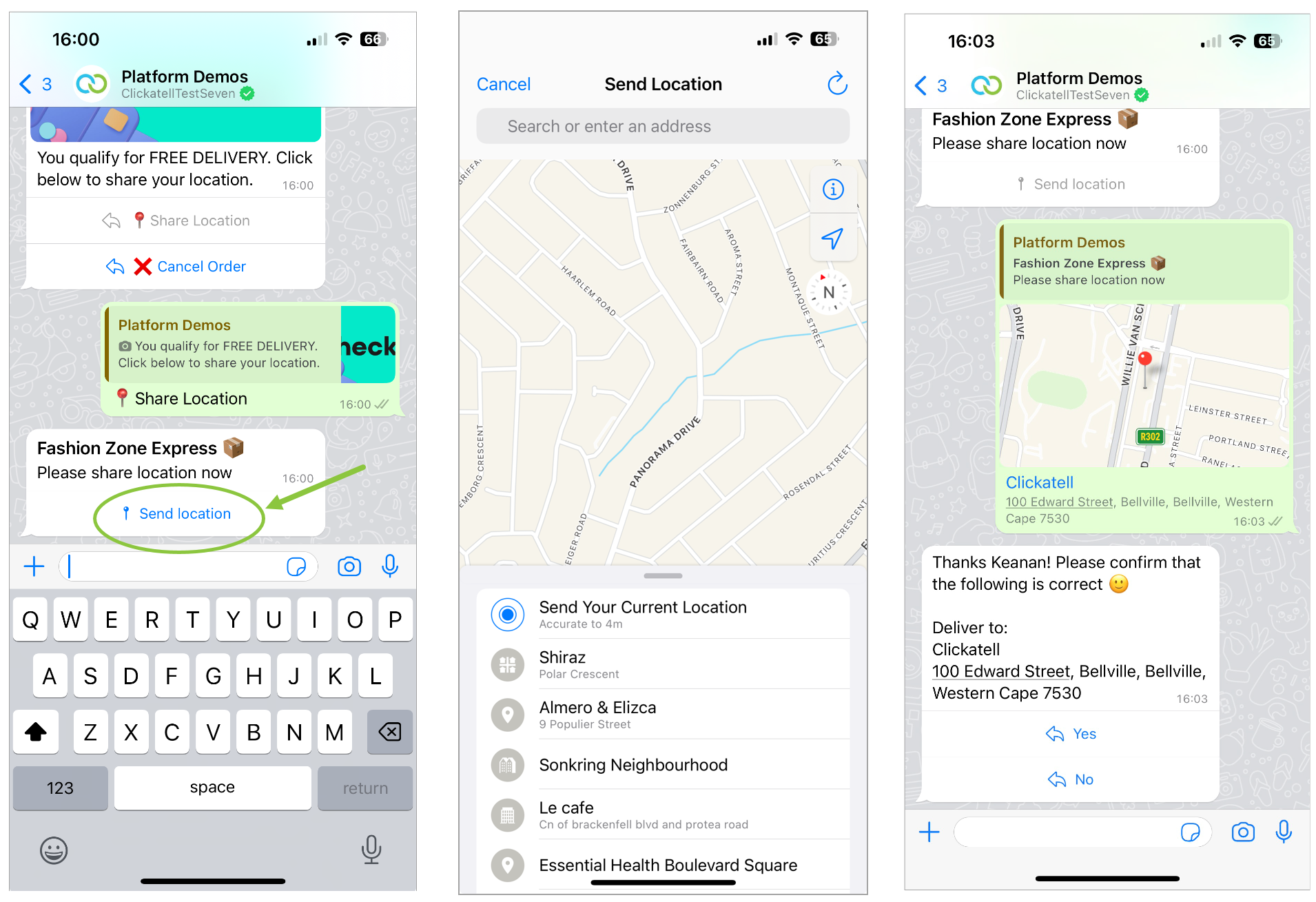
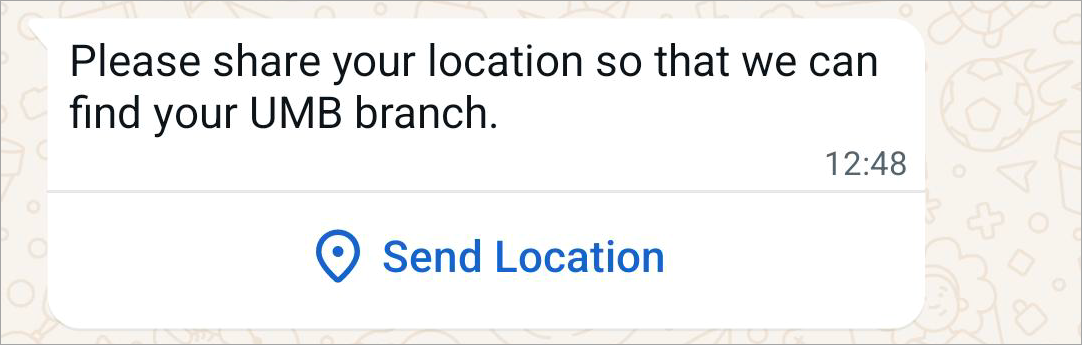
### Interactive location request messages

Display body text and a *Send location* button. When a customer taps the button, a location-sharing screen appears that they can use to share their location.

{% hint style="info" %}
See [Interactive messages](/whatsapp-channel/channel-capabilities/interactive-messages-lists-reply-buttons-location-requests#how-to-set-up-interactive-messages-1) for more details.
{% endhint %}

<figure><img src="https://content.gitbook.com/content/H9mbp0ZlSZKdmkQMXA0U/blobs/5DdmrzCy8VyjmCAOZK1e/image.png" alt="" width="375"><figcaption></figcaption></figure>

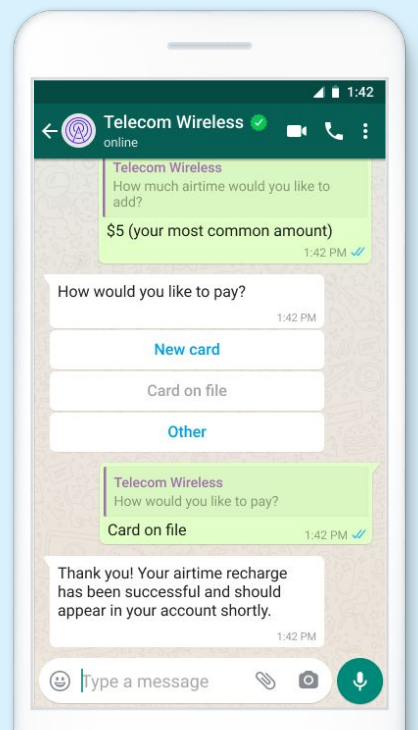
### Interactive reply buttons messages

Send up to three predefined replies for customers to choose from.

{% hint style="info" %}
See [Interactive messages](/whatsapp-channel/channel-capabilities/interactive-messages-lists-reply-buttons-location-requests#reply-buttons) for more details.
{% endhint %}

<figure><img src="https://content.gitbook.com/content/H9mbp0ZlSZKdmkQMXA0U/blobs/PBV4JXeXUBJ6tLTM2uvH/image.png" alt="" width="375"><figcaption></figcaption></figure>

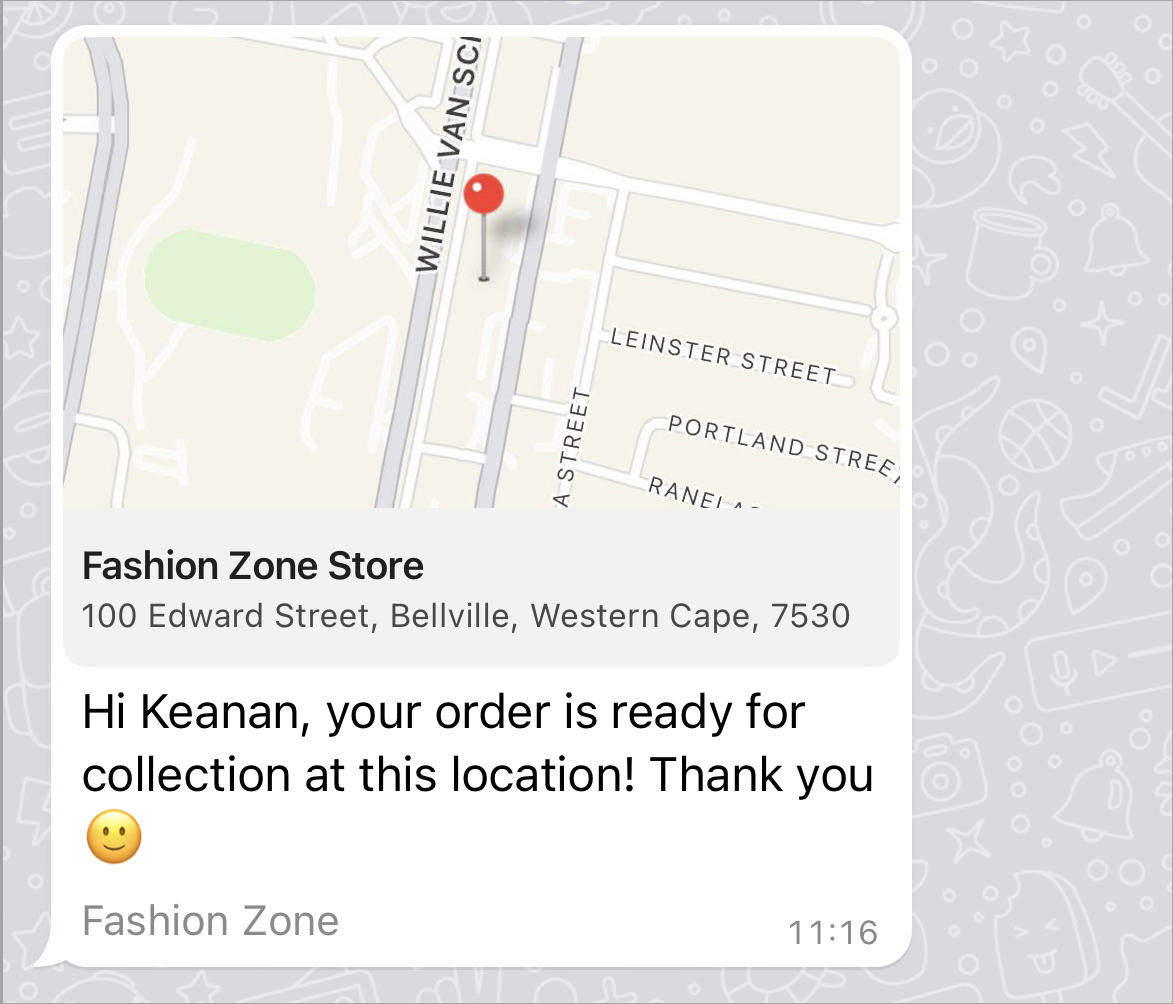
### Location messages

Send a location's latitude and longitude coordinates to a customer. Tapping the map opens the location in the mobile phone's map app.

<figure><img src="https://content.gitbook.com/content/H9mbp0ZlSZKdmkQMXA0U/blobs/1NWRIcLdbJULCstsAXm6/image.png" alt="" width="375"><figcaption></figcaption></figure>

### Text messages

Messages containing only a text body and an optional link preview.

<figure><img src="https://content.gitbook.com/content/H9mbp0ZlSZKdmkQMXA0U/blobs/3SlpAPMrdygdb1WusX3p/image.png" alt="" width="375"><figcaption></figcaption></figure>

### Template messages

Send marketing and utility templates to customers. Unlike all other message types, template messages do not require a 24-hour customer service window to be open between you and the customer before the message can be sent.

{% hint style="info" %}
See [WhatsApp message templates](/whatsapp-channel/channel-capabilities/whatsapp-message-templates) for more detail.
{% endhint %}

<figure><img src="https://content.gitbook.com/content/H9mbp0ZlSZKdmkQMXA0U/blobs/QQmat2zXBUdmSmoIh1n0/image.png" alt="" width="299"><figcaption></figcaption></figure>

### Video messages

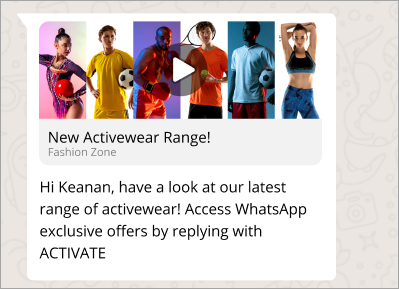
Display a thumbnail preview of a video image with an optional caption. When your customer taps the preview, it loads the video and plays it.

<figure><img src="https://content.gitbook.com/content/H9mbp0ZlSZKdmkQMXA0U/blobs/w9ZYkH94qMKDMQ66lwWj/image.png" alt="" width="299"><figcaption></figcaption></figure>

{% hint style="info" %}
Message types currently not supported by Clickatell:

* Address messages
* Interactive flow messages
* Sticker messages
* Reaction messages
  {% endhint %}


# WhatsApp message templates

## How to use WhatsApp message templates

1. [​Apply for a WhatsApp message template](/whatsapp-channel/channel-capabilities/whatsapp-message-templates/add-message-templates)
2. [Send the approved message template](/whatsapp-channel/channel-capabilities/whatsapp-message-templates/send-message-templates)&#x20;

## What is a WhatsApp message template?

A WhatsApp message template is used to send an outbound, business-initiated message to a customer. If your business wants to initiate a conversation with a customer for the first time or more than 24 hours after the customer last messaged the business, it is **required** to use a message template.

All message templates must be **approved** by WhatsApp before they can be sent to customers. Templates can only be sent to customers who have **opted in** and given you permission to send them messages.

### Template categories

All message templates fall into one of only three categories that is selected when [applying](/whatsapp-channel/channel-capabilities/whatsapp-message-templates/add-message-templates) for a new template:

* **Marketing** – Send promotional offers, product announcements, and more to increase awareness and engagement.
* **Utility** – Send account updates, order updates, alerts, and more to share important information.
* **Authentication** – Send codes or One-Time Pins (OTPS) that allow your customers to securely authenticate themselves or perform a function.

For more information and examples of Template Categorization, see [here](https://developers.facebook.com/docs/whatsapp/updates-to-pricing/new-template-guidelines).

### Template types <a href="#template-types" id="template-types"></a>

{% hint style="success" %}
See [Meta's documentation](https://www.facebook.com/business/help/722393685250070) for sample message templates.
{% endhint %}

The following template types are available:

* **Text template:** Create rich text-based message templates. Formatting options like bold, italic, pre-formatted, and strike-through are supported.
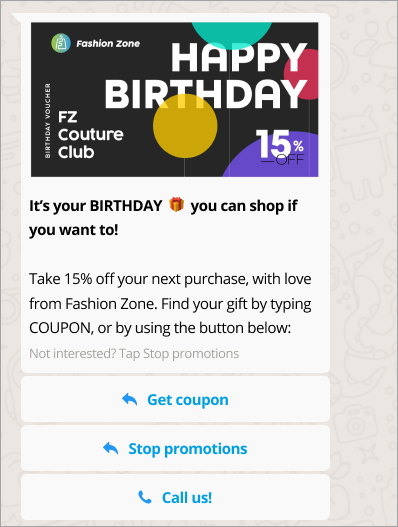
* **Media template:** Include media formats like images, documents, videos, and location in the header of the message. This allows you to send your customers rich notifications like a boarding card (PDF), movie ticket (QR code image), or pickup address.
* **Interactive text and media templates:** Include predefined buttons for interactive engagement with your customers. Two button types are supported:
  * *Call to action:* Let your customers call a phone number or visit a website.
  * *Quick reply:* Let your customer return a simple text message.

### Template languages

To see which languages Clickatell supports, [see this FAQ](https://www.clickatell.com/help-center/whatsapp/message-templates/what-languages-do-clickatell-support-for-whatsapp-message-templates/).

### Template variables

When using **variables** in your templates, ensure that you use number-type variables, e.g., **{{1}}, {{2}},** ... Clickatell does **not** currently support name-type variables.


# Add message templates

## Create a custom message template

{% hint style="info" %}
Refer to [this section](#add-a-chat-2-pay-template) if you want to add Chat 2 Pay templates.
{% endhint %}

To take full advantage of all template functionality, you need to be [business verified](/whatsapp-channel/getting-started/get-business-verified). You can create a limited number of templates in an unverified business state. &#x20;

1. Navigate to *My Workspace -> WhatsApp* and select a WhatsApp account from the table.

<figure><img src="https://content.gitbook.com/content/H9mbp0ZlSZKdmkQMXA0U/blobs/gFYV6zujZKhkN9aLL48T/image.png" alt=""><figcaption></figcaption></figure>

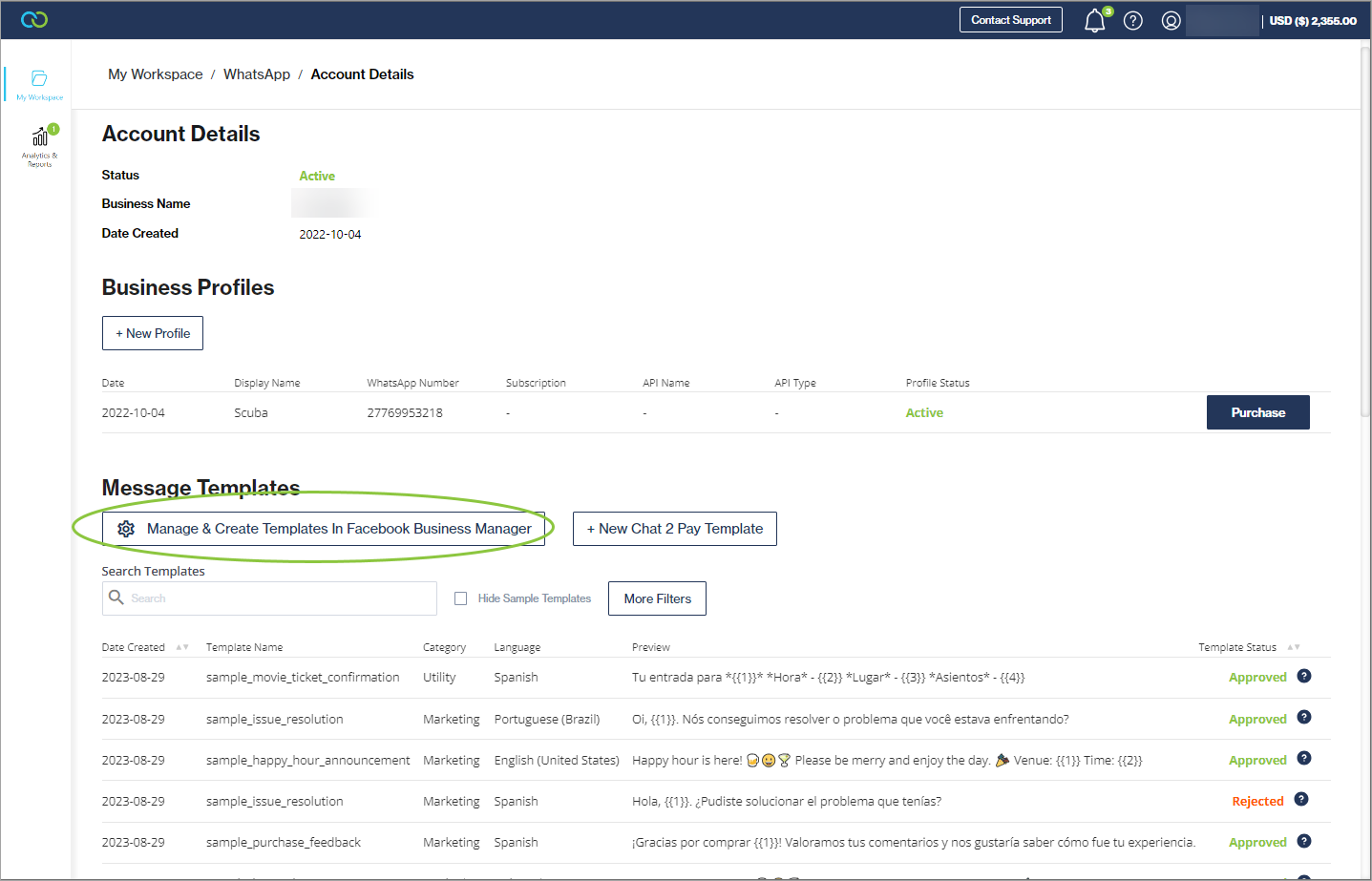
2. Click *Manage & Create Templates in Facebook Business Manager.*
3. You will be directed to your Facebook Business Manager Account (FBBM).

{% hint style="info" %}
This only applies to clients who have used the new WhatsApp Embedded Signup flow to onboard. Clients who used the legacy on-behalf-of signup flow still create templates within the Clickatell Portal as described [here](broken://pages/64249eDtiRnAxtlZHV8w).
{% endhint %}

<figure><img src="https://content.gitbook.com/content/H9mbp0ZlSZKdmkQMXA0U/blobs/dnwRvzypT83Hfh1pFSTr/image.png" alt=""><figcaption></figcaption></figure>

3. Follow [the steps](https://www.facebook.com/business/help/2055875911147364?id=2129163877102343) to apply for a WhatsApp Message Template from within FBBM. (Also shown in the video below.)

{% hint style="info" %}

* When using **variables**, ensure that you use number-type variables, e.g., **{{1}}, {{2}},** ... Clickatell does **not** currently support name-type variables.
* To see which **languages** Clickatell supports, [see this FAQ](https://www.clickatell.com/help-center/whatsapp/message-templates/what-languages-do-clickatell-support-for-whatsapp-message-templates/).
  {% endhint %}

{% embed url="<https://vimeo.com/873266553/e5f586be5a?share=copy>" %}

3. Once submitted, the template is reviewed by WhatsApp.

{% hint style="warning" %}
You cannot edit your template once you've submitted it for approval.&#x20;
{% endhint %}

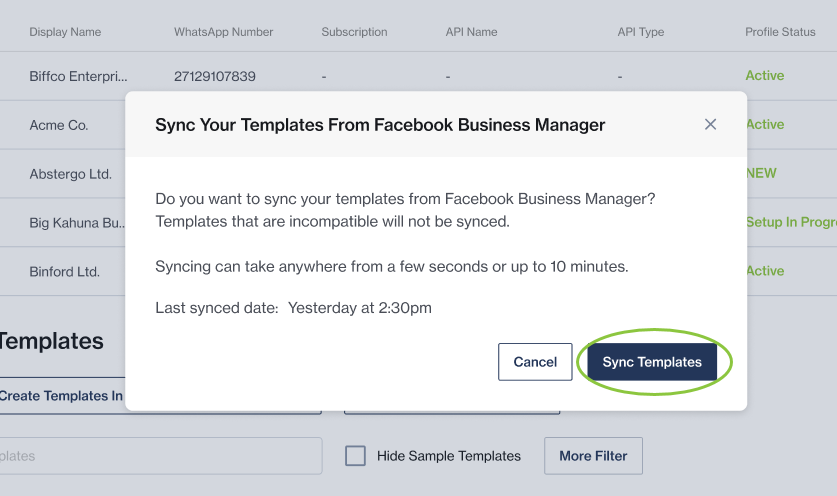
4. Return to the *WhatsApp Account Details* page in your Clickatell Portal. You will be prompted to sync your templates.&#x20;

<figure><img src="https://content.gitbook.com/content/H9mbp0ZlSZKdmkQMXA0U/blobs/66DAfrD5IdmJwZqIwi4q/image.png" alt="" width="563"><figcaption></figcaption></figure>

6. Once synced, the template appears in your table of message templates with its status.
7. Click on a template in the table to see its details, including a preview and status.
8. Once it has an "Approved" status, your template is now [ready to use](/whatsapp-channel/channel-capabilities/whatsapp-message-templates/send-message-templates).&#x20;
   * Note that the time it takes for WhatsApp to approve your template may vary.&#x20;
   * It might take a few minutes for all templates to sync and appear in your Clickatell Portal.

{% hint style="warning" %}
Clickatell currently supports Authentication, Marketing, and Utility template categories.
{% endhint %}

{% hint style="info" %}
**Also see:**

* [Use media in templates](/whatsapp-channel/channel-capabilities/whatsapp-message-templates/use-media-in-message-templates)
* [Use interactive buttons in templates](/whatsapp-channel/channel-capabilities/whatsapp-message-templates/use-interactive-buttons-in-message-templates)
* [Use interactive messages](/whatsapp-channel/channel-capabilities/interactive-messages-lists-reply-buttons-location-requests)
* [Showcase product catalog in templates](/whatsapp-channel/channel-capabilities/whatsapp-message-templates/showcase-product-catalog-in-message-template)
  {% endhint %}

## Add a Chat 2 Pay template

To use our [Chat 2 Pay](https://guides.clickatell.com/chat-2-pay-user-guide) application, you need two message templates: ["payment request" and "confirmation" messages](https://clickatell.gitbook.io/chat-2-pay-user-guide/cybersource-and-salesforce/configuration-details/message-configurations).

We've added these two pre-approved message templates to save you time and improve the chances that your templates will be approved by WhatsApp. All you have to do is link them to the Chat 2 Pay product.

{% hint style="info" %}
You cannot edit any of the content within these two templates
{% endhint %}

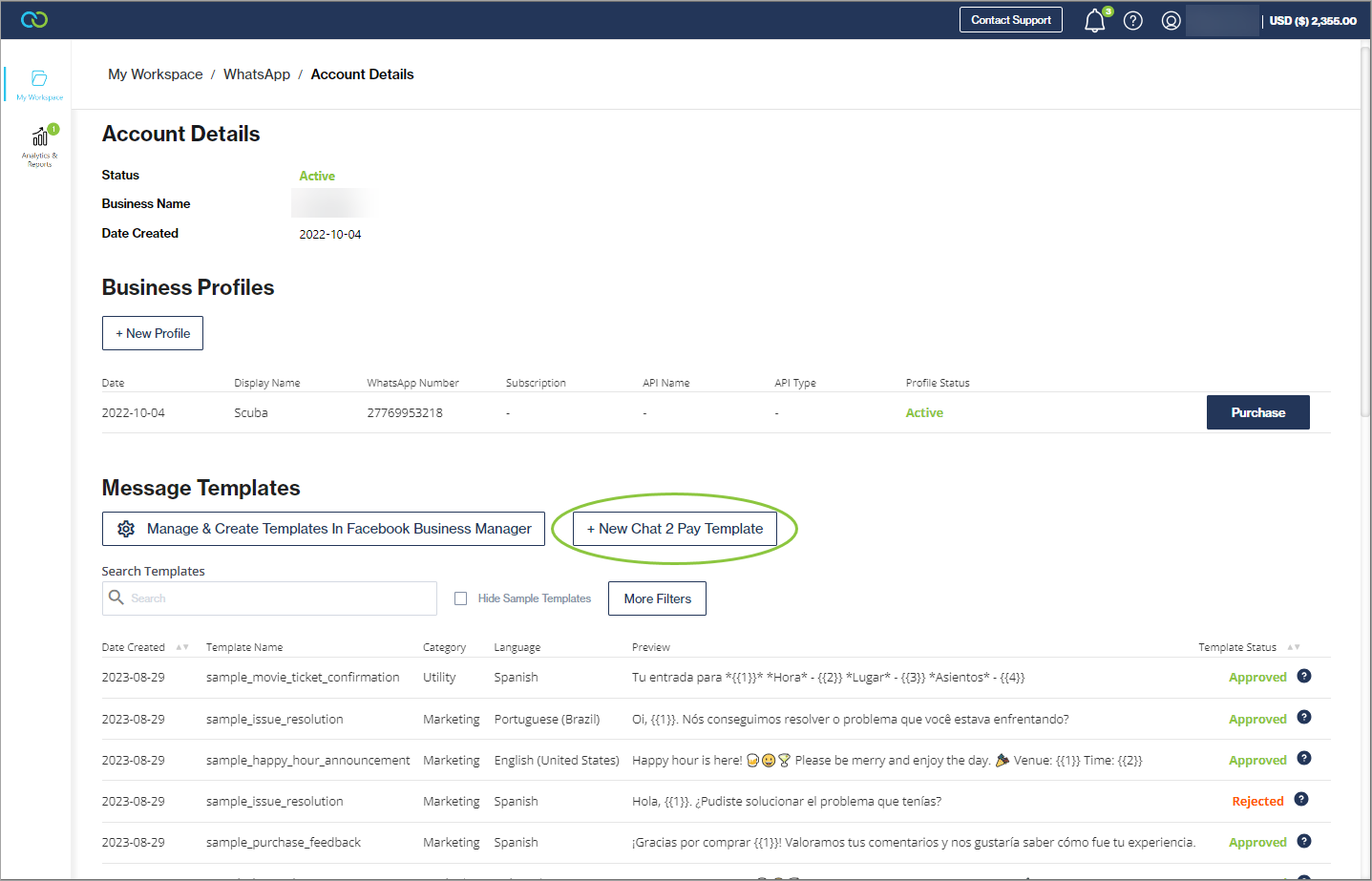
1. Navigate to *My Workspace --> WhatsApp* and select a WhatsApp account from the table.
2. Click + New Chat 2 Pay Template.

<figure><img src="https://content.gitbook.com/content/H9mbp0ZlSZKdmkQMXA0U/blobs/ErezdfTDzahi3zuixRAw/image.png" alt=""><figcaption></figcaption></figure>

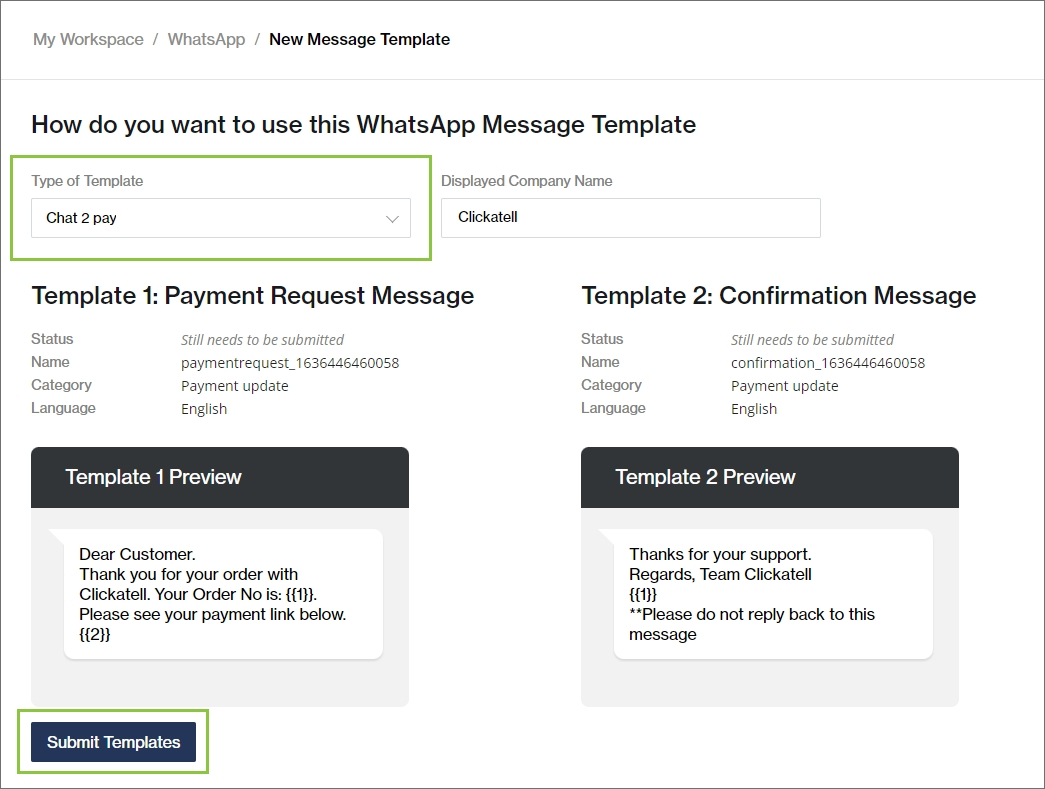
3. Select the *Chat 2 Pay t*emplate type from the dropdown.
4. Enter your company name.&#x20;
5. You can preview the two templates at the bottom.&#x20;
6. Click *Submit*.

<figure><img src="https://content.gitbook.com/content/H9mbp0ZlSZKdmkQMXA0U/blobs/ndg5pXRdvVghh41TEGhL/image.png" alt=""><figcaption></figcaption></figure>


# Send message templates

## How can I send message templates?

You can make use of one of the below options to send message templates to your customers. Note that you cannot send message templates directly from the Clickatell Portal.

* **One API:** Once the message template you've [added ](/whatsapp-channel/channel-capabilities/whatsapp-message-templates/add-message-templates)is approved and active, you can specify the template name and the relevant parameters in your [API call](https://docs.clickatell.com/channels/one-api/one-api-reference/#tag/One-API) when sending a message to the customer.&#x20;
* **Broadcast Messenger:** You can send WhatsApp and SMS message templates directly from Broadcast Messenger as part of a marketing campaign or to reengage customers. [Find out more.](https://guides.clickatell.com/campaign-manager/manage-campaigns/add-a-new-campaign)
* **Chat Flow:** You can send WhatsApp message templates directly from Chat Flow as part of your workflows or to kick-start a conversation. [Find out more.](https://guides.clickatell.com/flow/channel-capabilities/use-whatsapp-with-chat-flow/send-whatsapp-message-templates)
* **Chat Desk:** As an agent, you can send WhatsApp message templates to customers directly from Chat Desk. [Find out more](https://guides.clickatell.com/chat-desk/agent-chat-desk/send-whatsapp-message-templates).

{% hint style="info" %}

* Clickatell currently only supports number-type variables, e.g., **{{1}}, {{2}},** ... and **not** name-type variables. Take this into account when [creating your templates](/whatsapp-channel/channel-capabilities/whatsapp-message-templates/add-message-templates).
* To see which **languages** Clickatell supports, [see this FAQ](https://www.clickatell.com/help-center/whatsapp/message-templates/what-languages-do-clickatell-support-for-whatsapp-message-templates/).
  {% endhint %}

## Template Statuses

Templates can have one of the following statuses:

* **In-Review:** Indicates that the template is still under review. Review can take up to 24 hours.
* **Rejected:** The template has been rejected during Meta's review process or violates one or more policies. See [Appeals](https://developers.facebook.com/docs/whatsapp/message-templates/guidelines#appeals).
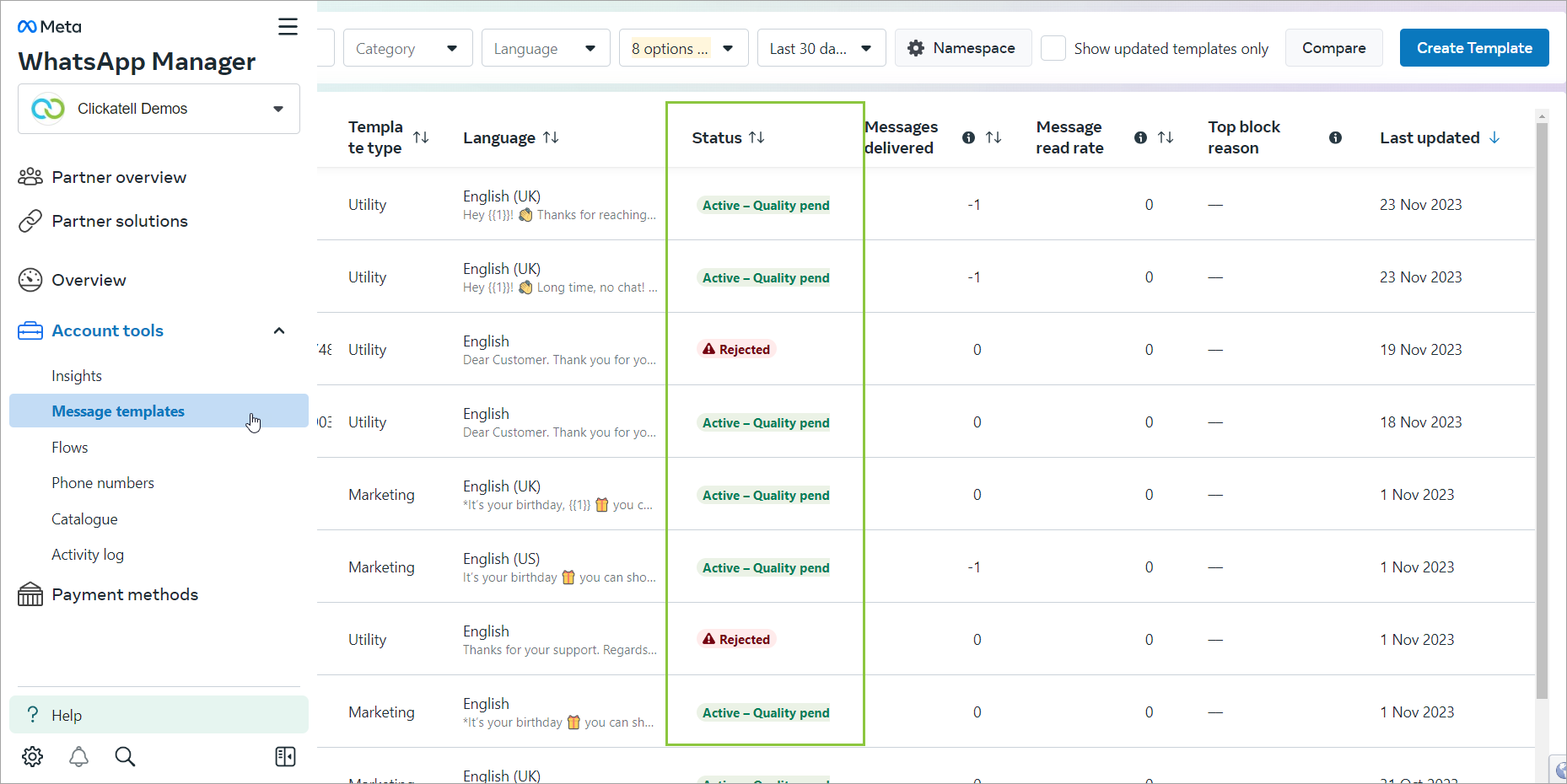
* **Active - Quality Pending:** The message template has yet to receive quality feedback from customers. Message templates with this status can be sent to customers. See [Quality Rating](https://developers.facebook.com/docs/whatsapp/message-templates/guidelines#quality-rating).
* **Active - High Quality:** The template has received little to no negative customer feedback. Message templates with this status can be sent to customers. See [Quality Rating](https://developers.facebook.com/docs/whatsapp/message-templates/guidelines#quality-rating).
* **Active - Medium Quality:** The template has received negative feedback from multiple customers and may soon become paused or disabled. Message templates with this status can be sent to customers. See [Quality Rating](https://developers.facebook.com/docs/whatsapp/message-templates/guidelines#quality-rating).
* **Active - Low Quality:** The template has received negative feedback from multiple customers. Message templates with this status can be sent to customers but are in danger of being paused or disabled soon, so we recommend that you address the issues that customers are reporting. See [Quality Rating](https://developers.facebook.com/docs/whatsapp/message-templates/guidelines#quality-rating).
* **Paused:** The template has been paused due to recurring negative customer feedback. Message templates with this status cannot be sent to customers. See [Template Pausing](https://developers.facebook.com/docs/whatsapp/message-templates/guidelines#template-pausing).
* **Disabled:** The template has been disabled due to recurring negative customer feedback. Message templates with this status cannot be sent to customers.

You can view a template's status by going to *WhatsApp Manager -> Overview*, hovering over the suitcase icon (*Account tools*), and clicking *Message templates*. If you have multiple WhatsApp Business Accounts, select the account whose template statuses you want to view from the list of accounts in the dropdown menu in the top-right corner.

<figure><img src="https://content.gitbook.com/content/H9mbp0ZlSZKdmkQMXA0U/blobs/7O7Lq9wtjIp0Lips7pxp/image.png" alt=""><figcaption></figcaption></figure>

## Template Pacing

As of 12 October 2023, Meta introduced the concept of **template pacing** when sending **marketing** templates.&#x20;

Template pacing is a mechanism that allows customers to provide early feedback on newly created or un-paused marketing templates. Templates sent as part of a messaging campaign are sent normally until a certain threshold is reached, after which further sending of this template is held to allow for customer feedback. This feedback enables businesses to adjust their templates before sending them to too many clients and mitigates the risk of negative feedback impacting their business.

{% hint style="info" %}
Find out how this impacts your template sending [here](https://developers.facebook.com/docs/whatsapp/message-templates/guidelines/#template-pacing).
{% endhint %}

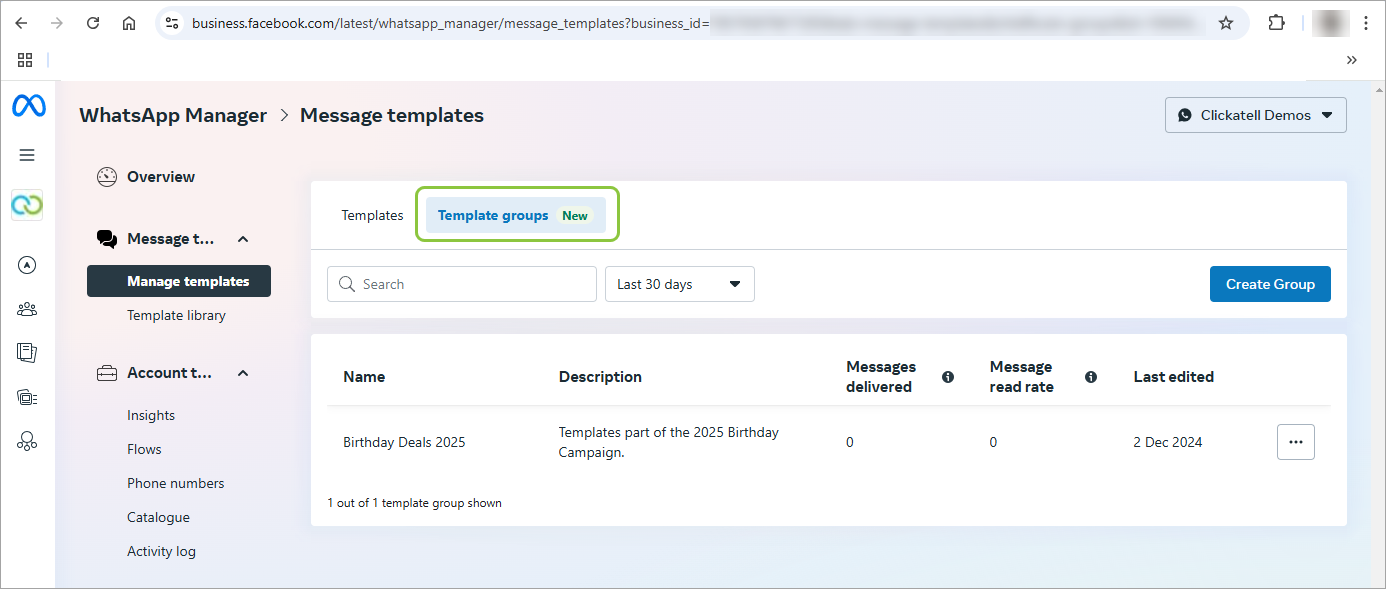
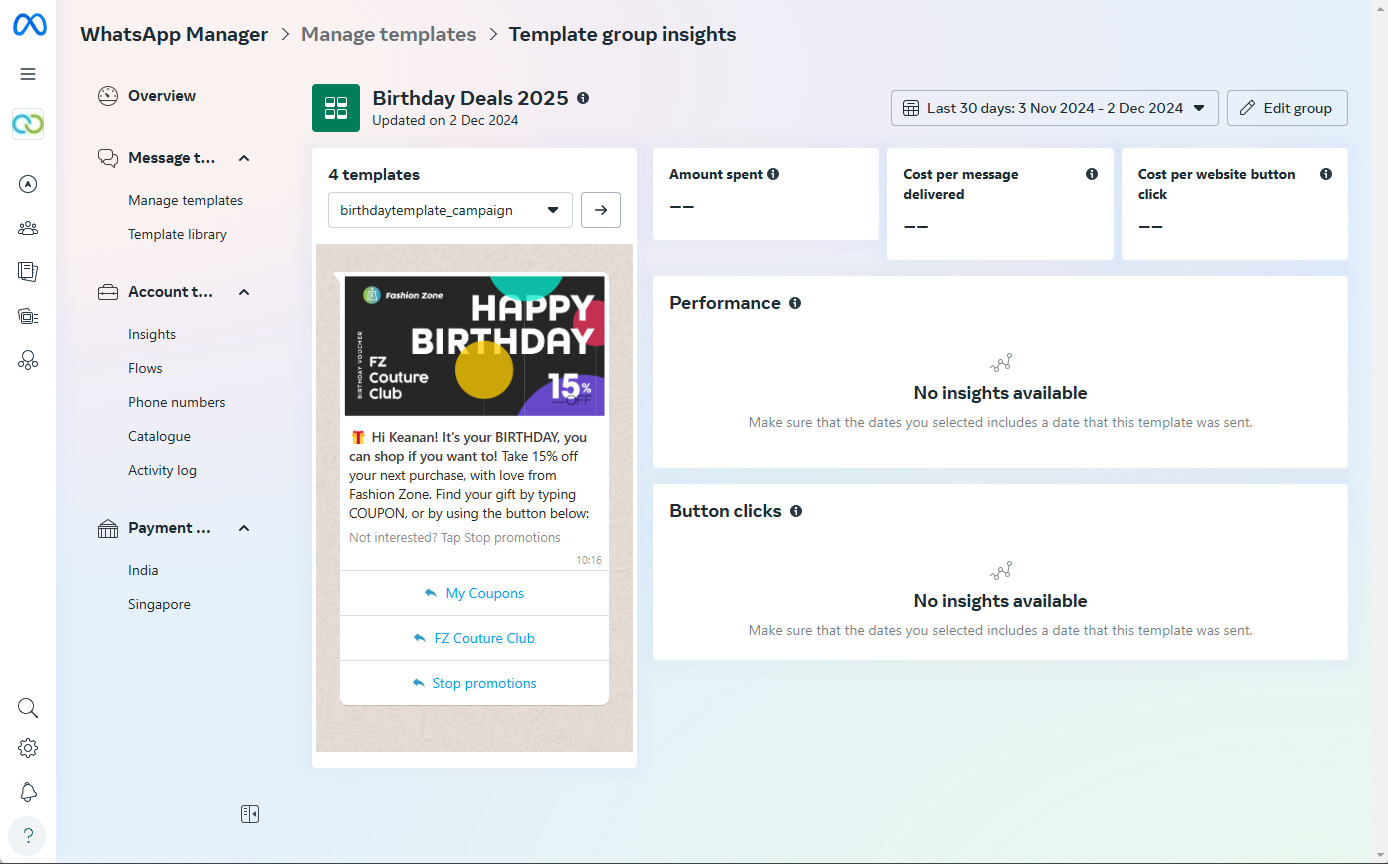
## Template Groups

You can consolidate approved templates into groups and track their performance at the group level. Create a template group to monitor data such as cost metrics, engagement rates, and button interactions.

<figure><img src="https://content.gitbook.com/content/H9mbp0ZlSZKdmkQMXA0U/blobs/F9dPgHDMa9UnuFeXpBCJ/image.png" alt=""><figcaption></figcaption></figure>

<figure><img src="https://content.gitbook.com/content/H9mbp0ZlSZKdmkQMXA0U/blobs/QBNba7icXhlmlhw3XeWn/image.png" alt=""><figcaption></figcaption></figure>

##


# Use media in message templates

To use media in your message template, you must:

1. [Select the media type](#select-media-type)
2. [Upload the media file](#upload-media)
3. [Send the message template via One API](/whatsapp-channel/channel-capabilities/whatsapp-message-templates/send-message-templates)

## **Select media type**

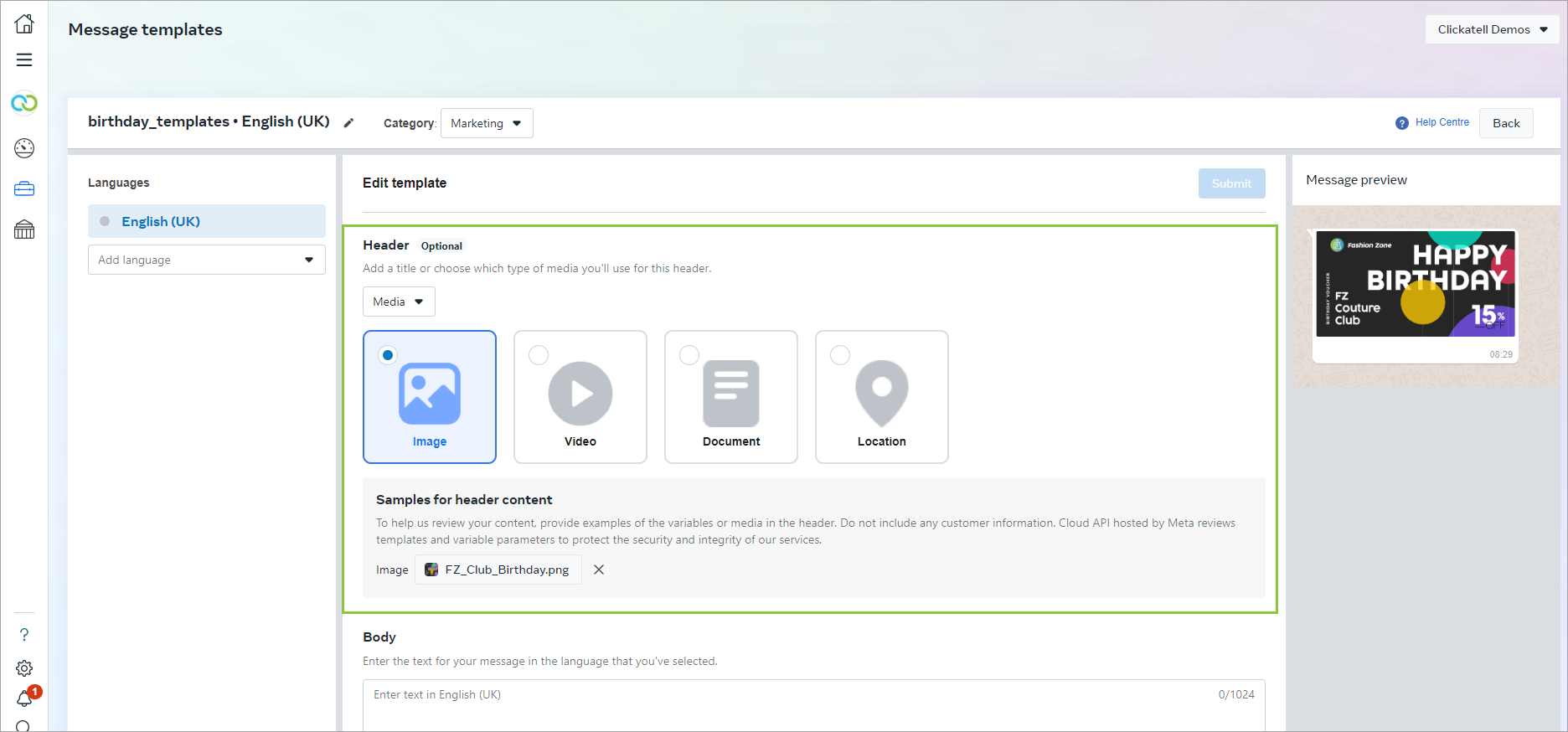
1. When [creating your template](/whatsapp-channel/channel-capabilities/whatsapp-message-templates/add-message-templates) in Facebook Business Manager, you can select to add "Media" as the header. &#x20;
2. Select the type of media you want to add to your template.&#x20;
   * Note: The [*Location* ](/whatsapp-channel/channel-capabilities/whatsapp-message-templates/use-location-in-message-templates)media type is only available on Cloud.
3. Add a sample for the header content.

{% hint style="info" %}
All variables (e.g., {{1}}) are set when [sending the message via One API](https://docs.clickatell.com/channels/one-api/one-api-reference/#operation/sendMessageREST_1), where you can specify the parameters in the payload.&#x20;
{% endhint %}

<figure><img src="https://content.gitbook.com/content/H9mbp0ZlSZKdmkQMXA0U/blobs/JX0QFnc24LDt44OA5qcV/image.png" alt=""><figcaption></figcaption></figure>

## **Upload media**

{% hint style="warning" %}
You can only send the template after uploading the media file.
{% endhint %}

1. Once your template is approved, upload the media file to be included in your message template onto the Clickatell server by using the [*Upload media file*](https://docs.clickatell.com/channels/one-api/one-api-reference/#operation/uploadFile) and [*Get media file metadata*](https://docs.clickatell.com/channels/one-api/one-api-reference/#operation/getMetadata) endpoints as described in the [One API Reference](https://docs.clickatell.com/channels/one-api/one-api-reference/) document.
2. The successful upload of your media will return a ***fileID*** which is the unique reference to the media file you’ve uploaded. You'll use this in the next step.

{% hint style="info" %}
Although the template is not limited to a single media file, it is registered for a **specific media type** only.
{% endhint %}

## **Send message template via One API**

1. Once you have successfully uploaded your media file, you can send the message template to customers via our One API using the [Sends one or more messages endpoint](https://docs.clickatell.com/channels/one-api/one-api-reference/#operation/sendMessageREST_1) as described in the [One API Reference](https://docs.clickatell.com/channels/one-api/one-api-reference/) document.
2. As part of the One API call, you need to include the template name and the *fileID* as returned in the step above.


# Use location in message templates

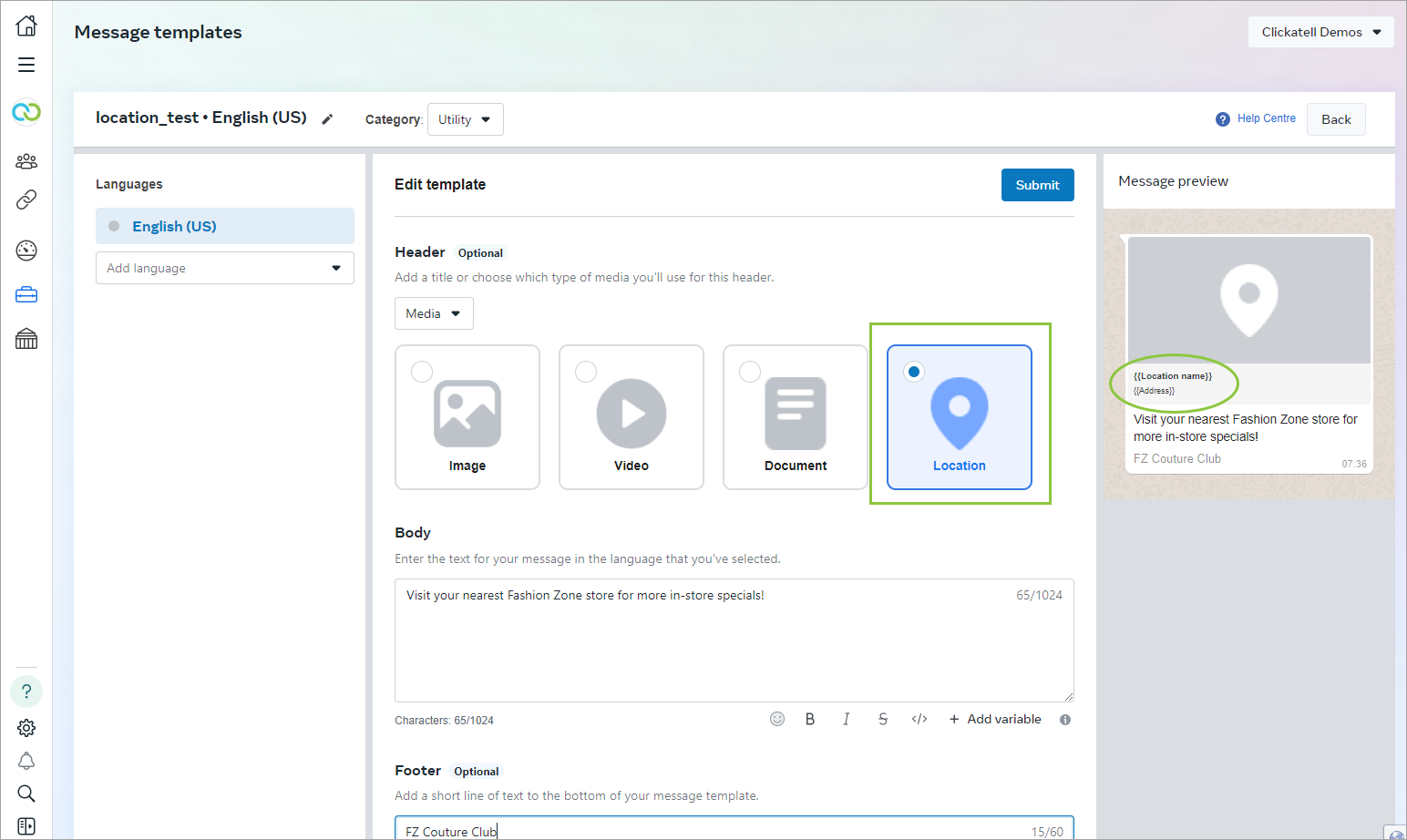
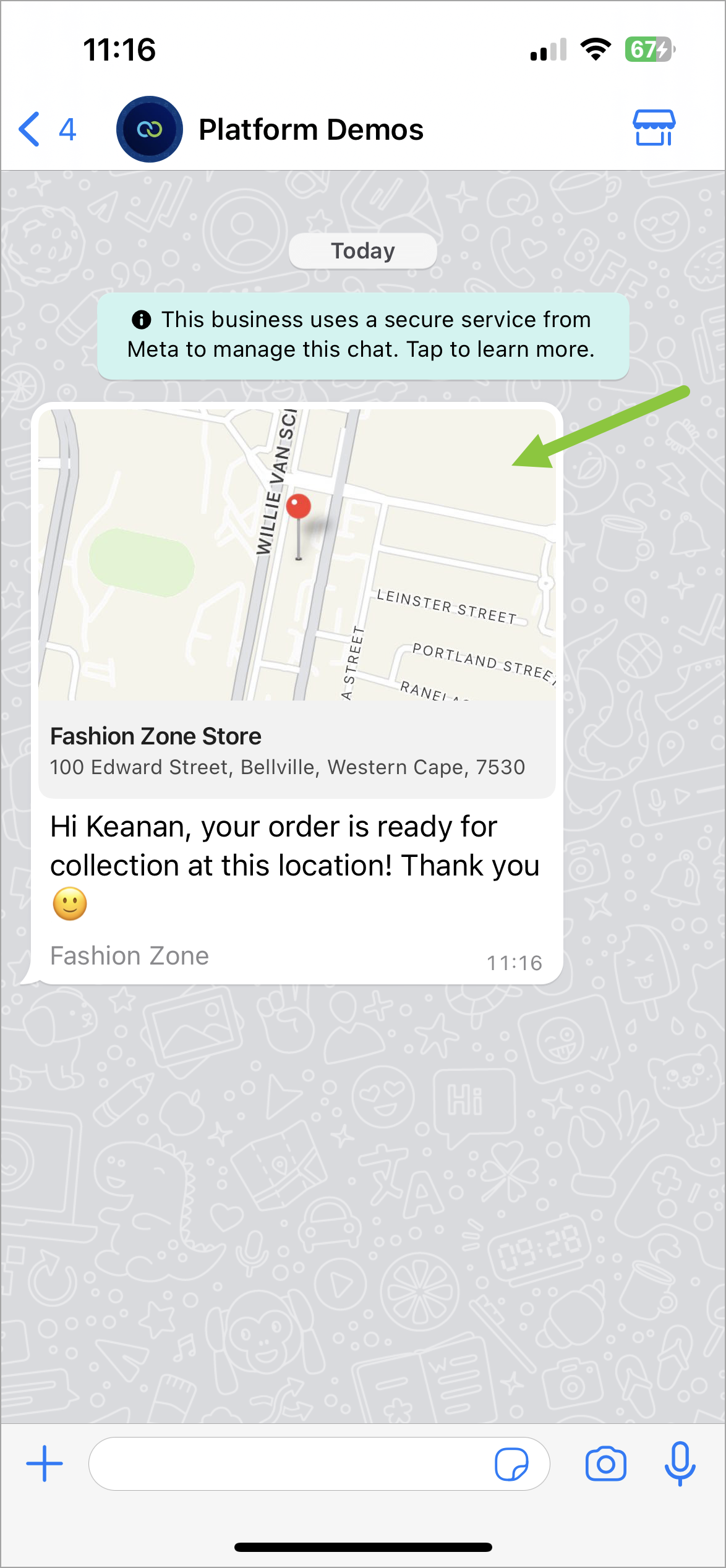
Location headers appear as generic maps at the top of the template and are useful for order tracking, delivery updates, ride-hailing pickup/dropoff, locating physical stores, etc.&#x20;

The template will reflect a static location defined by the business for a particular use case, for example, a pickup spot for a particular order with a particular user. When tapped, the user's default map app will open and load the specified location.&#x20;

{% hint style="info" %}
Location headers can only be used:

* In **Utility** and **Marketing** templates (see [template categories](/whatsapp-channel/channel-capabilities/whatsapp-message-templates#template-categories))
* In the **Cloud** environment

Real-time (live) locations are **not** supported.
{% endhint %}

## Add location to template header

1. When [creating your message template](/whatsapp-channel/channel-capabilities/whatsapp-message-templates/add-message-templates) in WhatsApp Business Manager, add a media header and select *Location*.
2. The location's name and address are specified when you [send](/whatsapp-channel/channel-capabilities/whatsapp-message-templates/send-message-templates) the template.

<figure><img src="https://content.gitbook.com/content/H9mbp0ZlSZKdmkQMXA0U/blobs/cLsEbTXBXlcxvx0WH5bK/image.png" alt=""><figcaption></figcaption></figure>

<figure><img src="https://content.gitbook.com/content/H9mbp0ZlSZKdmkQMXA0U/blobs/Tf8qJW6igC17F9odQNOu/image.png" alt="" width="375"><figcaption><p>Customer experience on WhatsApp</p></figcaption></figure>


# Use interactive buttons in message templates

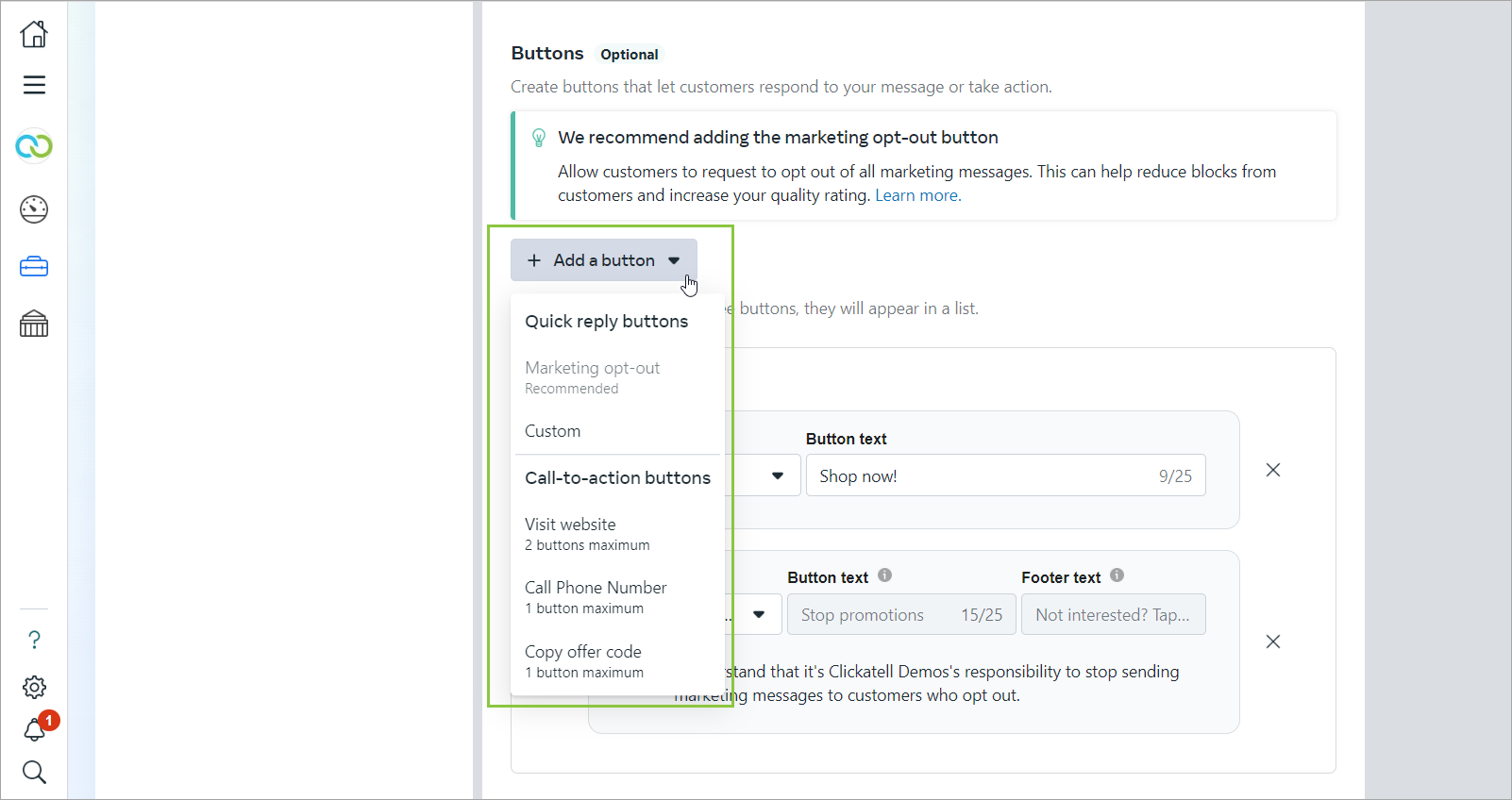
When [creating your template](/whatsapp-channel/channel-capabilities/whatsapp-message-templates/add-message-templates) in Facebook Business Manager, you can add one of two types of interactive buttons to your template:&#x20;

* [**Call to Action**](#call-to-action-buttons)
* [**Quick Reply**](#quick-reply-button)

A template can have a mixture of **up to 10 buttons in total.** Limitations may apply to individual buttons of the same type, as well as to the combination of buttons allowed.

<figure><img src="https://content.gitbook.com/content/H9mbp0ZlSZKdmkQMXA0U/blobs/AvQ1Hmniy0pgJnmWb1xq/image.png" alt=""><figcaption><p>You can add quick reply and call-to-action buttons to your message template.</p></figcaption></figure>

## **Call to action buttons**

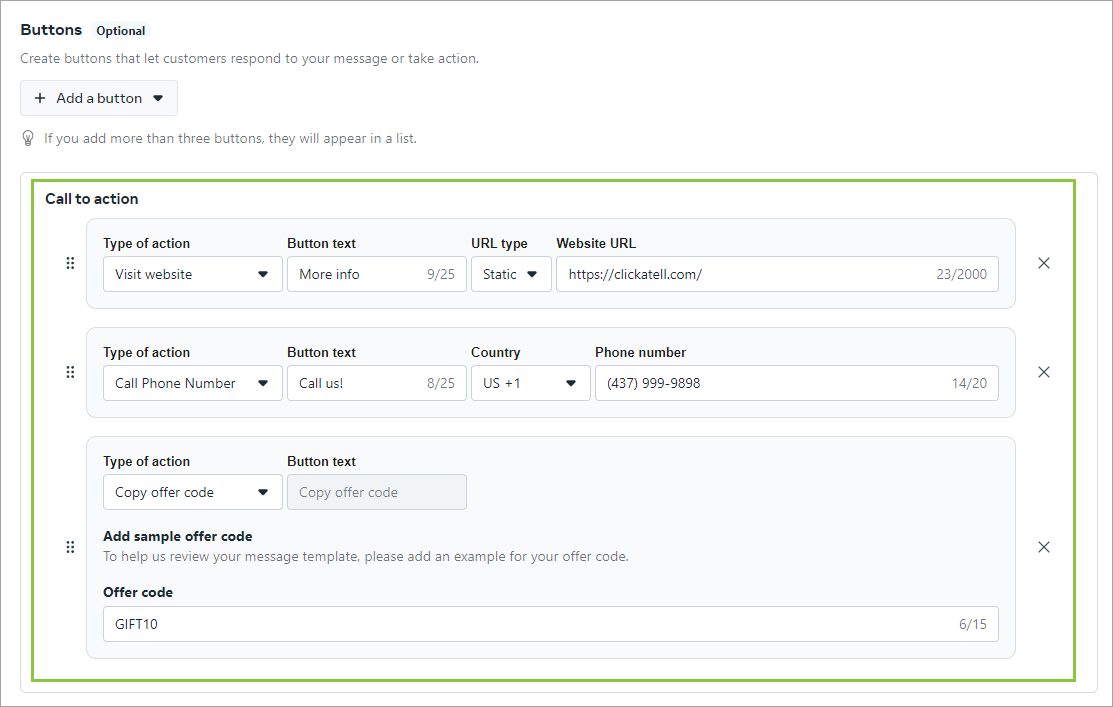
This allows your customer to **call a phone number**, **visit a website**, or **copy a code** with the tap of a button.

From the drop-down select the type of action button you want to add:

* [Visit Website](#visit-website)
* [Call Phone Number](#call-phone-number)
* [Copy Offer Code](#copy-offer-code) *(shared model only)*

<figure><img src="https://content.gitbook.com/content/H9mbp0ZlSZKdmkQMXA0U/blobs/toPQrDCbhMfQuTm37nOT/image.png" alt=""><figcaption><p>Example of the available action buttons you can add to your template.</p></figcaption></figure>

#### ***Visit Website***

When tapping this button, the customer is directed to the specified website in their device's default browser.

The website URL is expected in the format:

* Static URL: **http(s)://[www.example.com](http://www.example.com)**
* Dynamic URL: **http(s)://[www.example.com/{{1](http://www.example.com/{{1)}}**&#x20;

{% hint style="info" %}

* Only **two** URL buttons per template are allowed.
* All variables (e.g., {{1}}) are set when [sending the message via One API](https://docs.clickatell.com/channels/one-api/one-api-reference/#operation/sendMessageREST_1), where you can specify the parameters in the payload.&#x20;
  {% endhint %}

#### ***Call Phone Number***

When tapping this button, a call is initiated from the customer's device to the specified number.

* Specify the country linked to the phone number.
* Enter the phone number in the international format, e.g. “**+14111111111**”.&#x20;

{% hint style="info" %}

* Only **one** phone number button per template is allowed.
  {% endhint %}

#### *Copy Offer Code*

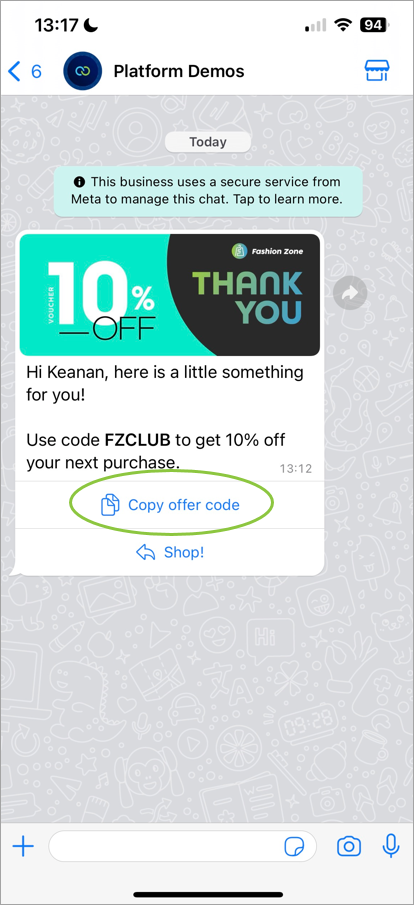
When tapping this button, a text string ("code") is copied to the customer device's clipboard.

{% hint style="info" %}

* Templates are limited to **one** copy code button.
* Coupon code templates are currently not supported by WhatsApp Web.
* Codes are limited to 15 characters.
* Button text cannot be customized.
  {% endhint %}

<figure><img src="https://content.gitbook.com/content/H9mbp0ZlSZKdmkQMXA0U/blobs/HjtxgbaL5geUnUARr9mE/image.png" alt="" width="311"><figcaption><p>Example of the copy code button on a customer's device.</p></figcaption></figure>

## **Quick reply button**

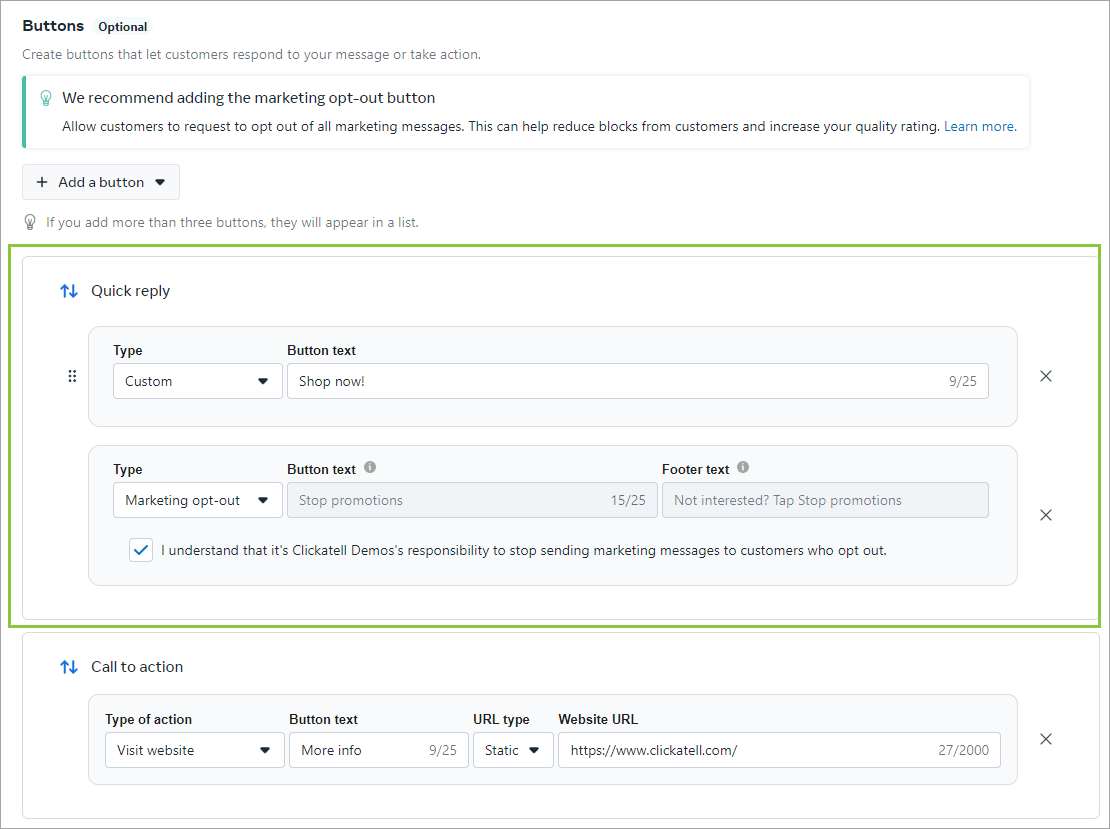
These custom text-only buttons allow your customer to **respond** **quickly** with a **custom**, **pre-defined** text message. When tapping this button, the customer sends the response to the business as part of the conversation.

From the drop-down select the type of action button you want to add:

* **Custom**
* **Marketing opt-out** *(Marketing templates only)*
  * Adding the optional "[Opt-Out](https://www.facebook.com/business/help/448422200528701)" quick-reply button gives your end-users an easy way to opt out of all marketing messages.
  * Note that it is still *your* responsibility to remove these customers from your contact list.&#x20;

<figure><img src="https://content.gitbook.com/content/H9mbp0ZlSZKdmkQMXA0U/blobs/MQ1eELZnMuWphsjUuaXA/image.png" alt=""><figcaption></figcaption></figure>

{% hint style="info" %}

* The quick-reply button text can be a maximum of **25** characters long.
* The text on every button used in a template must be **unique.**
  {% endhint %}

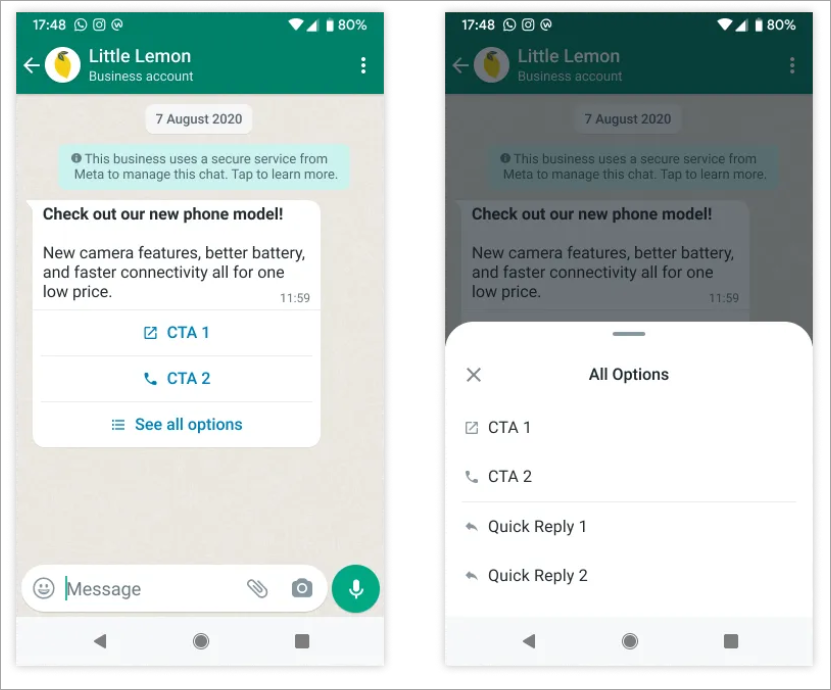
If using quick reply buttons with other buttons, buttons must be **organized into two groups**: quick reply buttons and non-quick reply buttons. If grouped incorrectly, the API will return an error indicating an invalid combination.

If a template has more than three buttons, two buttons appear in the delivered message and the remaining buttons can be seen when tapping *See all options*.

<figure><img src="https://content.gitbook.com/content/H9mbp0ZlSZKdmkQMXA0U/blobs/4adR0MmHKCBHozs9fWIO/image.png" alt="" width="563"><figcaption><p>Example of a combination of interactive buttons on a customer's device. If more than three buttons, only two will be shown immediately, and the rest can be viewed by tapping "See all options".</p></figcaption></figure>


# Showcase product catalog in message template

You can present your product catalog to your customers entirely within WhatsApp.&#x20;

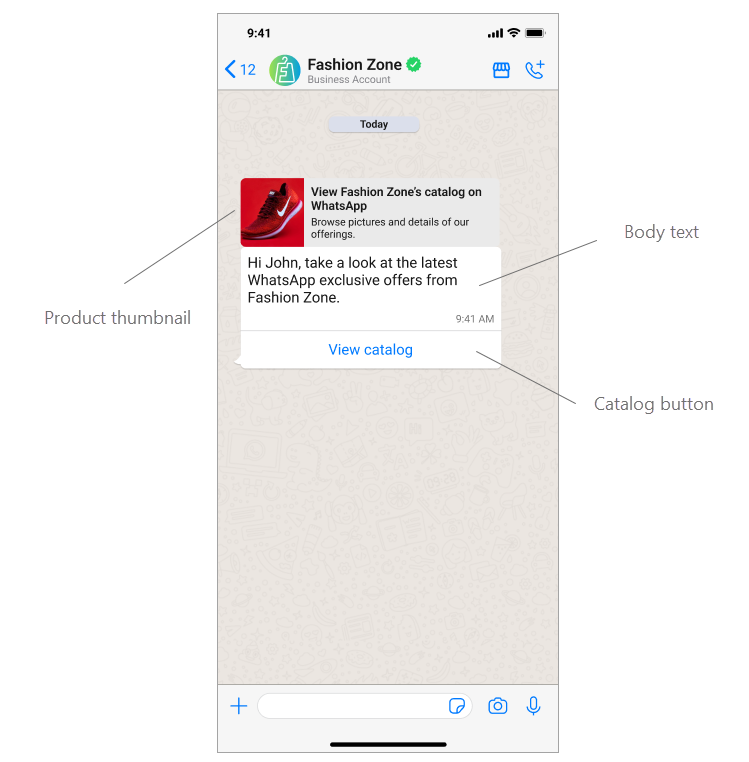
Catalog templates display a product thumbnail header image of your choice and custom body text. The text header, sub-header, and button text are non-editable.

<figure><img src="https://content.gitbook.com/content/H9mbp0ZlSZKdmkQMXA0U/blobs/09vbvgBOsBK4FQdpU4TH/image.png" alt="" width="562"><figcaption></figcaption></figure>

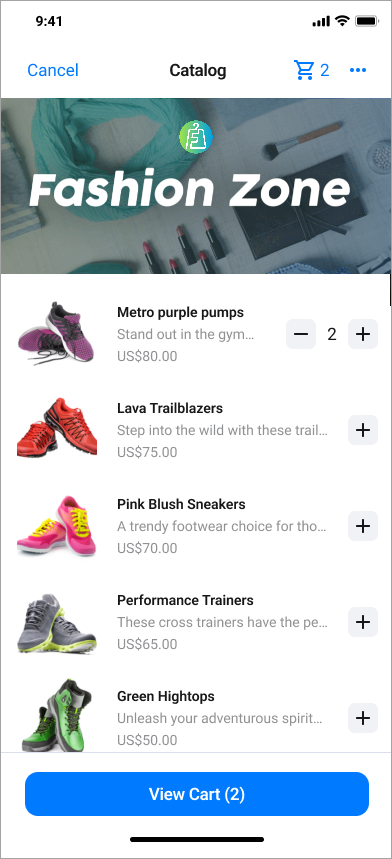
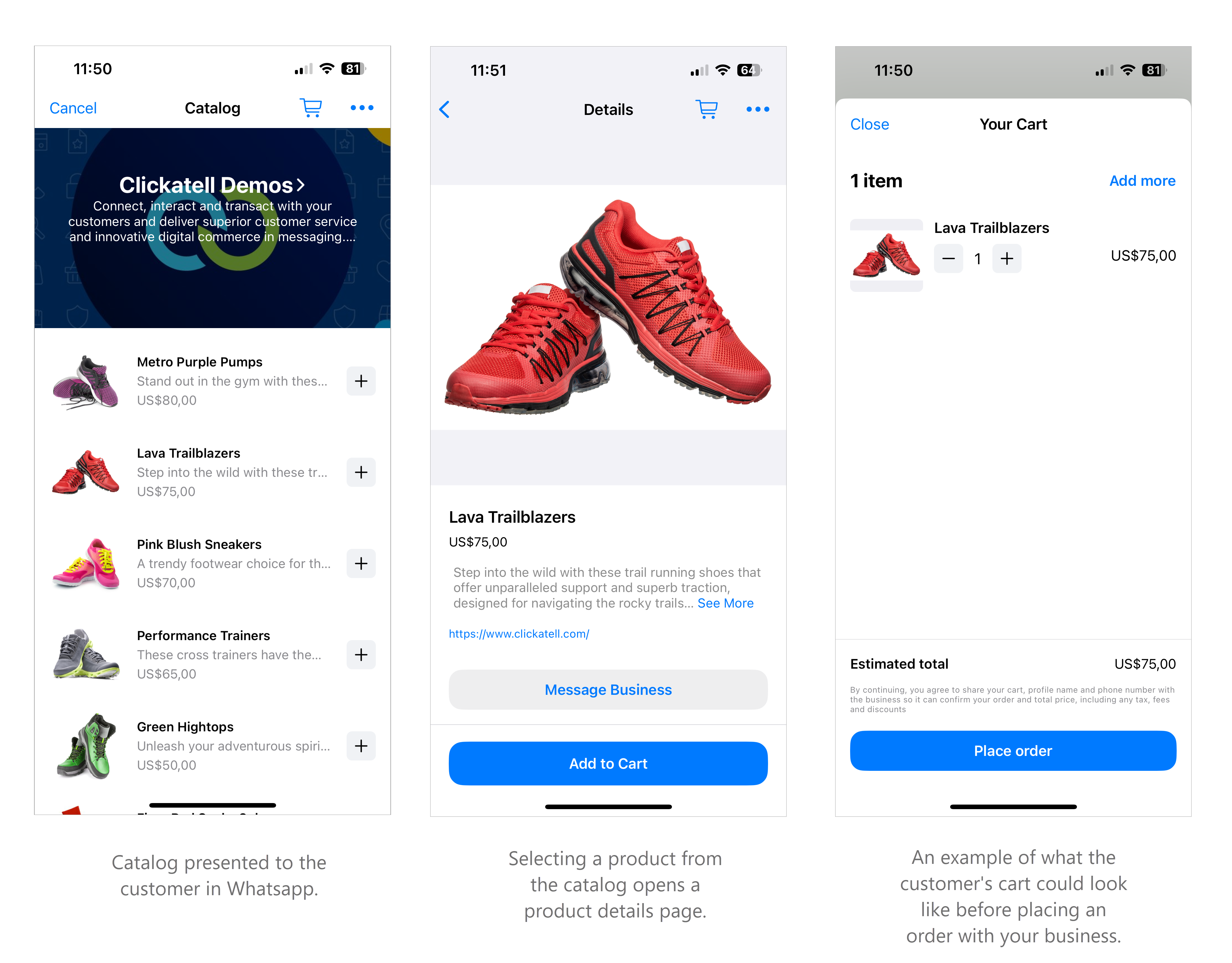
When a customer taps the *View catalog* button in a catalog template message, your product catalog appears within WhatsApp.

<figure><img src="https://content.gitbook.com/content/H9mbp0ZlSZKdmkQMXA0U/blobs/N8hGhpfj4izMv0L59e4I/image.png" alt="" width="294"><figcaption></figcaption></figure>

## Add catalog to message template

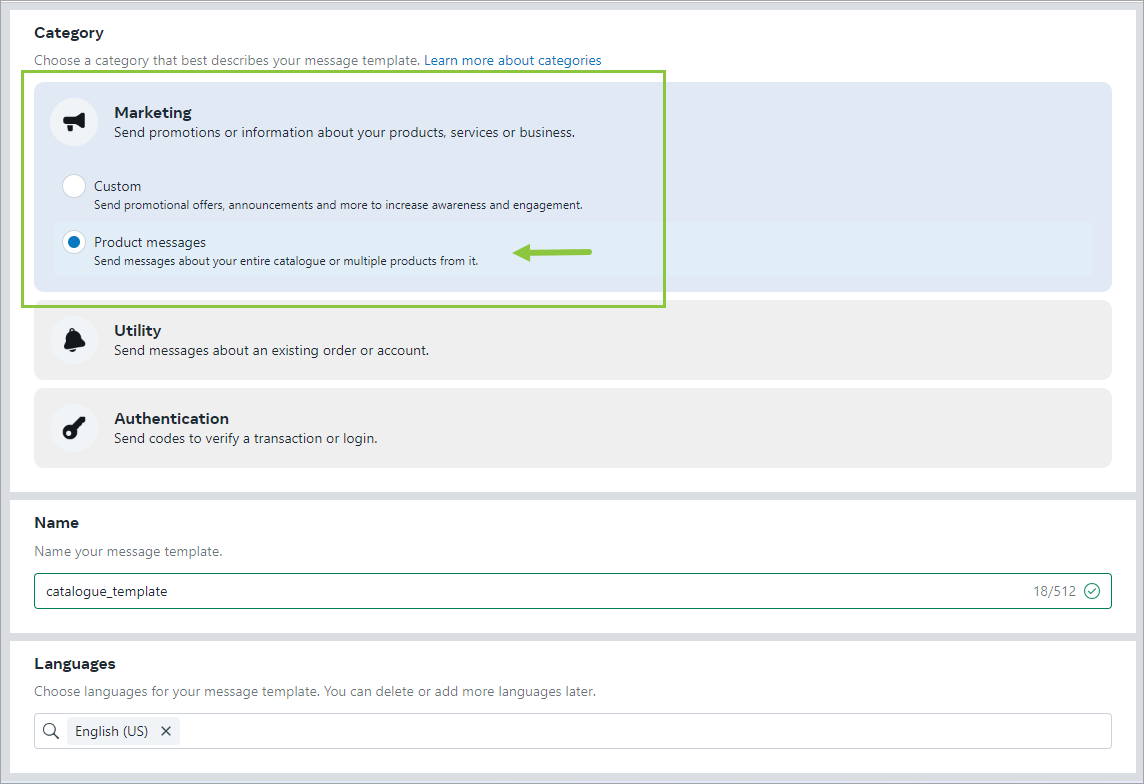
1. When [creating your template](/whatsapp-channel/channel-capabilities/whatsapp-message-templates/add-message-templates) in Facebook Business Manager, select *Marketing -> Product messages* as the category.&#x20;

{% hint style="info" %}
**Prerequisite:** You must have [inventory uploaded to Meta](https://developers.facebook.com/docs/whatsapp/cloud-api/guides/sell-products-and-services/upload-inventory) in an e-commerce catalog [connected to your WhatsApp Business Account](https://www.facebook.com/business/help/158662536425974).
{% endhint %}

<figure><img src="https://content.gitbook.com/content/H9mbp0ZlSZKdmkQMXA0U/blobs/Ep3DjHyex2DAFXBtnaTC/image.png" alt=""><figcaption></figcaption></figure>

2. Follow the steps to complete all required information and submit for approval.


# Message templates: best practices & examples

## Best practices

Improve the chance of your templates being approved by following the guidelines below.

{% hint style="success" %}
Remember that someone outside of your business will be reviewing your templates. Providing more clarity gives reviewers context around how the template will be used.
{% endhint %}

When creating a new message template, please ensure you follow these best practices:

#### **Template name**

A unique name to identify the template use case for the business.&#x20;

* Must be in lowercase.
* Maximum of 512 characters.
* May not contain any spaces. Use an underscore to indicate a space.
* Make your message template name clear. E.g., instead of using a name like “*template\_014*” rather use “*order\_update*”.

#### **Template category & language**

The type of information contained in the template (e.g., marketing, utility) and the language of the content. Select these from a predefined set of categories and languages during registration.

**Template parameters**

* A template message must contain at least one parameter.
* Parameters cannot have new line/tab characters.&#x20;
* Parameters may not have more than four consecutive spaces.&#x20;
* All parameters will be defined within curly open/close braces and listed in chronological order starting at {{1}} (use the *+ Variable* button as a shortcut to easily add these).&#x20;

**Template content**

* Limited to 1024 characters.

{% hint style="warning" %}
For possible reasons why your message template was rejected, [see here](/whatsapp-channel/channel-capabilities/whatsapp-message-templates/message-template-rejection-reasons).
{% endhint %}

## Template examples

<table><thead><tr><th width="189">Template name</th><th width="144">Template Tag</th><th width="197">Template message</th><th>Parameter details</th></tr></thead><tbody><tr><td>optin_confirmation</td><td>Marketing</td><td>Dear {{1}}. You are now subscribed to receive account-related alerts for your account ending in {{2}}.</td><td><p>{{1}} – Name of the recipient, eg. John </p><p>{{2}} – Last 4 digits of the account, eg. 1234</p></td></tr><tr><td>transfer_update</td><td>Utility</td><td>Your funds transfer request of {{1}} from account ending in: {{2}} has been initiated.<br><br></td><td><p>{{1}} – Total amount, eg. $50 </p><p>{{2}} – Last 4 digits of the account, eg. 1234</p></td></tr></tbody></table>

{% hint style="success" %}
For more examples, see Meta's documentation [here](https://www.facebook.com/business/help/722393685250070).
{% endhint %}


# Message template rejection reasons

All templates must be submitted to WhatsApp and approved before they can be used. Message templates are reviewed daily by a Meta (Facebook) team. Strict guidelines apply to reduce potential abuse and spam.

If your message template(s) was rejected, it may have been for one of the following reasons:

* **Variable parameters** **are missing** or have mismatched curly braces. The correct format is `{{1}}`.
* Template **starts or ends with a variable,** e.g., `{{1}}` thanks!
* **Variable parameters are not sequential.** For example, `{{1}}`, `{{2}}`, `{{4}}`, `{{5}}` are defined but `{{3}}` does not exist on the template.
* **Variable parameters appear directly next to each other, e.g.,** {{1}} {{2}}
* **Variable parameters contain special characters** such as a `#`, `$`, or `%`.
* **The purpose of your template is unclear and variable parameters are not defined.** All parameters must have a known purpose. Your template will be rejected if it is not clear what goes into a specific parameter. A sample template will help with your submission.
* **Spelling or grammatical errors.** Messages with misspellings or grammatical errors may prompt customers to view these messages as spam or a hoax.
* **Language defined does not match the content.** E.g., Spanish was selected but the content is in English or the content is a mixture of languages containing both Spanish and English.
* **Submission format for testing your API connection is incorrect.** The correct format is:
  * Message template name: test
  * Content: Hello `{{1}}`
* **The URLs for your links are shortened.** Short links obscure the intended link destination.
* **The URL domain in your links does not belong to your business.**
* **The body of your template has more than two consecutive new line characters (\n).**
* **Text headers include emojis, asterisks, formatting markup, or the \n newline characters.**
* **Media headers (video, image, document) didn’t include a sample with submission.**
* **Call to action button URL contains a direct link to WhatsApp** (e.g., *<https://wa.me/14154443344>*).
* **The content contains potentially abusive or threatening content**, such as threatening a customer with legal action or threatening to publicly shame them.
* **The template’s content is identical to that of an existing template**. If a template is submitted with the same wording in the body and footer as an existing template, the duplicate template will be rejected. A rejection notification that includes the rejection reason will appear in Account Quality on WhatsApp Manager and be sent via email. You may refer to the Account Quality notification to see the name and language of the existing template with the same content as the rejected duplicate template. You may also choose to edit the template and resubmit.
* **The message template(s) contains content that violates WhatsApp’s Commerce Policy**: When you offer goods or services for sale, all messages and media related to your goods or services, including any descriptions, prices, fees, taxes, and/or any required legal disclosures, are considered as transactions. Transactions must comply with the [WhatsApp Commerce Policy](https://l.facebook.com/l.php?u=https%3A%2F%2Fwww.whatsapp.com%2Flegal%2Fcommerce-policy%2F\&h=AT0o0FbzuE9lvOTKMm1Lx-UPGFb0jzK2Bd5X3_xWGaNoNFZVFCxQooOT4Er4VyR8gjycCzGXICiD7FHICmCz596g80sLdZ8B0fA1Qn2gFVj6oik0qYZ-UvMwJ6rHy9-VVr8).
* **The message template(s) contain content that violates WhatsApp’s Business Policy**: Do not request sensitive identifiers from users. E.g., do not ask people to share full-length individual payment card numbers, financial account numbers, National Identification numbers, or other sensitive identifiers. This also includes not requesting documents from users that might contain sensitive identifiers. Requesting partial identifiers (e.g., the last 4 digits of their Social Security Number) is acceptable. All messaging must comply with the [WhatsApp Business Policy](https://www.whatsapp.com/legal/business-policy).


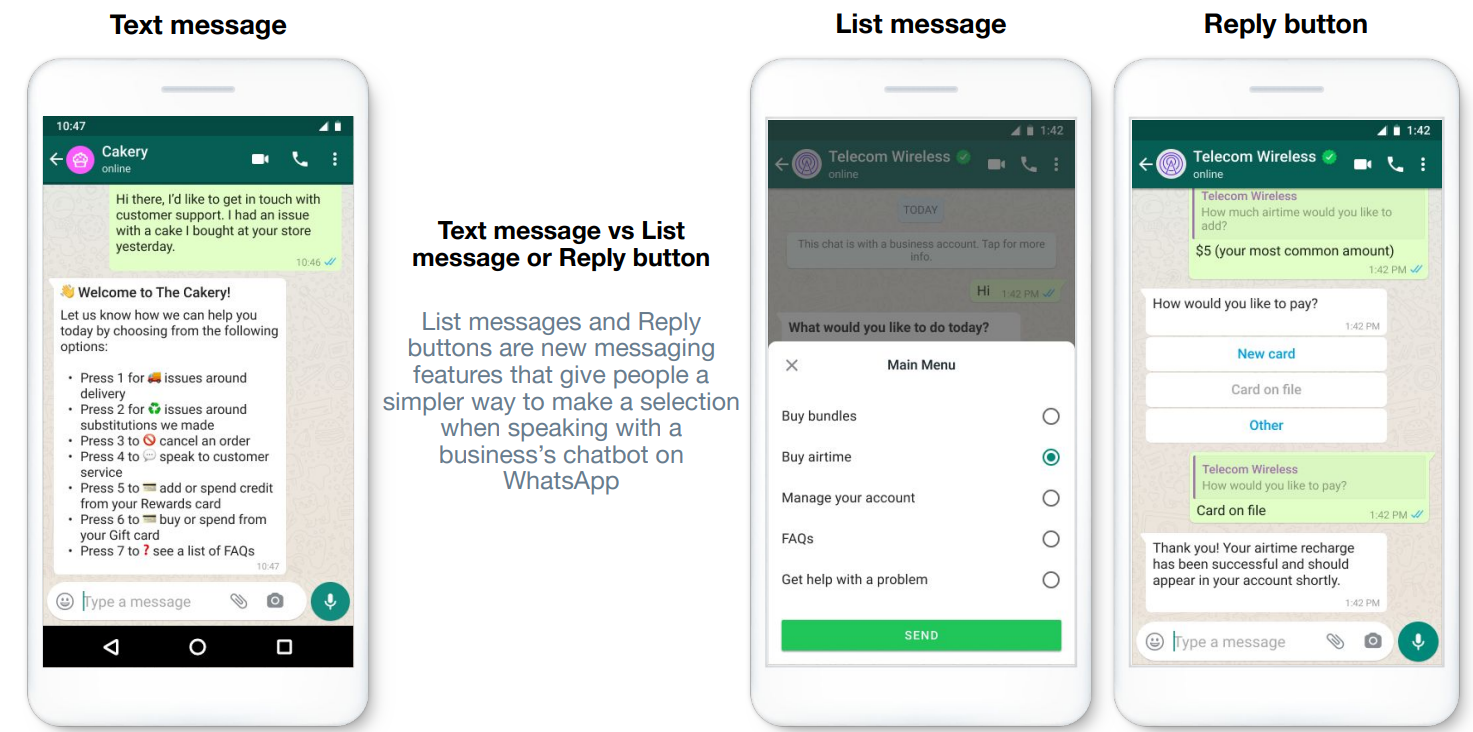
# Interactive messages: lists, reply buttons, location requests

## What are interactive messages?

Interactive messages give your customers a simpler and more consistent way to find and select what they want from your business on WhatsApp.

Clickatell supports three types of interactive messages.&#x20;

* [**List Messages**](#when-to-use-interactive-messages)
* [**Reply Buttons**](#reply-buttons)
* [**Location Request Messages**](#how-to-set-up-interactive-messages-1)

{% hint style="info" %}

* These interactive messages cannot be used as notifications. Currently, it can only be sent within 24 hours of the last message received from the customer. If you try to send a message outside the 24-hour window, you will get an error message.
* Supported platforms: iOS, Android, and web
* For more information on interactive messages, you can also see [this page](https://developers.facebook.com/docs/whatsapp/guides/interactive-messages/) created by WhatsApp.
  {% endhint %}

<figure><img src="https://content.gitbook.com/content/H9mbp0ZlSZKdmkQMXA0U/blobs/4WMZOwOOjBNgkjeJBq4n/WA%20channel%205.webp" alt=""><figcaption></figcaption></figure>

## How to set up interactive messages <a href="#how-to-set-up-interactive-messages" id="how-to-set-up-interactive-messages"></a>

1. You can send interactive WhatsApp messages via our **One API**. This allows you to populate the lists/buttons dynamically in real-time and personalize them to the customer or situation. These messages also do not require [template](/whatsapp-channel/channel-capabilities/whatsapp-message-templates) creation or pre-approvals.

{% hint style="info" %}
To send interactive WhatsApp messages via API, see our [One API Reference Documentation](https://docs.clickatell.com/channels/one-api/one-api-reference/).
{% endhint %}

2. If you are on the [Interact ](https://www.clickatell.com/products/interact/)or [Transact ](https://www.clickatell.com/transact/)package, you can set up interactive lists and buttons as part of your workflow in [**Chat Flow**](https://clickatell.gitbook.io/flow/). These are easy to set up and do not require any API integrations. Options/buttons are static and not dynamically populated.

{% hint style="info" %}
To set up interactive messages in Chat Flow, refer to the [Chat Flow user guide](https://clickatell.gitbook.io/flow/channel-capabilities/use-whatsapp-with-chat-flow/whatsapp-interactive-messages).
{% endhint %}

## Interactive Message Types <a href="#when-to-use-interactive-messages" id="when-to-use-interactive-messages"></a>

### List Messages <a href="#when-to-use-interactive-messages" id="when-to-use-interactive-messages"></a>

* Include a menu with **up to 10 options** for users to select.&#x20;
* Only one option can be selected by a customer per list message.
* Best for presenting longer lists of options, e.g.:
  * Customer care or FAQ menus
  * Take-out menus
  * Lists of nearby stores or locations
  * Available reservation times
  * Choosing a recent order to repeat

<figure><img src="https://content.gitbook.com/content/H9mbp0ZlSZKdmkQMXA0U/blobs/oopUATeckyHaTM1wmP0P/WA%20channel%206.webp" alt="" width="563"><figcaption><p>Example: list message​</p></figcaption></figure>

### **Reply Buttons**

* Include **up to 3 buttons**, each presenting an option for the customer to select.&#x20;
  * Reply buttons have the same user experience as [interactive templates with buttons](/whatsapp-channel/channel-capabilities/whatsapp-message-templates/use-interactive-buttons-in-message-templates).&#x20;
* Only one option can be selected by a customer per button message.
* Best for selecting quick responses from a limited set of options, e.g.:
  * Recharging airtime
  * Changing personal details
  * Reordering a previous order
  * Requesting a return
  * Adding optional extras to a food order
  * Choosing a payment method
* Reply buttons are particularly valuable for "personalized" use cases where a generic response is not adequate.

<figure><img src="https://content.gitbook.com/content/H9mbp0ZlSZKdmkQMXA0U/blobs/Omvmwpv9Youe5b8Zuqk2/WA%20channel%207.webp" alt="" width="314"><figcaption><p>​Example: reply buttons​</p></figcaption></figure>

### Location Request Messages <a href="#how-to-set-up-interactive-messages" id="how-to-set-up-interactive-messages"></a>

These messages request your customer's location. They contain body text and a *Send location* button that customers can tap. Tapping the button displays a location-sharing screen that the user can then use to share their location.

{% hint style="info" %}
Sharing of a live location is **not** supported.&#x20;
{% endhint %}

<figure><img src="https://content.gitbook.com/content/H9mbp0ZlSZKdmkQMXA0U/blobs/Wd1l7YPMsYKf2Yq8Yyef/image.png" alt=""><figcaption><p>Example: location request message</p></figcaption></figure>


# Ads That Click to WhatsApp

*Ads That Click to WhatsApp* is an ad format from Meta that shortens the customer's journey, taking them from an ad on social media directly to a WhatsApp conversation with your business by tapping a button.&#x20;

It is supported on feeds and stories on Facebook and Instagram, as well as Facebook Marketplace, and is an easy way to connect with new and existing customers where they’re already spending their time.

You can easily set it up in two steps:

1. [Connect your WhatsApp Business account to your Facebook Business Page.](#step-1-connect-your-whatsapp-business-account-to-your-facebook-business-page)
2. [Create the ad campaign in Facebook Ads Manager](#step-2-create-the-a-d-campaign-in-facebook-a-ds-manager).

### Before you start <a href="#step-1-connect-your-whatsapp-business-account-to-your-facebook-business-page" id="step-1-connect-your-whatsapp-business-account-to-your-facebook-business-page"></a>

* [Create](https://www.facebook.com/business/help/473994396650734?id=939256796236247) a **Facebook Business Page** if you don't have one.
  * You’ll need Admin access to this Page.
* Set up a **WhatsApp Business account** if you haven't already.
  * A personal WhatsApp number won’t work.
  * Ensure this WhatsApp number isn’t linked to any other Facebook pages.

### Step 1: Connect your WhatsApp Business account to your Facebook Business page <a href="#step-1-connect-your-whatsapp-business-account-to-your-facebook-business-page" id="step-1-connect-your-whatsapp-business-account-to-your-facebook-business-page"></a>

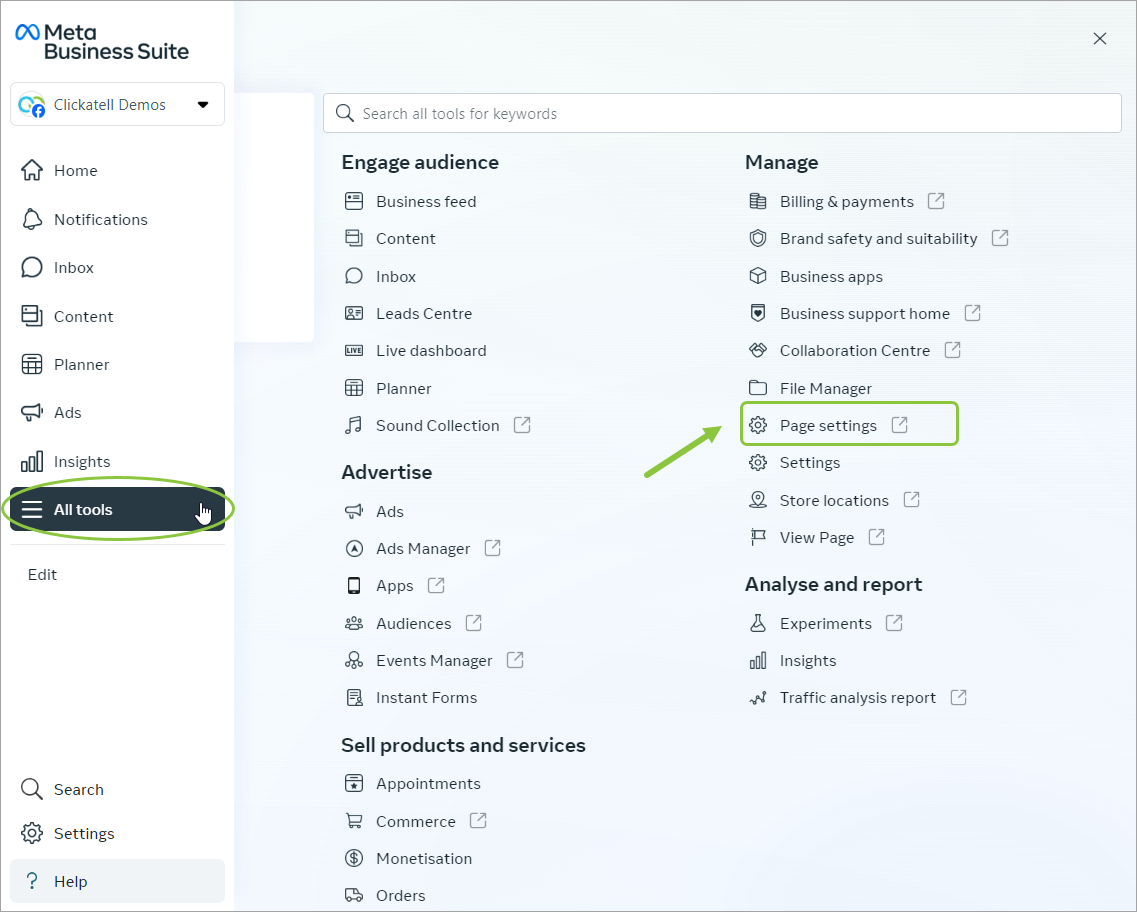
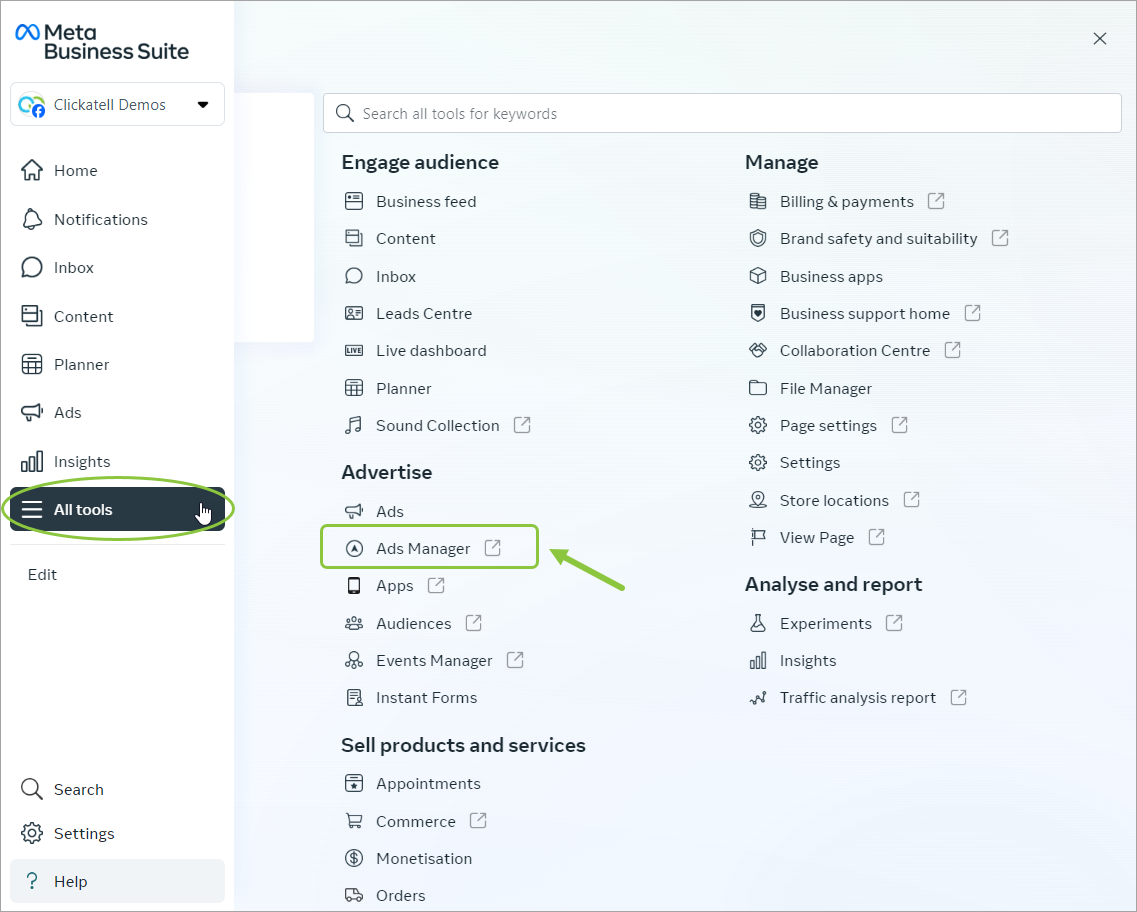
1. Log in to your [Facebook Business Manager](https://business.facebook.com/) account and select *All tools* in the left panel and then *Page Settings*.

<figure><img src="https://content.gitbook.com/content/H9mbp0ZlSZKdmkQMXA0U/blobs/JlAFuxa3WejeWw6zK8m3/image.png" alt=""><figcaption></figcaption></figure>

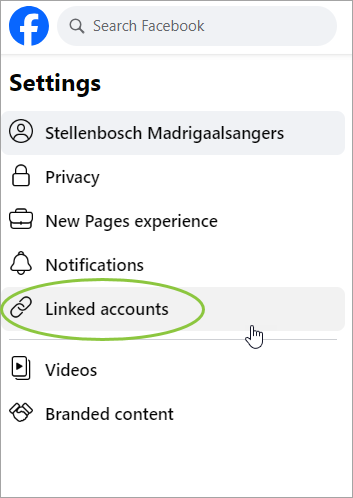
2. Select *Linked accounts* in the left panel.

<figure><img src="https://content.gitbook.com/content/H9mbp0ZlSZKdmkQMXA0U/blobs/LPh2RiubX6YwR8jf8HSg/image.png" alt="" width="177"><figcaption></figcaption></figure>

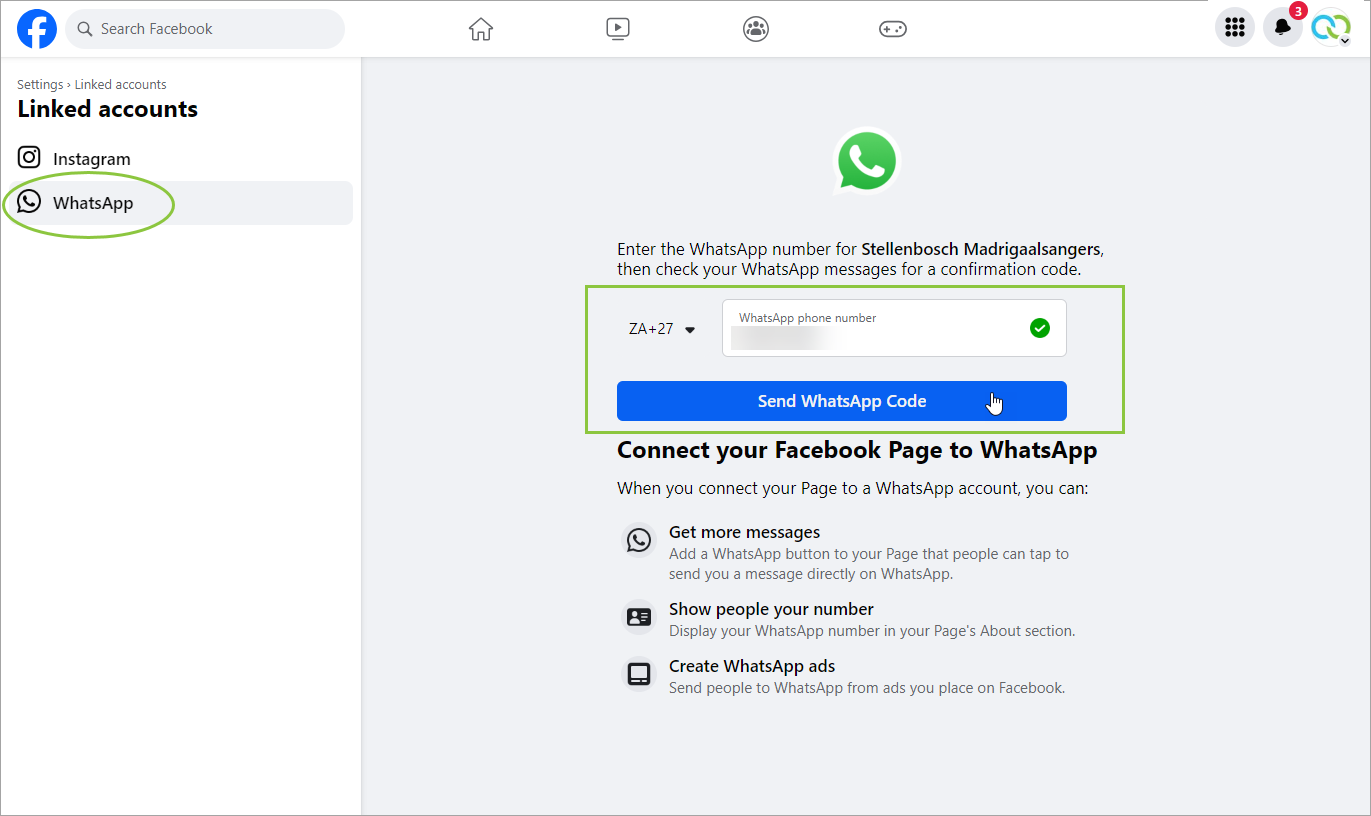
3. Select WhatsApp in the left panel and enter the WhatsApp number you want to connect. Click *Send WhatsApp Code*.

<figure><img src="https://content.gitbook.com/content/H9mbp0ZlSZKdmkQMXA0U/blobs/YIFcba9S4KdWiWPln3nu/image.png" alt=""><figcaption></figcaption></figure>

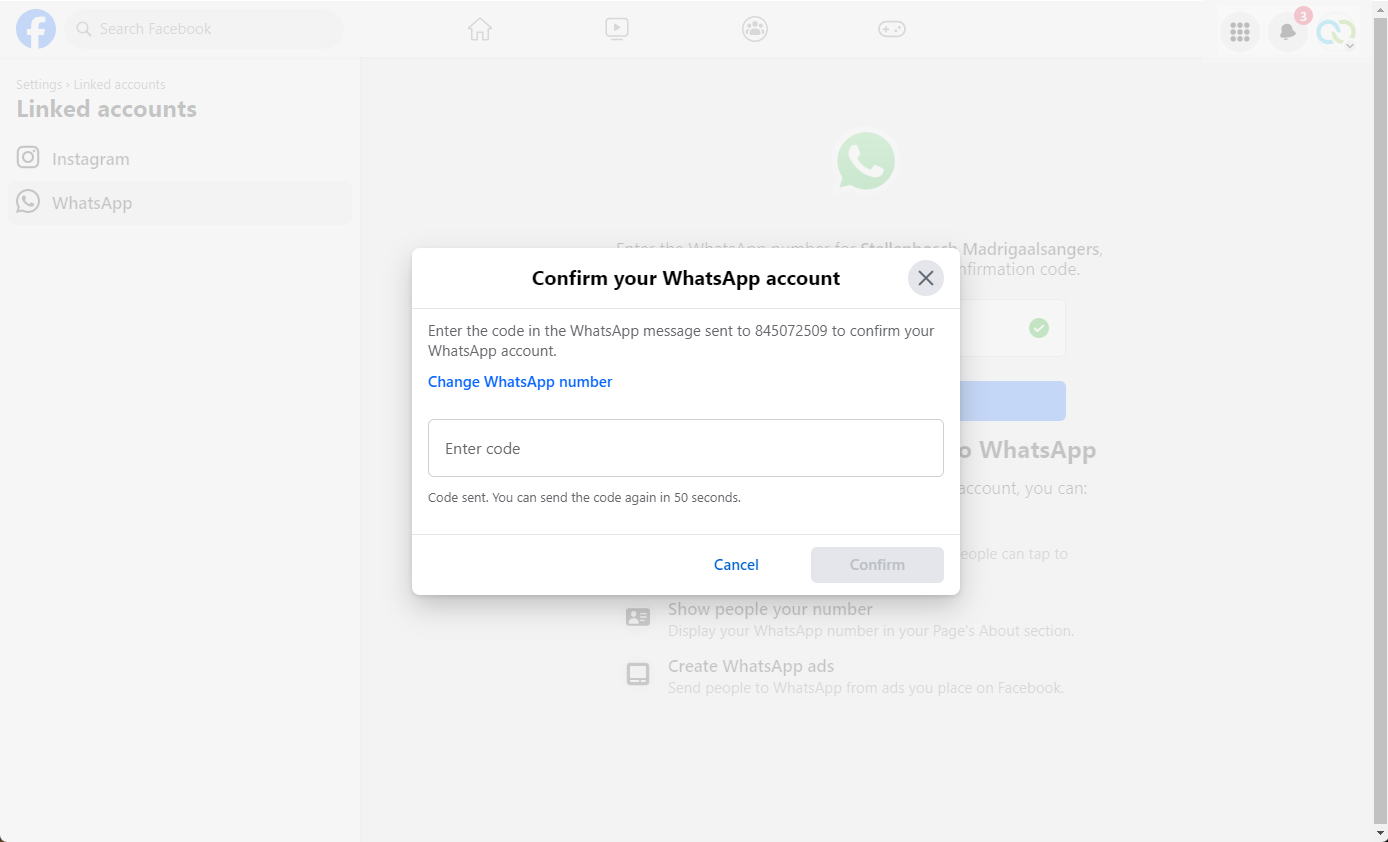
4. You'll receive a confirmation code via WhatsApp on the number you've entered above. Enter the code and click *Confirm.* Your WhatsApp account is now connected to your Facebook Page.

<figure><img src="https://content.gitbook.com/content/H9mbp0ZlSZKdmkQMXA0U/blobs/qcuMjYC670XkoI9kfwDr/image.png" alt=""><figcaption></figcaption></figure>

{% hint style="info" %}
You can also find the steps in Meta's documentation [here](https://www.facebook.com/business/help/1583303048513172?id=2129163877102343).
{% endhint %}

### Step 2: Create the ad campaign in Facebook Ads Manager <a href="#step-2-create-the-a-d-campaign-in-facebook-a-ds-manager" id="step-2-create-the-a-d-campaign-in-facebook-a-ds-manager"></a>

1. In [Facebook Business Manager](https://business.facebook.com/), select *All tools* in the left panel. Select *Ads Manager*.

<figure><img src="https://content.gitbook.com/content/H9mbp0ZlSZKdmkQMXA0U/blobs/uv6fTE3EJU8mJpKff9iM/image.png" alt=""><figcaption></figcaption></figure>

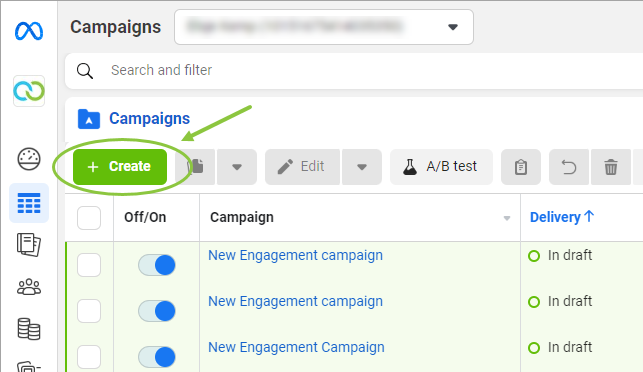
2. Click on the green *Create* button.

<figure><img src="https://content.gitbook.com/content/H9mbp0ZlSZKdmkQMXA0U/blobs/mon5Tsv1dP49EGIhzzGz/image.png" alt="" width="482"><figcaption></figcaption></figure>

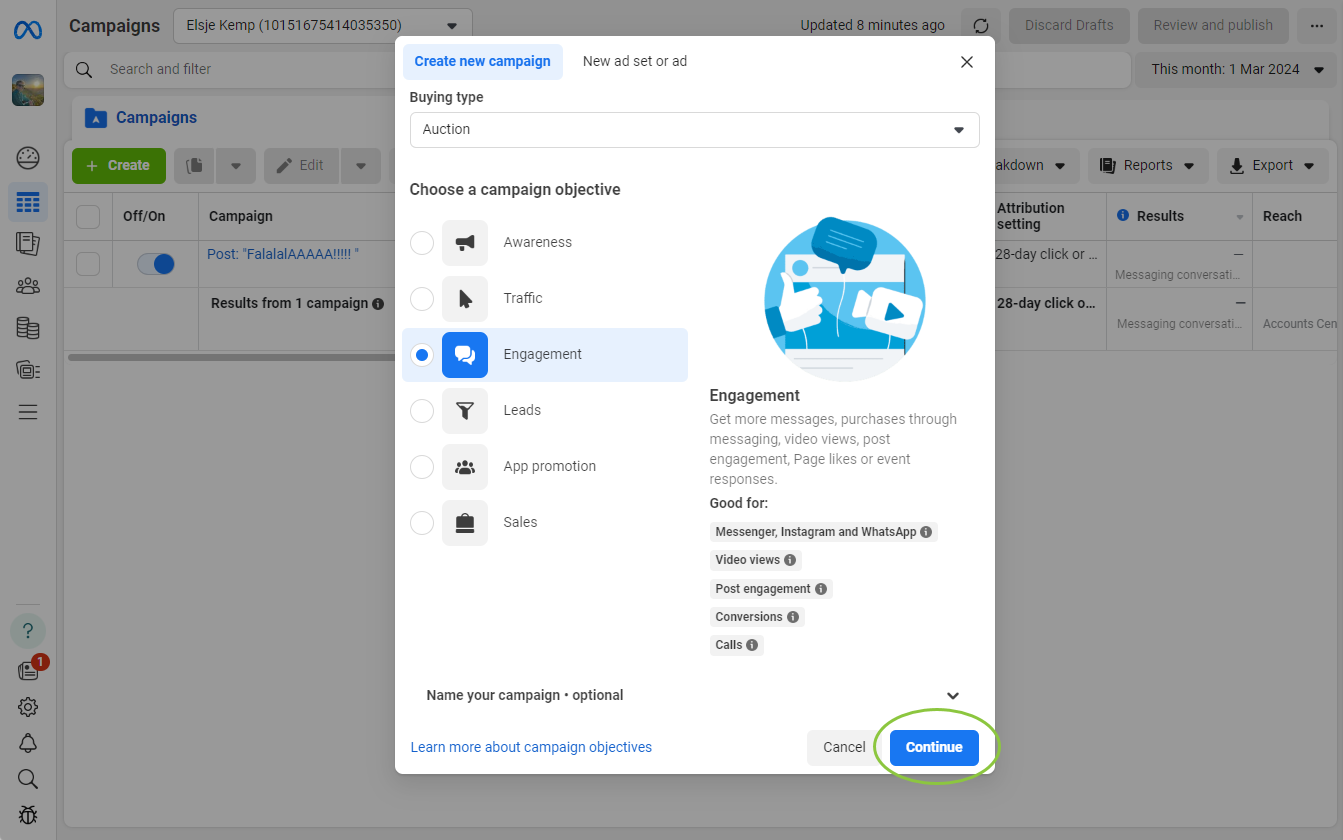
3. Choose your campaign objective and click *Continue*.

{% hint style="info" %}
Select an objective from the list to see more information about it on the right. The steps that follow [may differ slightly](https://www.facebook.com/business/help/447934475640650?id=371525583593535) based on the objective selected.
{% endhint %}

<figure><img src="https://content.gitbook.com/content/H9mbp0ZlSZKdmkQMXA0U/blobs/4PuWytGxxhiwG5qNOUNj/image.png" alt=""><figcaption></figcaption></figure>

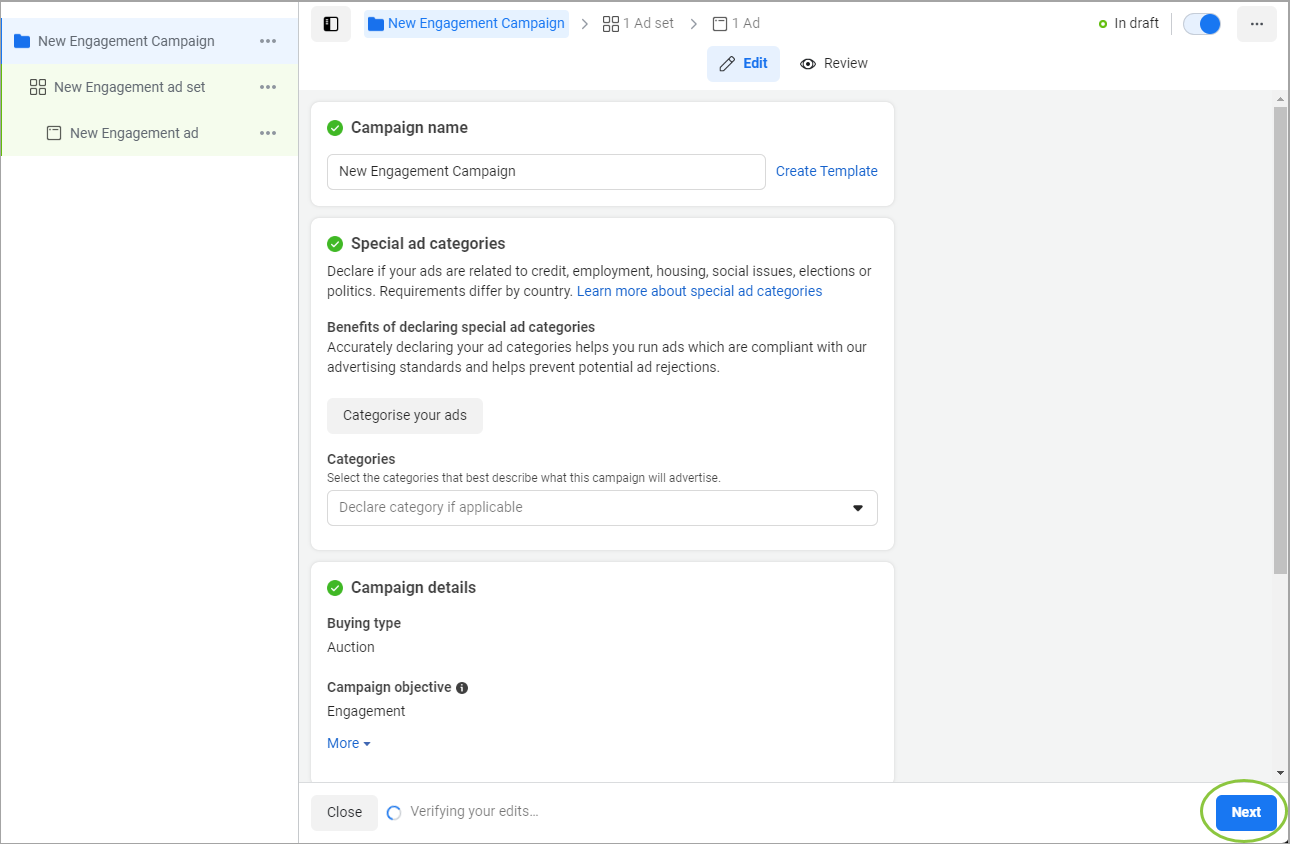
4. View/edit the Campaign Name and Campaign Details. If appropriate, you can declare your WhatsApp Ad as a Special Ad or set up an A/B test. Click *Next.*

<figure><img src="https://content.gitbook.com/content/H9mbp0ZlSZKdmkQMXA0U/blobs/GoxNGO1CJxv0bZ74Zodt/image.png" alt=""><figcaption></figcaption></figure>

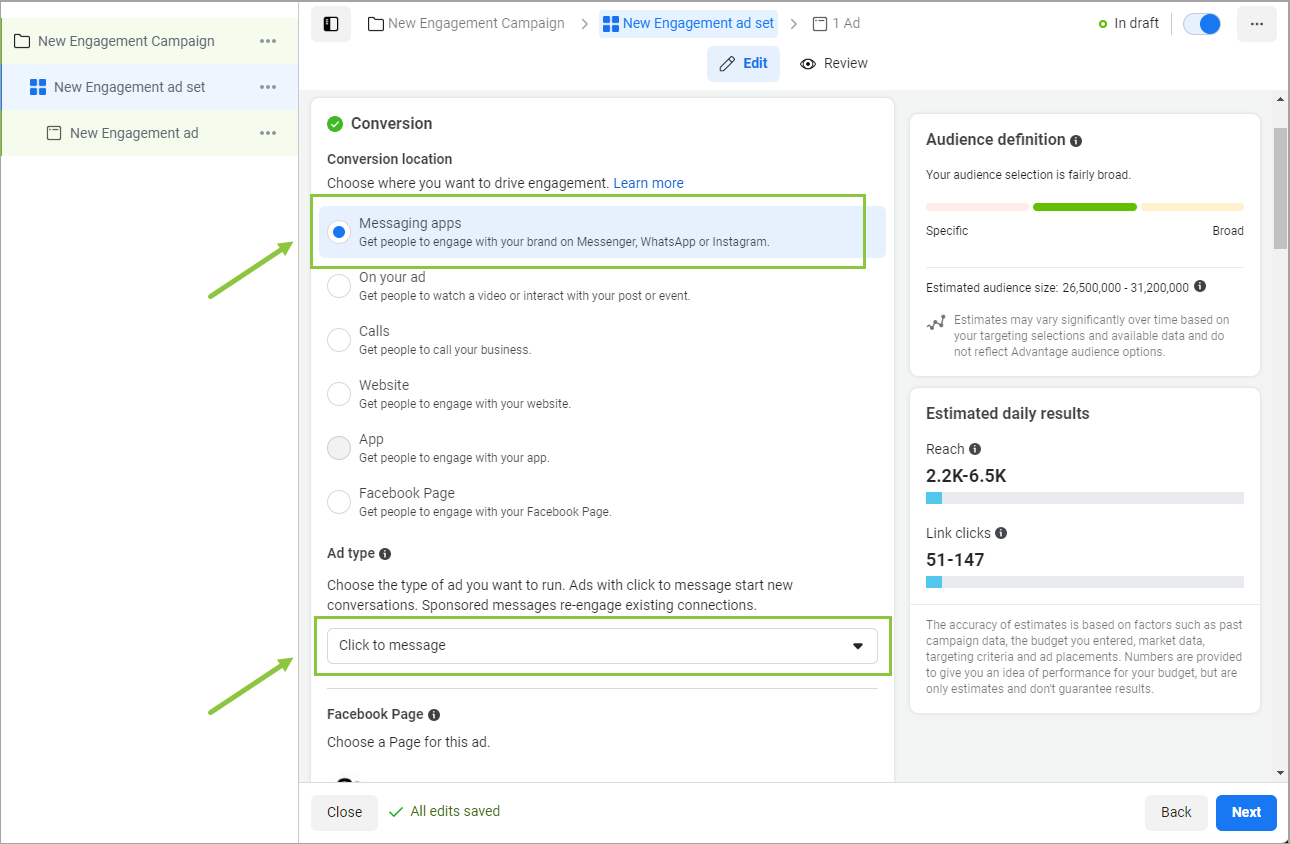
5. In the *Conversion* section select "Messaging apps" and under *Ad type*, select "Click to message".

<figure><img src="https://content.gitbook.com/content/H9mbp0ZlSZKdmkQMXA0U/blobs/xZrLcHhbSYrFkJkdSoff/image.png" alt=""><figcaption></figcaption></figure>

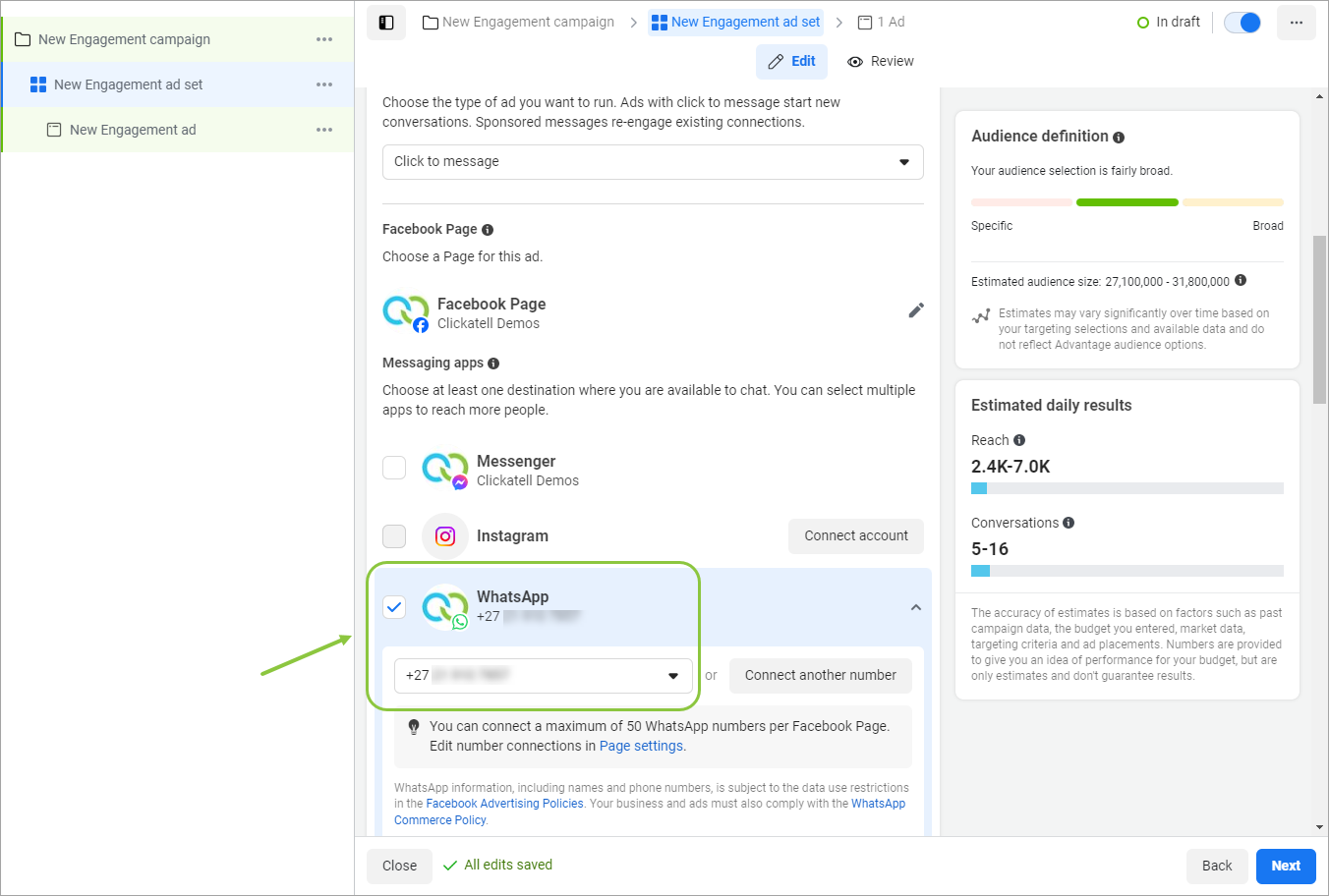
6. Scroll down and select "WhatsApp" as the destination app. Select the phone number connected to your page where you want to direct customers to continue the conversation when they click on the button in the ad.

<figure><img src="https://content.gitbook.com/content/H9mbp0ZlSZKdmkQMXA0U/blobs/EumTLLwwYooStLwKEhi8/image.png" alt=""><figcaption></figcaption></figure>

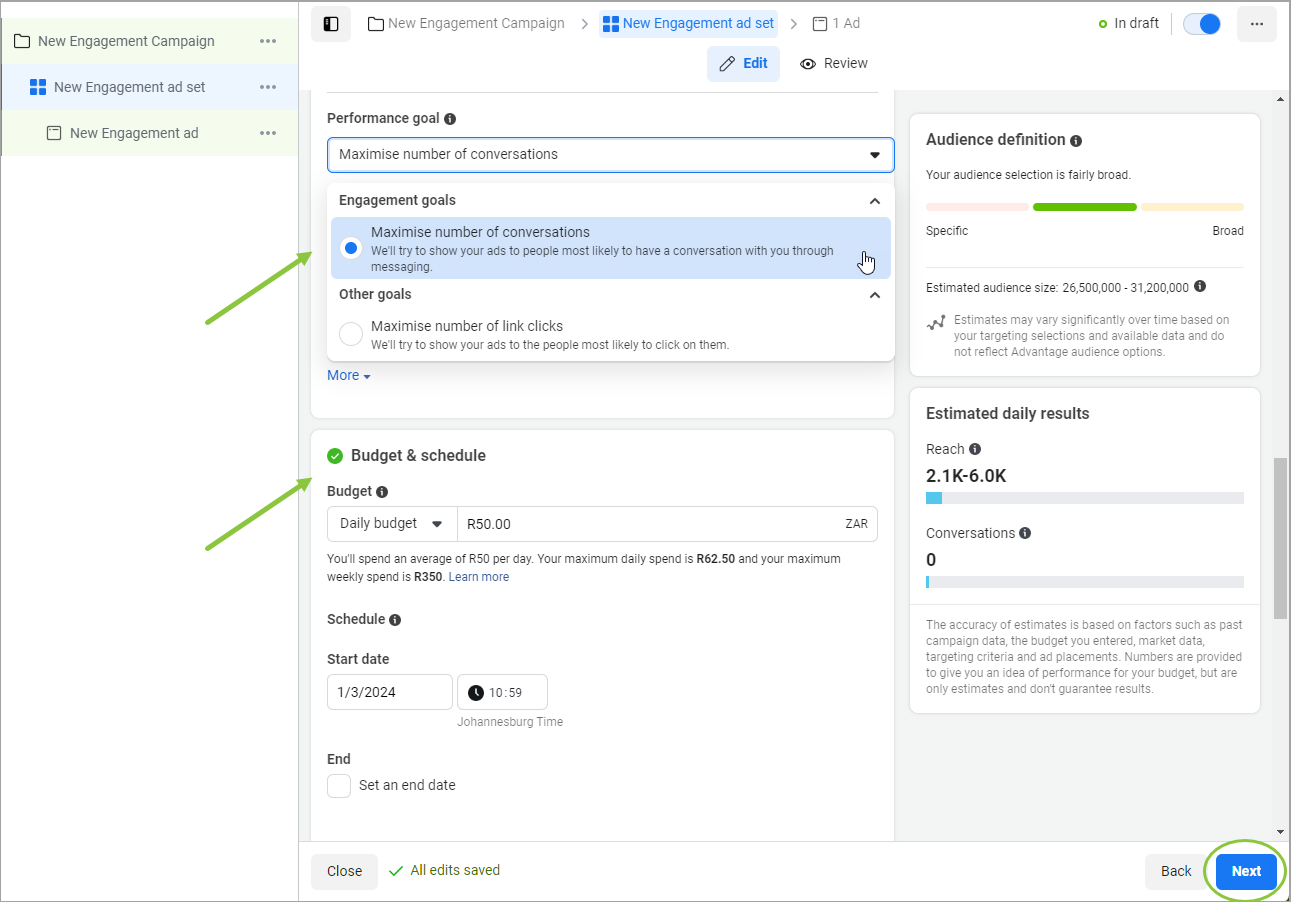
7. Choose your engagement goal. Set the budget, schedule, and audience for your ad set. Click *Next*.

<figure><img src="https://content.gitbook.com/content/H9mbp0ZlSZKdmkQMXA0U/blobs/nSFgvk7TAjgESalxYTBe/image.png" alt=""><figcaption></figcaption></figure>

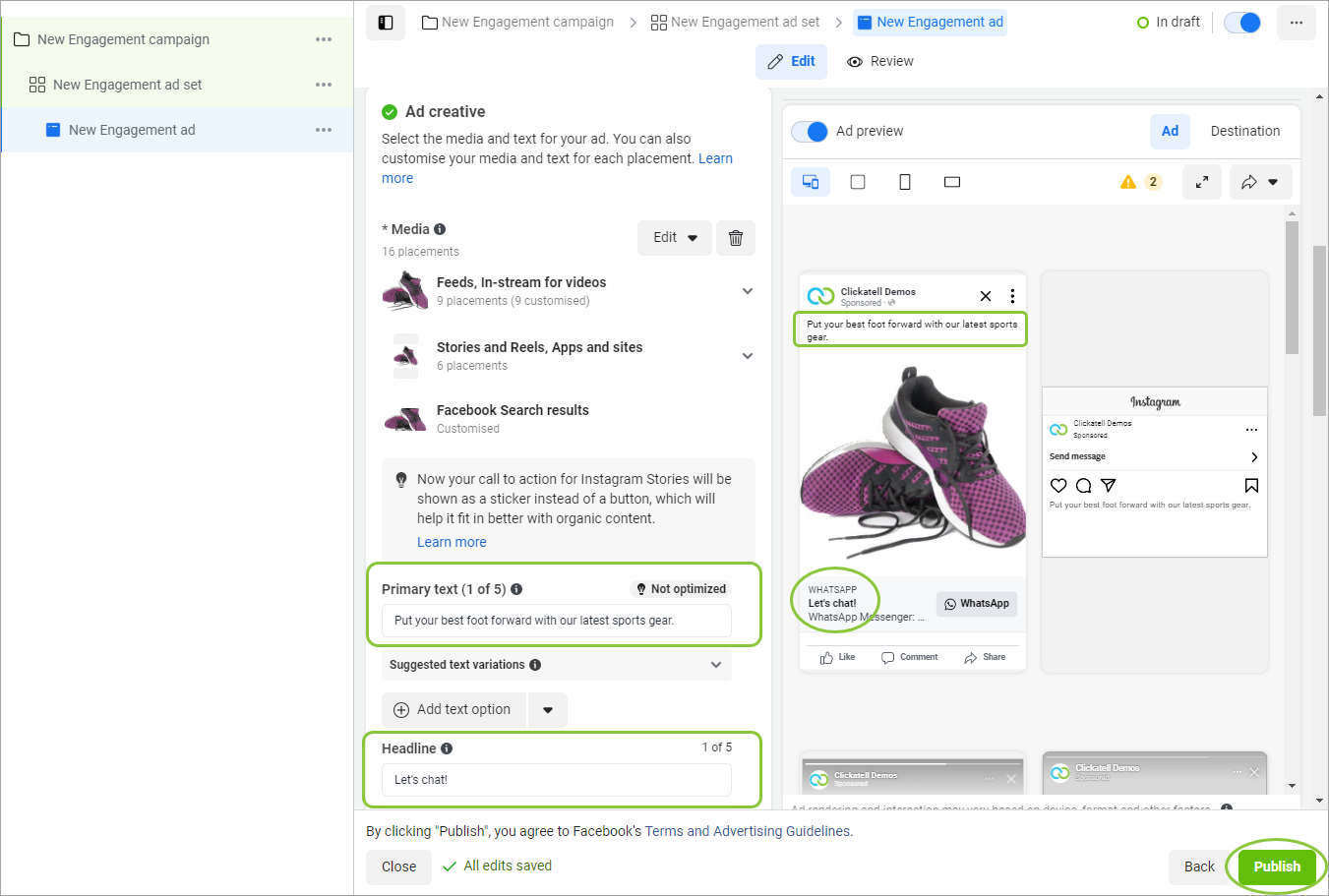
8. On this page, you can configure what your ad looks like. A preview is shown on the right.&#x20;

* Add the **media** that will be used in your campaign.
* Enter the **primary text** (main message).
* Add the **headline** - this is the call-to-action message that will appear next to the WhatsApp button in your ad.

9. *Publish* your ad.

<figure><img src="https://content.gitbook.com/content/H9mbp0ZlSZKdmkQMXA0U/blobs/SZyzJuWNGynKdwjuvoY7/image.png" alt=""><figcaption></figcaption></figure>

{% hint style="info" %}
Also see these FAQs:

* [What are the benefits of Ads That Click to WhatsApp?](https://www.clickatell.com/help-center/whatsapp/general-whatsapp/what-are-the-benefits-of-ads-that-click-to-whatsapp/)
* [What are best practices for Ads that Click to WhatsApp?](https://www.clickatell.com/help-center/whatsapp/general-whatsapp/what-are-best-practices-for-ads-that-click-to-whatsapp/)
  {% endhint %}

### After publishing your ad

Use pre-written [icebreakers ](/whatsapp-channel/channel-capabilities/conversational-components/icebreakers)to encourage customers to start the conversation without formulating their own message.

For scalability, we recommend that you set up a 24/7 chatbot using Clickatell's [Chat Flow](https://www.clickatell.com/products/chatflow/) application so that potential customers can get fast responses after engaging with your ad. This is convenient for your buyers and saves your marketing/support team time since the bot can handle simple tasks while your team has more time for high-level tasks.

Bots can typically answer simple questions with pre-set responses, share FAQs/knowledge-base resources relating to the shopper’s question, provide product recommendations, direct customers with complex queries to agents, present catalogs for customers to browse, and allow them to add items to a cart and purchase it.

You can also direct customers straight to your live customer service agents in Clickatell's[ Chat Desk](https://www.clickatell.com/products/chat-desk/) if you prefer.


# WhatsApp Commerce Messages

Your businesses can present and showcase your products to customers via the WhatsApp channel. Customers can then add selected items to a cart and submit the order to your business.&#x20;

{% hint style="info" %}
To make use of this feature, you need:

* The [**Transact** ](https://guides.clickatell.com/clickatell/packages/transact)package.&#x20;
* Workflows set up in **Chat Flow**.&#x20;
* An active **WhatsApp** subscription.
  {% endhint %}

#### The WhatsApp Commerce feature in action:

{% embed url="<https://vimeo.com/894452660/bf57788b14?share=copy>" fullWidth="true" %}

## How does it work?

1. Create a catalog in the Facebook Business Manager Commerce Platform ([see how](https://www.facebook.com/business/help/1275400645914358?id=725943027795860)).&#x20;
   * You can upload only one catalog per WhatsApp Business Account (WABA).
   * The same catalog can belong to multiple phone numbers.&#x20;
2. [Upload an inventory](https://developers.facebook.com/docs/whatsapp/guides/upload-inventory-to-facebook) to the catalog.
3. [Connect the catalogue](https://www.facebook.com/business/help/158662536425974) to your WABA.
4. Use the [**Multi Product node**](https://guides.clickatell.com/flow/user-facing-nodes/commerce/multiple-product) in Chat Flow to present the catalog of items to your customers via WhatsApp.&#x20;
   * You can present up to 30 items from your business's inventory to customers at a time.
   * Customers can view more information and an image for each item.
   * Customers can add items to their cart and send the shopping cart to your business.
   * You can define the next step after receiving the shopping cart (e.g., requesting delivery info or giving payment options).

{% hint style="info" %}
Clickatell does not upload or manage your business inventory/catalog. This is managed by yourself in the Meta environment and linked to our Chat Flow application as described here. &#x20;
{% endhint %}

The images below indicate how a catalog is presented to the customer in WhatsApp.

<figure><img src="https://content.gitbook.com/content/H9mbp0ZlSZKdmkQMXA0U/blobs/ZkF6PibVikKUmilI8fn8/image.png" alt=""><figcaption></figcaption></figure>

### **Checkout**

When the customer submits their cart from within WhatsApp, Chat Flow receives this new message type that contains additional content like the SKU (product ID), quantity, and price per item as part of the payload. Chat Flow then calculates the order total to be used when the customer pays via our [Chat 2 Pay](https://guides.clickatell.com/chat-2-pay-user-guide/overview/master) services. Once Chat Flow receives a successful payment status back from Chat 2 Pay, we'll pass the order confirmation to you for processing and fulfillment.

### **Ask a Product Question**

Customers can engage with you and ask questions about your products. As part of your "WhatsApp Commerce onboarding" process, Chat Flow will create a placeholder "Ask a Product Question" flow, allowing the flow-builder to build out the experience and behavior you want. For example, you may want to direct these questions to your FAQ bot first or add a Chat Desk node and transfer the customer to a live agent to answer product-related questions.


# Conversational Components

## What are Conversational Components?

WhatsApp conversational components are special in-chat features that make it easier for customers to interact with your business on WhatsApp. These components can be set up and personalized per WhatsApp Business number, making user interactions more interesting and engaging.

Clickatell currently supports the following conversational components:

* [Ice Breakers](/whatsapp-channel/channel-capabilities/conversational-components/icebreakers): Present pre-written, selectable text options to first-time customers to drive and guide their interactions with your business.
* [Commands](/whatsapp-channel/channel-capabilities/conversational-components/commands): Present a list of commands to customers when they type "/". A 'hint" gives the user an idea of what can happen when they use a specific command.

{% hint style="info" %}
These components are only available on **cloud-hosted** WhatsApp accounts. Conversation components are **not** supported on WhatsApp Web.
{% endhint %}

## Setting up WhatsApp Conversational Components

You must configure conversational components per WhatsApp Business phone number via your WhatsApp Manager account.

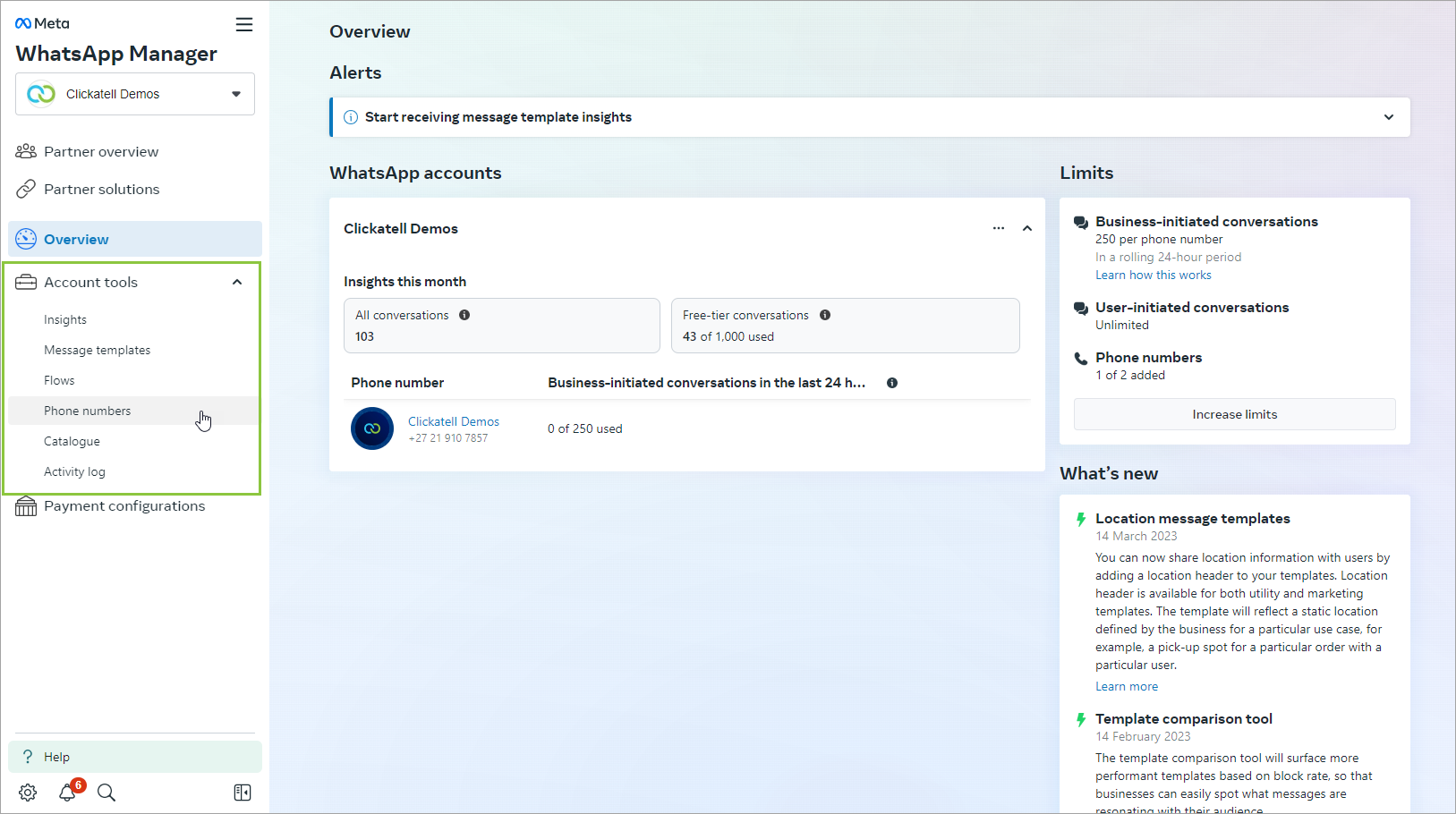
1. Log in to your [WhatsApp Manager account](https://business.facebook.com/wa/manage/).
2. Hover over the *Account Tools* (suitcase) icon in the left panel and select *Phone Numbers*.

<figure><img src="https://content.gitbook.com/content/H9mbp0ZlSZKdmkQMXA0U/blobs/4qaKj49ecLBEwpYTL7PA/image.png" alt=""><figcaption></figcaption></figure>

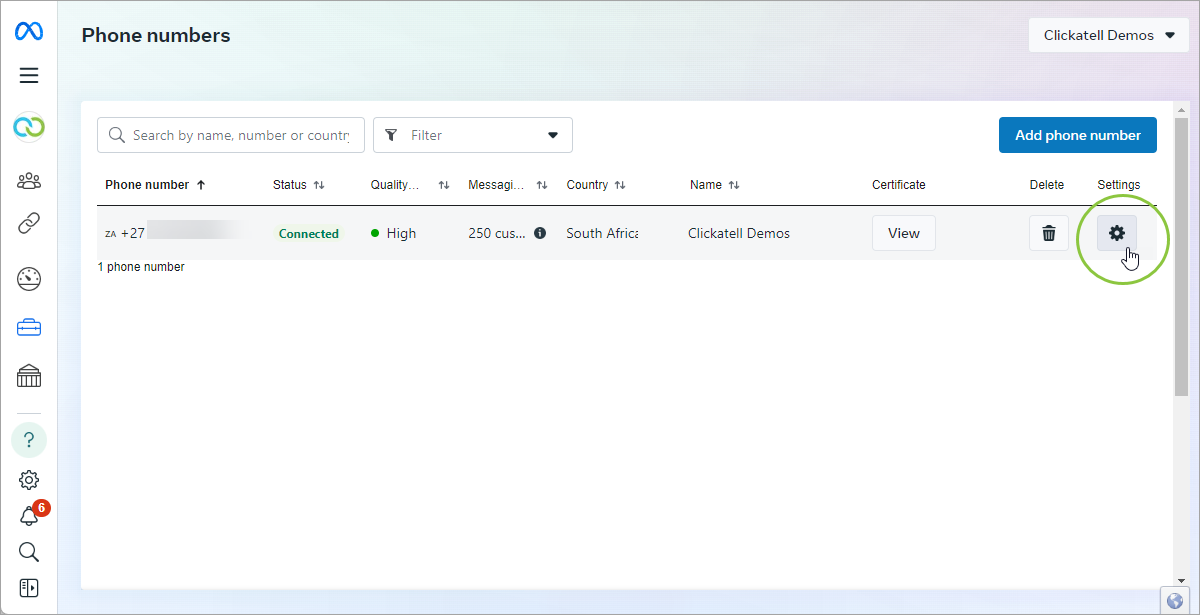
3. Select the gear icon in the *Settings* column next to the number for which you want to add the conversational component.

<figure><img src="https://content.gitbook.com/content/H9mbp0ZlSZKdmkQMXA0U/blobs/oQ2L8O0uGPKiQ4MKFMG9/image.png" alt=""><figcaption></figcaption></figure>

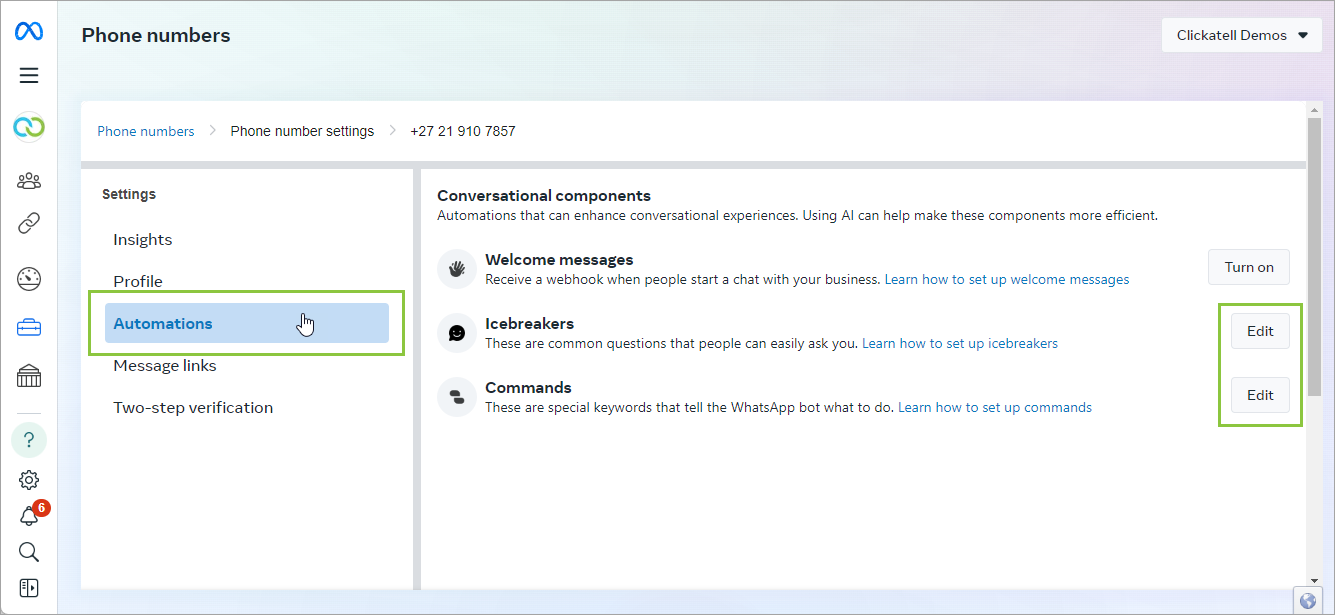
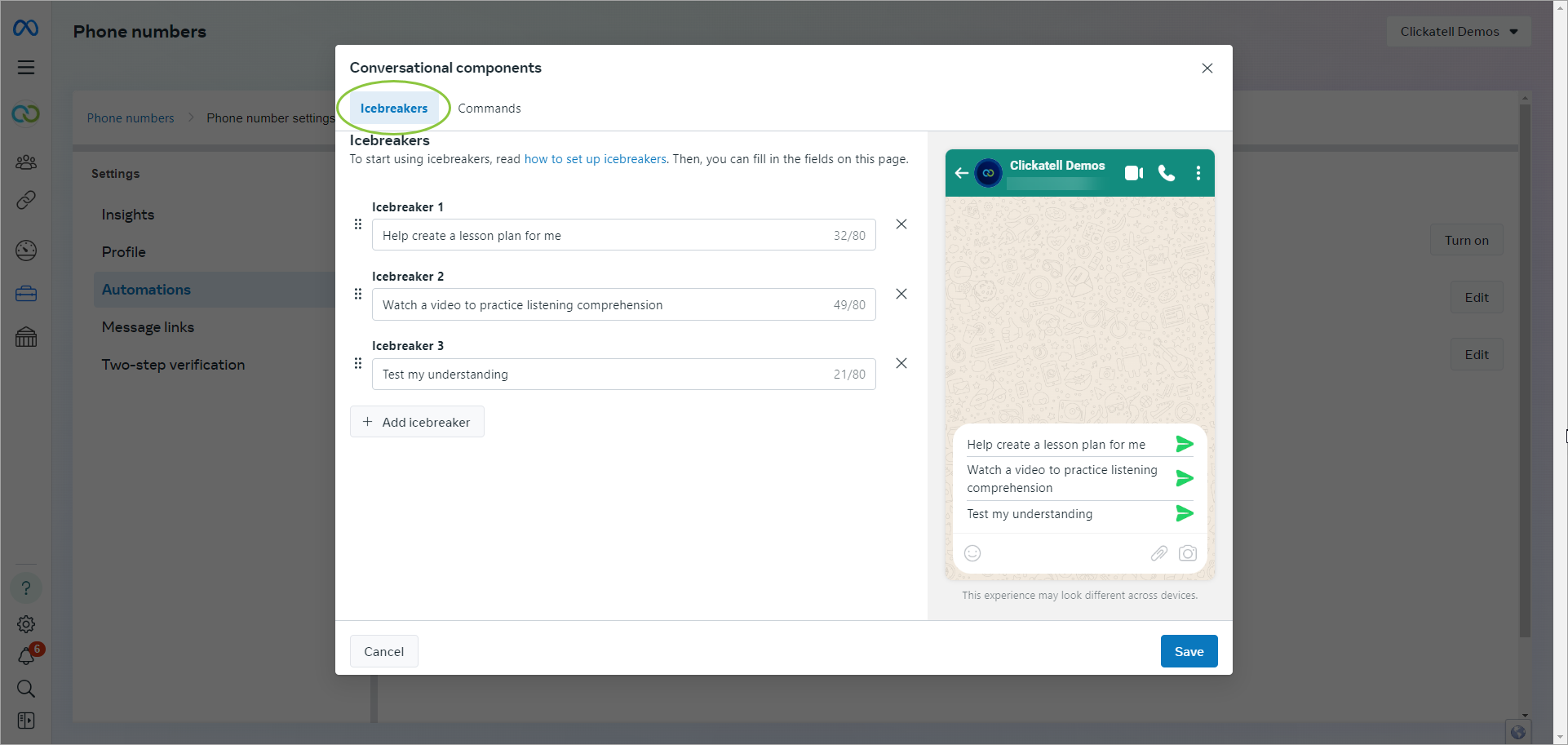
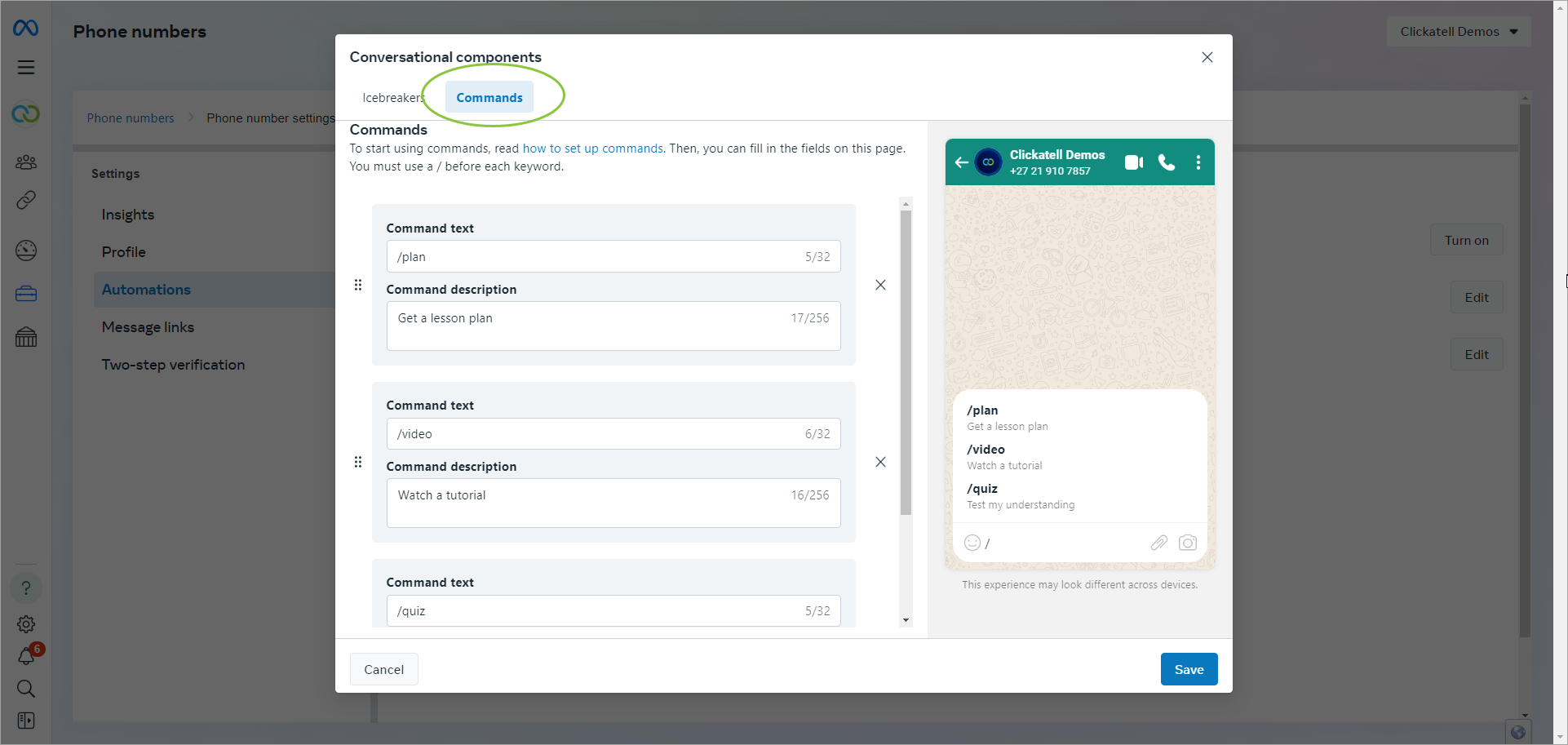
4. Select *Automations* and then select *Edit* for either Ice Breakers or Commands.&#x20;

<figure><img src="https://content.gitbook.com/content/H9mbp0ZlSZKdmkQMXA0U/blobs/qmSAp25tVQ8GOzqnQcee/image.png" alt=""><figcaption></figcaption></figure>

5. Add, edit, and rearrange your Icebreakers and Commands. A preview is shown on the right.&#x20;

<figure><img src="https://content.gitbook.com/content/H9mbp0ZlSZKdmkQMXA0U/blobs/BAu4cF0R84MaOUvRozqf/image.png" alt=""><figcaption><p>Add up to four icebreakers and preview.</p></figcaption></figure>

<figure><img src="https://content.gitbook.com/content/H9mbp0ZlSZKdmkQMXA0U/blobs/aCLfsqcPH7CJOipCebdi/image.png" alt=""><figcaption><p>Add up to 30 commands and preview.</p></figcaption></figure>

6. Save any changes.&#x20;
7. Your icebreakers and commands can now be used by your customers. You can return to these screens and edit your conversational components at any time.

## Testing conversational components

Once you've set up your icebreaker or command, open WhatsApp and start chatting with the WhatsApp Business phone number. It will be available immediately for you to see.

Since icebreakers only work with **first-time** conversations, you'll need to clear the chat first if you have an existing chat thread with the business number. To clear a chat, go to the business's profile in WhatsApp, tap the ellipses ("kebab") menu next to the business name, and select *Clear chat*. When the business now initiates a conversation by sending a template, the icebreakers will appear.

{% hint style="success" %}
Find more information:

* [Icebreakers](/whatsapp-channel/channel-capabilities/conversational-components/icebreakers)
* [Commands](/whatsapp-channel/channel-capabilities/conversational-components/commands)
  {% endhint %}


# Icebreakers

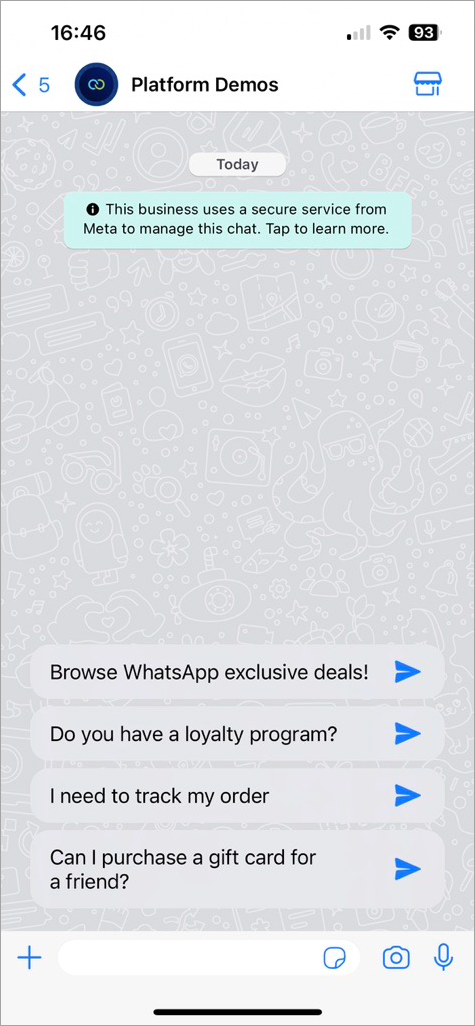
*Icebreakers* are pre-written, selectable text prompts that appear in a message thread the **first time** you chat with a customer. Icebreakers try to anticipate the most common questions first-time customers might have when interacting with your business. They serve as ready-made text options customers can select to start a conversation instead of having to formulate their own message.&#x20;

Icebreakers are great for service interactions, such as customer support or account servicing. For example, you can embed a WhatsApp button on your app or website. When a customer taps the button, they're redirected to your WhatsApp Business account and presented with a set of options they can select from to guide their interaction further. Customers can tap one of these options as a response, or type in a custom response in the message field.

If a customer taps an icebreaker, it is sent as a normal text message. You need to set up a keyword trigger for creating any follow-up bot messages.

*Note: If a WhatsApp user taps a* [*universal link*](https://faq.whatsapp.com/425247423114725?fbclid=IwAR1QxIAvCV6RD7_xp71yFFNCCJtGzw3FBpldBhgOzW8kJ-OdEigRp8WrVQM) *(**wa.me** or **api.whatsapp.com** links) configured with pre-filled text, the user interfaces for **ice breakers** are automatically dismissed.*

{% hint style="info" %}

* You can configure up to **four** ice breakers per WhatsApp Business number.&#x20;
* Each icebreaker can have a maximum of **80 characters**.&#x20;
* Emojis are **not** supported.
* Only appears when a customer opens a chat with you for the **first time**.
  {% endhint %}

<figure><img src="https://content.gitbook.com/content/H9mbp0ZlSZKdmkQMXA0U/blobs/D2k9Yg92hGZMEwHO02FZ/image.png" alt="" width="238"><figcaption></figcaption></figure>

### Use Cases and Examples

Below are some examples of when and how icebreakers can be used.

| Scenario                                                                                                         | Example of an icebreaker                  |
| ---------------------------------------------------------------------------------------------------------------- | ----------------------------------------- |
| You've opened a new store and you want customers to know where you are located.                                  | Where is your new store?                  |
| You are a travel agency with special offers on certain holiday destinations.                                     | Show me more about your Maldives package. |
| You've launched a new set of products and you want potential customers to easily find more information about it. | What does your new sneakers look like?    |


# Commands

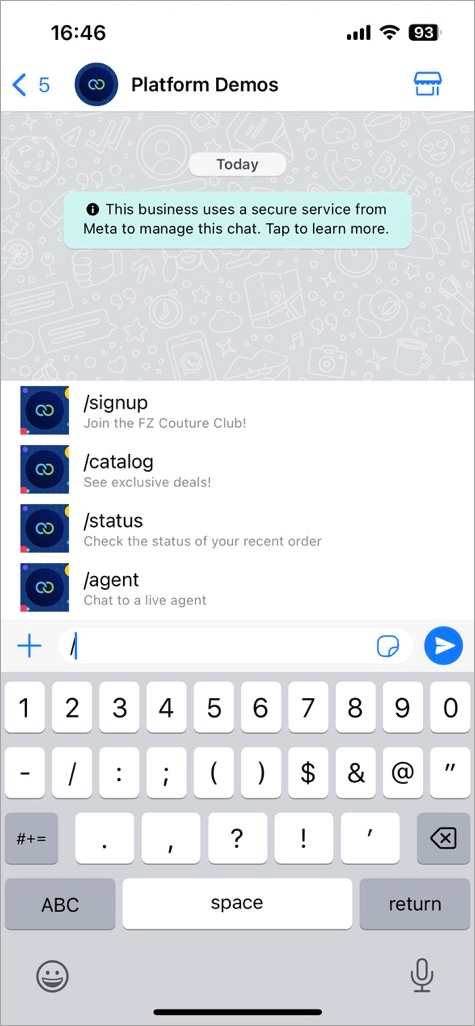
You can configure easy-to-use commands that your WhatsApp customers can see by typing a forward slash (/) in a message thread with your business. This can be used at any point during the conversation.

Commands consist of the command itself and a hint to give the customer an idea of what can happen when they use the command.&#x20;

{% hint style="success" %}
For example, you can define the command:

`/imagine - Create images using a text prompt`

When a WhatsApp user types */imagine cars racing on Mars* it triggers a received message webhook with that exact text string assigned to the `body` property. You could then generate and return an image of cars racing on the planet Mars.
{% endhint %}

When a customer taps a command, the command is pre-filled in the text field. The customer then sends it as a normal text message. You can set up a keyword trigger to create any follow-up bot messages.

{% hint style="info" %}

* You can define up to **30 commands**.&#x20;
* Each command can have a maximum of **32 characters.**
* Each hint can have a maximum of **256 characters**.&#x20;
* Emojis are **not** supported.
* Can be used anywhere during a conversation.
  {% endhint %}

<figure><img src="https://content.gitbook.com/content/H9mbp0ZlSZKdmkQMXA0U/blobs/lxSyVE73SfU4L9cSU2DT/image.png" alt="" width="238"><figcaption></figcaption></figure>

### Use Cases and Examples

Below are some examples of when and how commands can be used.

<table><thead><tr><th width="317">Scenario</th><th width="211">Example of a command</th><th>Example of a hint</th></tr></thead><tbody><tr><td><strong>Order status check:</strong> Let customers quickly enquire about their order's status, streamlining customer service.</td><td>/status</td><td>Check the status of your recent order</td></tr><tr><td><strong>Product catalog access:</strong> Provide customers with instant access to your product catalog, facilitating a seamless browsing experience.</td><td>/catalog</td><td>View our product catalog</td></tr><tr><td><strong>Customer support ticket:</strong> Let customers initiate a support ticket directly for faster problem resolution.</td><td>/support</td><td>Create a support ticket</td></tr><tr><td><strong>Account balance inquiry:</strong> Allow customers to more conveniently retrieve their account balance.</td><td>/balance</td><td>Check your account balance</td></tr><tr><td><strong>Event notifications:</strong> Notify customers of upcoming events or special occasions.</td><td>/upcoming events</td><td>Find information on the latest events happening</td></tr><tr><td><strong>Account information:</strong> Enable customers to retrieve basic account information or updates.</td><td>/account</td><td>View your account details</td></tr><tr><td><strong>Subscription management:</strong> Businesses offering subscription services can allow new customers to subscribe via a command.</td><td>/subscribe</td><td>Manage your subscription preferences</td></tr><tr><td><strong>Feedback submission:</strong> Encourage customers to give feedback on your products or services, improving customer engagement and business processes. </td><td>/feedback</td><td>Share your feedback with us</td></tr></tbody></table>


# Reporting & Analytics

Several reports providing data on your WhatsApp channel and message template usage and performance are available from within your Clickatell Portal.&#x20;

{% hint style="info" %}
Find more details [here](https://clickatell.gitbook.io/chat-commerce-platform/navigation-and-access/reporting-and-analytics/messaging-channels).
{% endhint %}

<figure><img src="https://content.gitbook.com/content/H9mbp0ZlSZKdmkQMXA0U/blobs/lBFrCjZAO5ig6IDV9feV/image.png" alt=""><figcaption><p>Full Analytics Report</p></figcaption></figure>

<figure><img src="https://content.gitbook.com/content/H9mbp0ZlSZKdmkQMXA0U/blobs/twiqQk62wSti1OPIRh1x/image.png" alt=""><figcaption><p>Channels Report</p></figcaption></figure>


# What's New? 🎈

Read more about new features, improvements, and bug fixes contained in the latest release of Clickatell's WhatsApp channel offering.

#### 29 August 2024 <a href="#new-features-1" id="new-features-1"></a>

## Release Summary

The release focused on adding the following new features and enhancements:

* Support for data localization for new numbers
* Parity between cloud and on-prem features

Each of these items is described in more detail below.

## Release Details

### Data Localization

Cloud API Local Storage allows clients to control where their message data is stored at rest. If a company is in a regulated industry such as finance, government, or healthcare, they may prefer to have message data stored in a specific country when at rest, due to these regulatory requirements or company policies.&#x20;

Clickatell now supports data localization, which means:&#x20;

* With any **new** WhatsApp number that a client registers, they can select the country where their data at rest should be hosted. This is specified per number.
* Clients have the following options to select from:
  * **APAC**: India, Singapore, Indonesia, South Korea, Japan, Australia
  * **LATAM**: Brazil
  * **MEA**: South Africa, Bahrain, UAE
  * **Europe**: EU (Germany), UK, Switzerland
  * **NORAM**: Canada, USA
* Once selected, clients cannot change the locale again.
* All **existing** numbers are set to the default, i.e., USA.

{% hint style="info" %}
For more information, please reference [this page](https://developers.facebook.com/docs/whatsapp/cloud-api/overview/local-storage/) by Meta.&#x20;
{% endhint %}

<figure><img src="https://content.gitbook.com/content/H9mbp0ZlSZKdmkQMXA0U/blobs/GG1dF3XMM6F2mZMJJNvn/image.png" alt=""><figcaption><p>When setting up a new WhatsApp number you have the option to edit the location and choose from the provided locations.</p></figcaption></figure>

<figure><img src="https://content.gitbook.com/content/H9mbp0ZlSZKdmkQMXA0U/blobs/VLz3DUEEzrtM0h9ADuVS/image.png" alt=""><figcaption><p>Clicking on the edit button, you can select the data storage location from a drop-down. Once changed and saved, we do not allow clients to edit this again at a later stage.</p></figcaption></figure>

### WhatsApp: Cloud vs On-Prem Parity

The following features are now supported for cloud-hosted WhatsApp numbers. Previously these were only supported for on-prem WhatsApp numbers.

* **Location request messages:** These messages request your end-user's location. They contain body text and a *Send location* button that opens a location-sharing screen when tapped so end-users can share their location. *Read more* [*here*](/whatsapp-channel/channel-capabilities/interactive-messages-lists-reply-buttons-location-requests#how-to-set-up-interactive-messages-1)*.*
* **Coupon code templates:** These marketing templates display a single copy code button. When tapped, the code is copied to the end-user's clipboard. *Read more* [*here*](/whatsapp-channel/channel-capabilities/whatsapp-message-templates/use-interactive-buttons-in-message-templates#copy-offer-code)*.*
* **Catalog templates:** These marketing templates allow you to showcase your product catalog entirely within WhatsApp. *Read more* [*here*](/whatsapp-channel/channel-capabilities/whatsapp-message-templates/showcase-product-catalog-in-message-template)*.*&#x20;
* **Single-Product Messages**: Messages with a single product item from the business's inventory. (Available via One API only). *Read more* [*here*](https://developers.facebook.com/docs/whatsapp/guides/commerce-guides/share-products-with-customers#product-messages). &#x20;
* **Multi-Product Messages**: Messages with up to 30 product items from the business's inventory. *Read more* [*here*](https://developers.facebook.com/docs/whatsapp/guides/commerce-guides/share-products-with-customers#product-messages).