> For the complete documentation index, see [llms.txt](https://guides.clickatell.com/release-notes/llms.txt). Markdown versions of documentation pages are available by appending `.md` to page URLs; this page is available as [Markdown](https://guides.clickatell.com/release-notes/release-notes-archive/2024-release-notes/q1-2024/channel-updates/whatsapp-buttons-and-template-enhancements.md).

# WhatsApp buttons & template enhancements

### Button enhancements <a href="#button-enhancements" id="button-enhancements"></a>

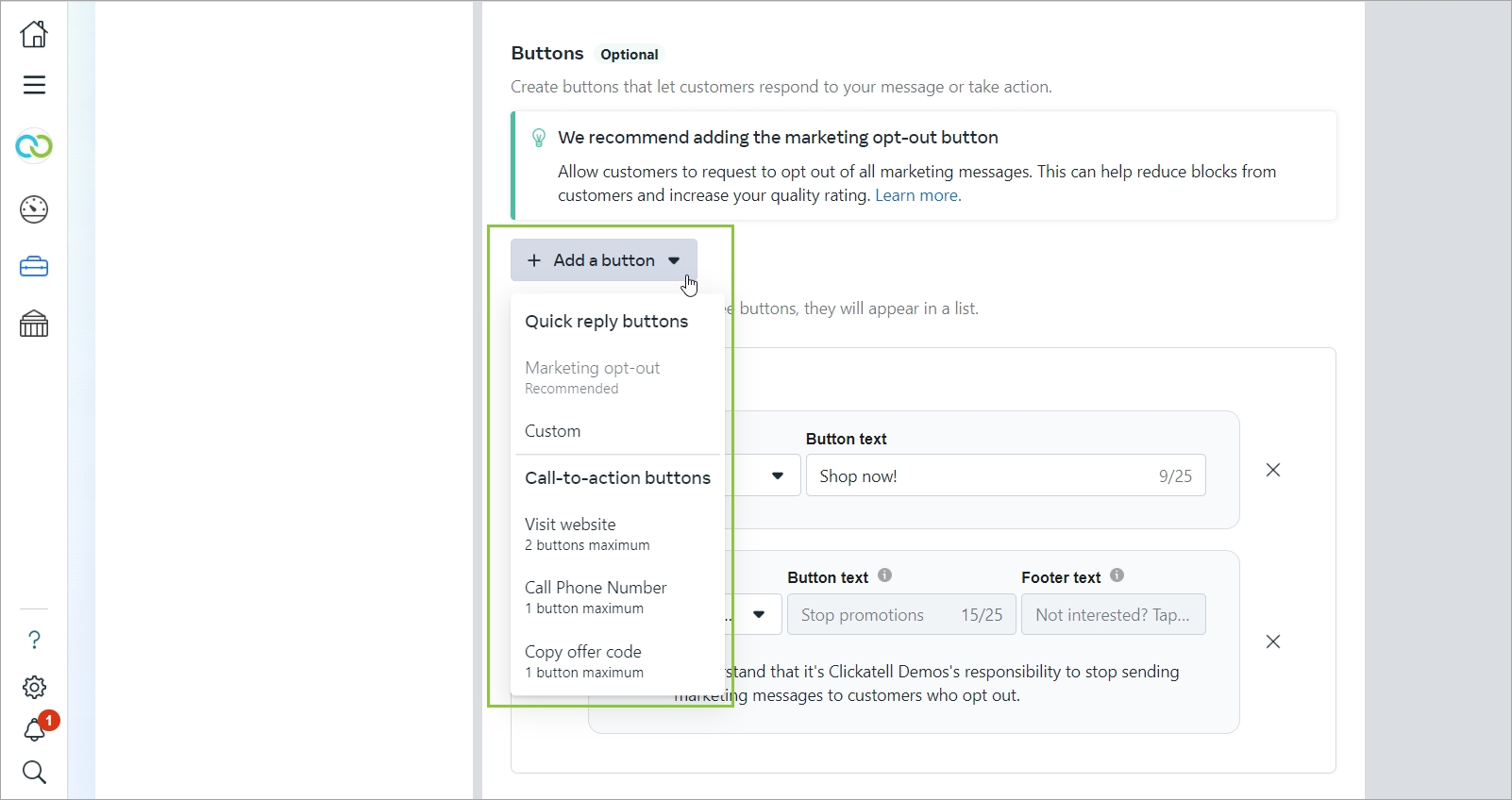
Previously, Clickatell only supported one type of interactive button per template, i.e., either call-to-action buttons or quick reply buttons, not both. You could also add only three buttons per template.

With this release, you can now add **up to 10** [**interactive buttons** ](https://guides.clickatell.com/whatsapp-channel/channel-capabilities/whatsapp-message-templates/use-interactive-buttons-in-message-templates)per template, and buttons in one template can include a **combination** of call-to-action and quick reply buttons.

<figure><img src="https://guides.clickatell.com/~gitbook/image?url=https%3A%2F%2Fcontent.gitbook.com%2Fcontent%2FwmGaDUQBZMvcoFPmfgvf%2Fblobs%2Fwwevkbj6d5ex4y1FkXtj%2Fimage.png&#x26;width=768&#x26;dpr=4&#x26;quality=100&#x26;sign=b17bd8a7&#x26;sv=2" alt=""><figcaption><p>You can add quick reply and call-to-action buttons to your message template.</p></figcaption></figure>

### Coupon templates <a href="#coupon-templates" id="coupon-templates"></a>

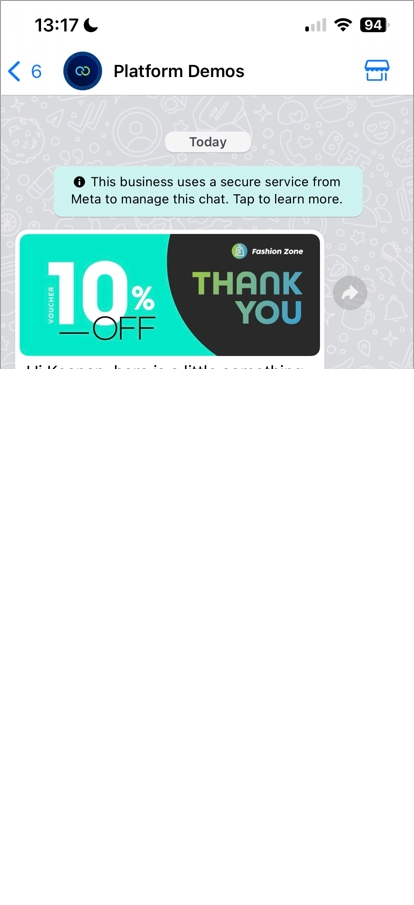
You can now add a *Copy offer code* button to any of your message templates. When tapping this button, the code is copied to your customer's clipboard and they can paste it wherever they want.

{% hint style="info" %}
Only available on the shared model and not on the on-behalf-of model.
{% endhint %}

<figure><img src="https://guides.clickatell.com/~gitbook/image?url=https%3A%2F%2Fcontent.gitbook.com%2Fcontent%2FwmGaDUQBZMvcoFPmfgvf%2Fblobs%2FpCsvI11SPLwn5WLzA8RG%2Fimage.png&#x26;width=768&#x26;dpr=4&#x26;quality=100&#x26;sign=2178ae37&#x26;sv=2" alt="" width="188"><figcaption><p>Example of the copy code button on a customer's device.</p></figcaption></figure>

### Catalog templates <a href="#catalog-templates" id="catalog-templates"></a>

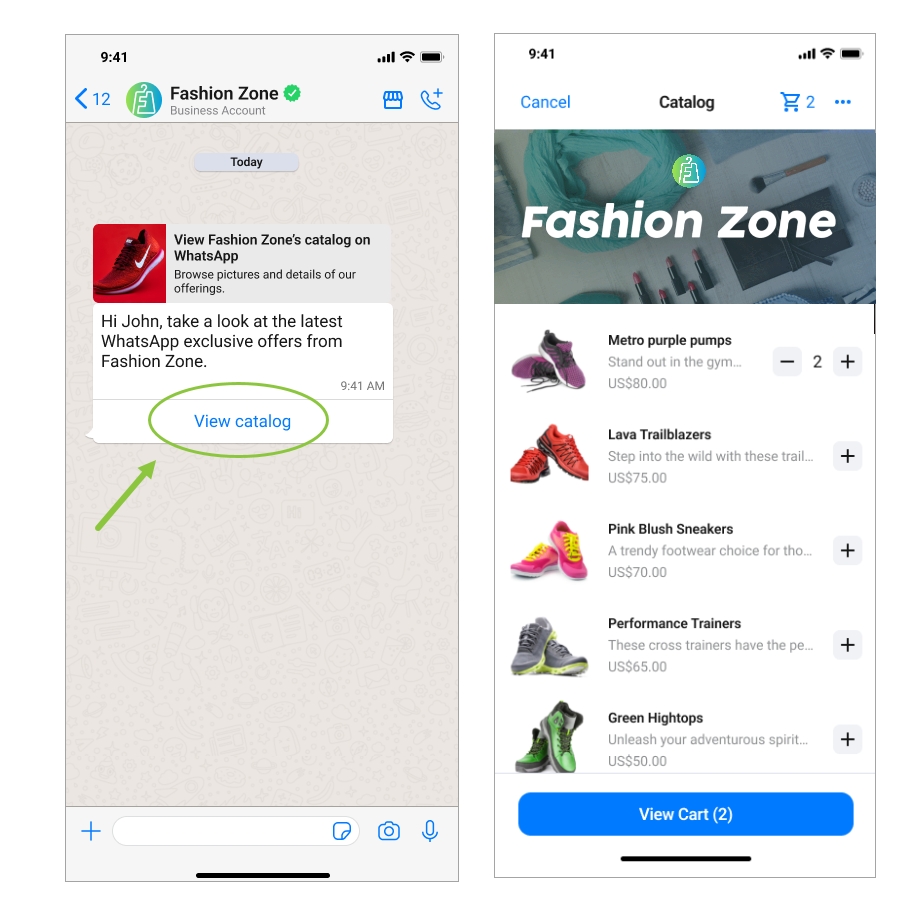
You can now present a product catalog to your customers within WhatsApp by making use of *Product messages* under the *Marketing* template category.

Catalog templates display a product thumbnail header image of your choice and custom body text. The text header, sub-header, and button text are non-editable.

When a customer taps the *View catalog* button in a catalog template message, your product catalog appears within WhatsApp.

<figure><img src="https://guides.clickatell.com/~gitbook/image?url=https%3A%2F%2Fcontent.gitbook.com%2Fcontent%2FwmGaDUQBZMvcoFPmfgvf%2Fblobs%2Fb3e0W9l7rBDP21VWE1gc%2Fimage.png&#x26;width=768&#x26;dpr=4&#x26;quality=100&#x26;sign=4d22eec9&#x26;sv=2" alt="" width="563"><figcaption><p>Example of the catalog template as displayed on a customer's device.</p></figcaption></figure>